TLS connection between connector and database
Microsoft SQL Server
A corresponding certificate must also be created for the SQL server. This is done in the folder where the other certificates are also created.
Create a server_config file with the following content:
[ my server exts ]
extendedKeyUsage = 1.3.6.1.5.5.7.3.1
# 1.3.6.1.5.5.7.3.1 can also be spelled serverAuth:
# extendedKeyUsage = serverAuth
Create the private key and the certificate:
openssl genrsa -out sql_server.key 2048
openssl req -config server_config -extensions 'my server exts' -new -key sql_server.key -out sql_server.csr -subj "/C=CH/ST=Bern/L=Lyssach/CN=LAPTOP-JDT5AN04/O=Inasoft"
openssl x509 -req -in sql_server.csr -CA rootCA.pem -CAkey rootCA.key -CAcreateserial -out sql_server.crt -days 1825 -sha256
openssl pkcs12 -export -out sql_server.pfx -inkey sql_server.key -in sql_server.crt -name "SQL Server TLS"
Import the certificate into Windows:
Start the mmc application
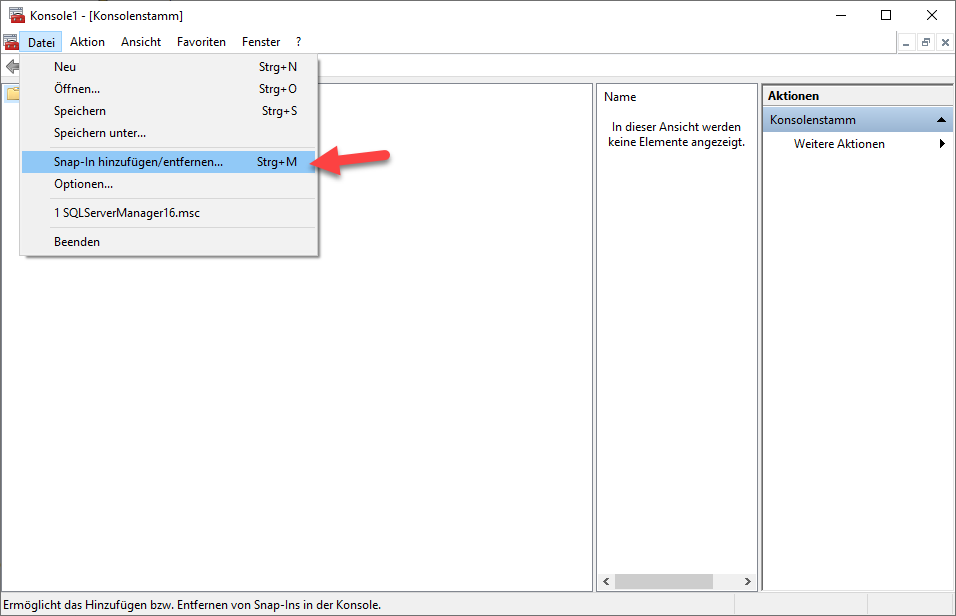
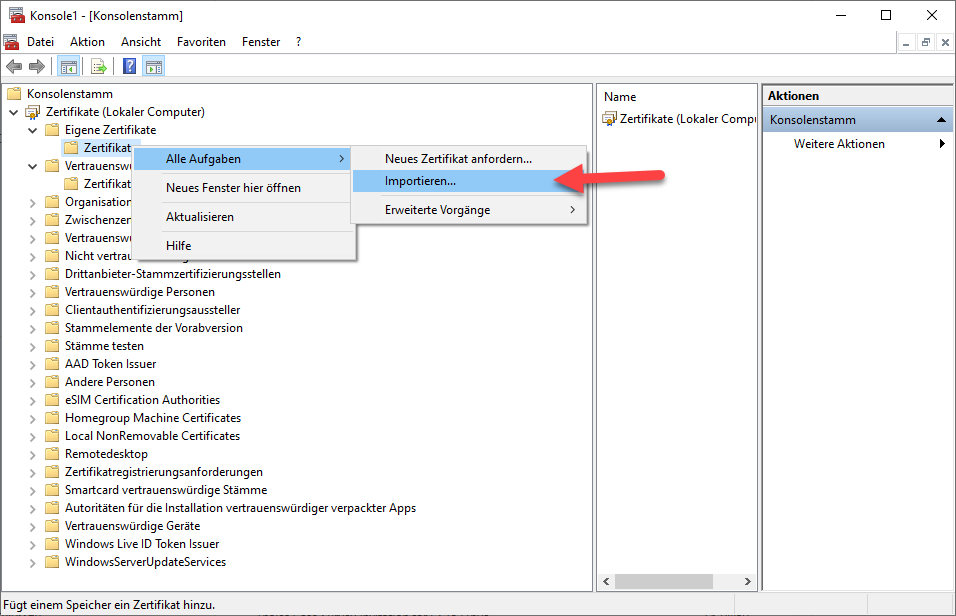
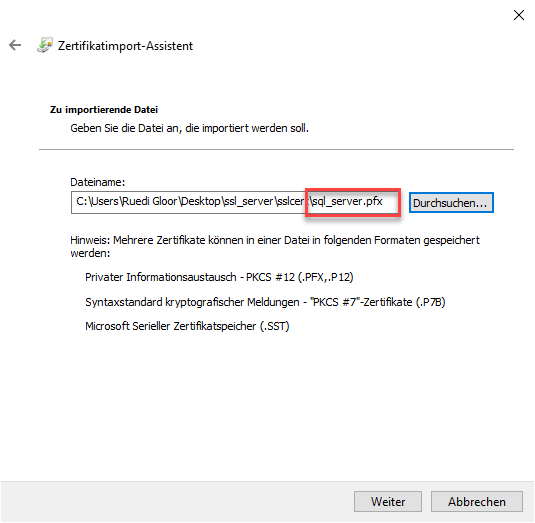
Import the SQL Server.pfx file:
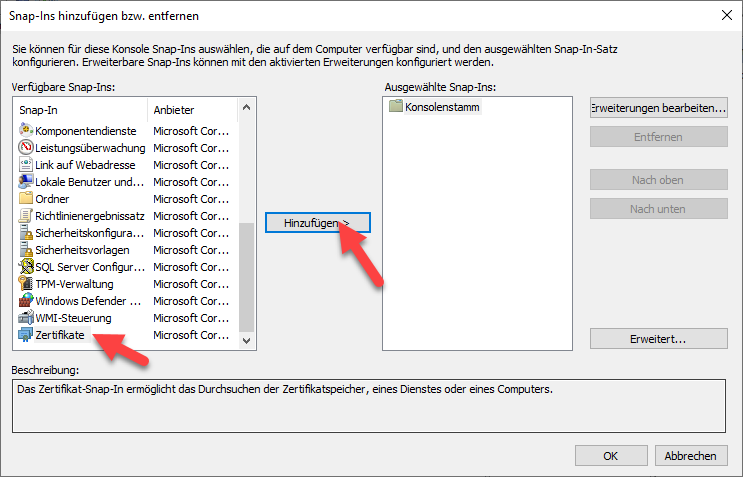
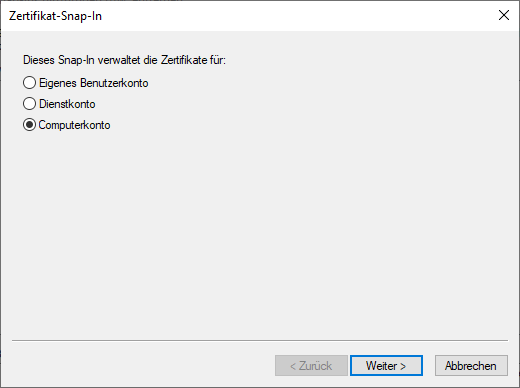
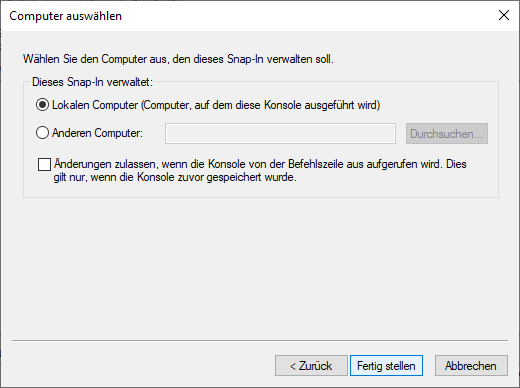
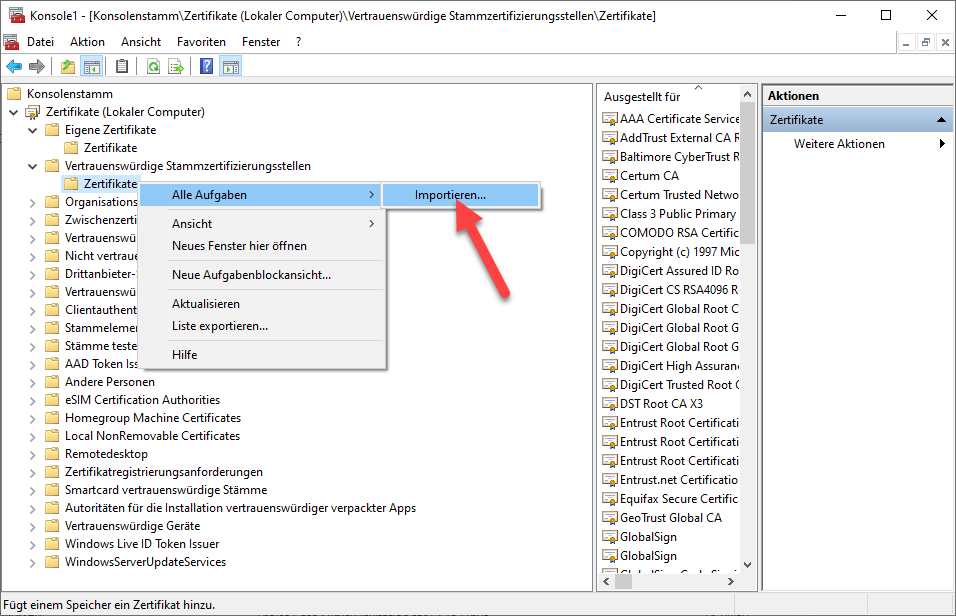
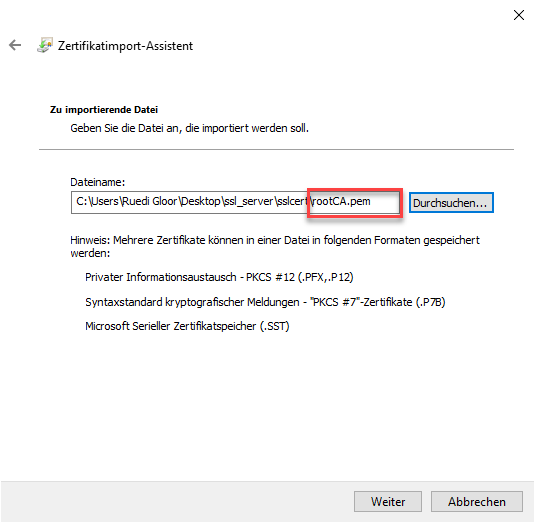
Import the rootCA certificate:
Start the SQL Server Configuration Manager:
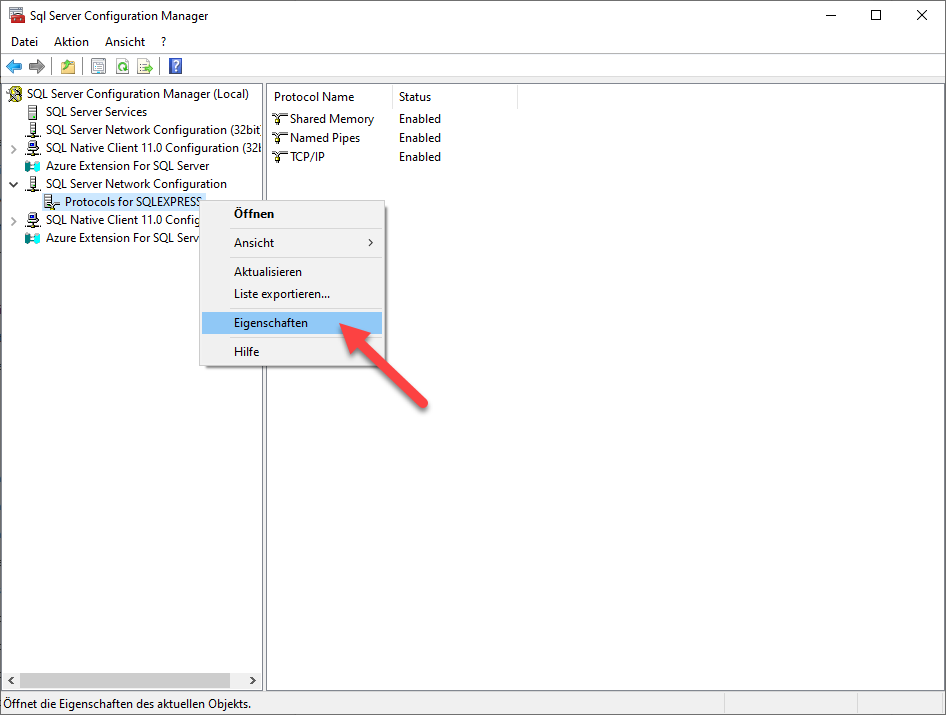
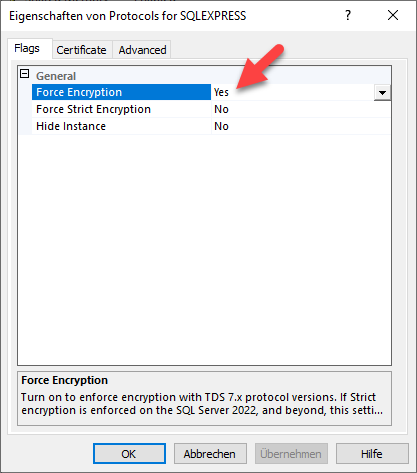
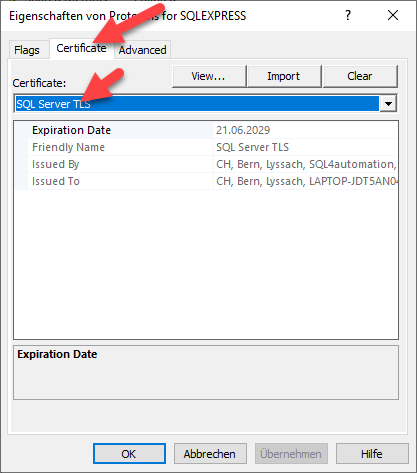
The SQL server must then be restarted.
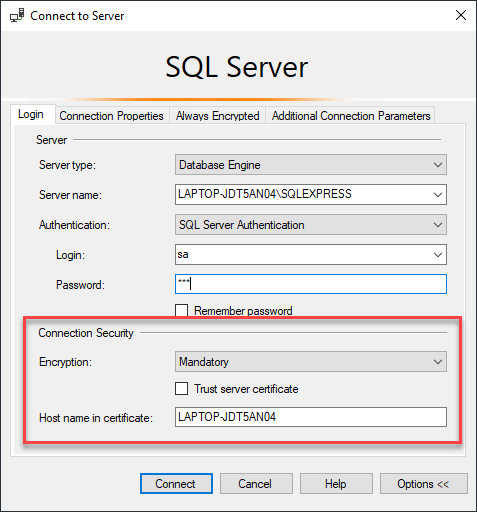
The host name in the certificate is an additional security feature.