ODBC connection under Linux
The latest ODBC driver for Windows must be downloaded: Microsoft ODBC driver download
Copy the CA certificate under /usr/share/ca-certificates and rename the ending pem to crt.
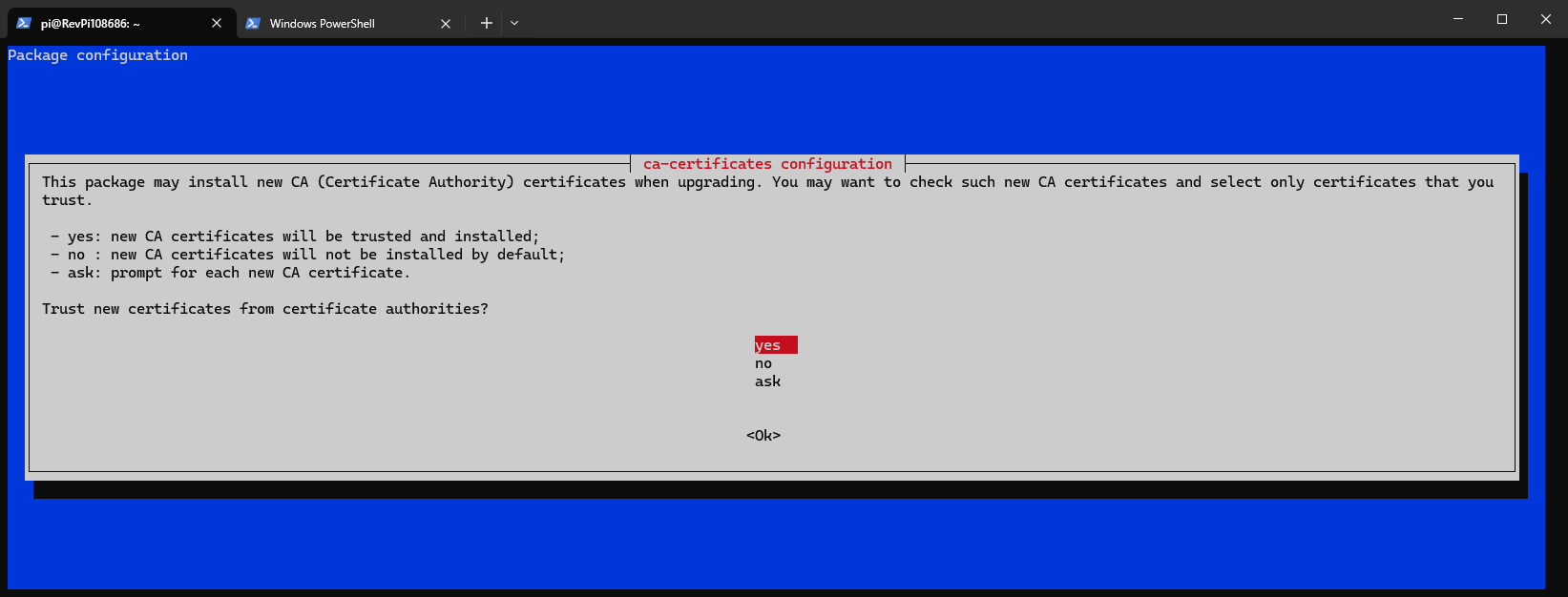
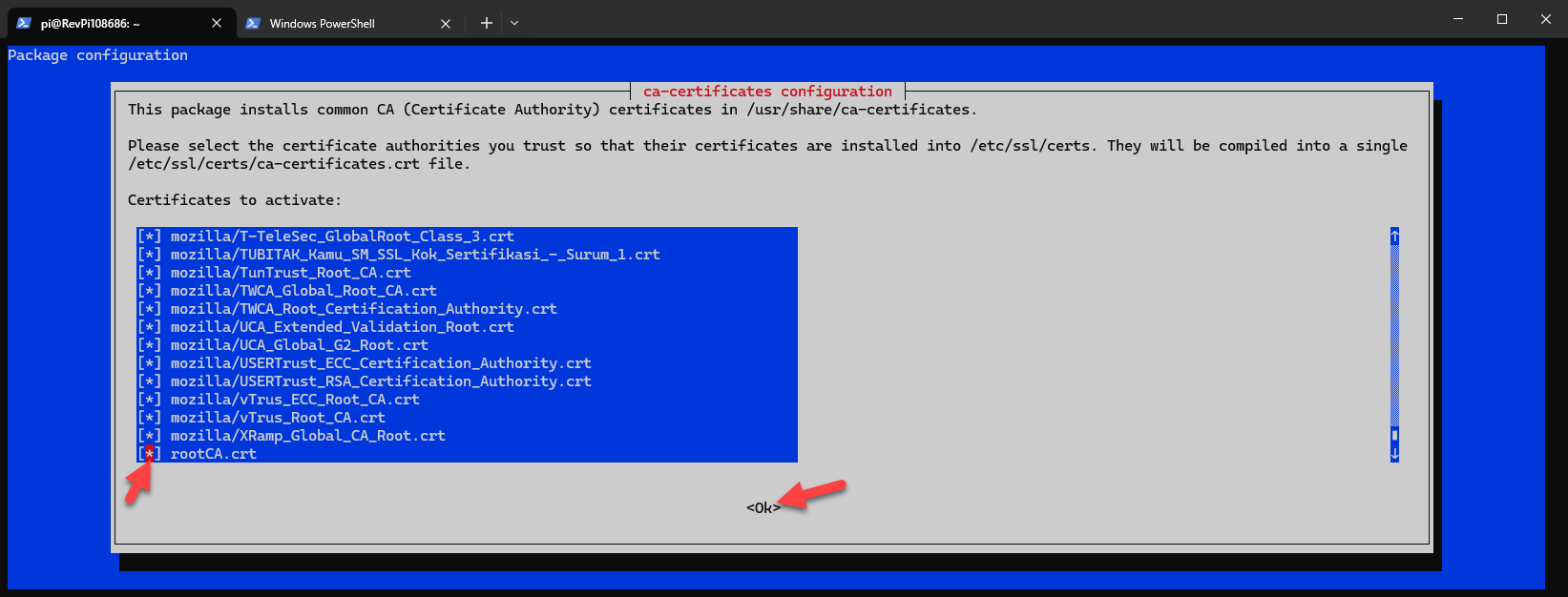
Load the CA certificates: sudo dpkg-reconfigure ca-certificates (Add the certificate)
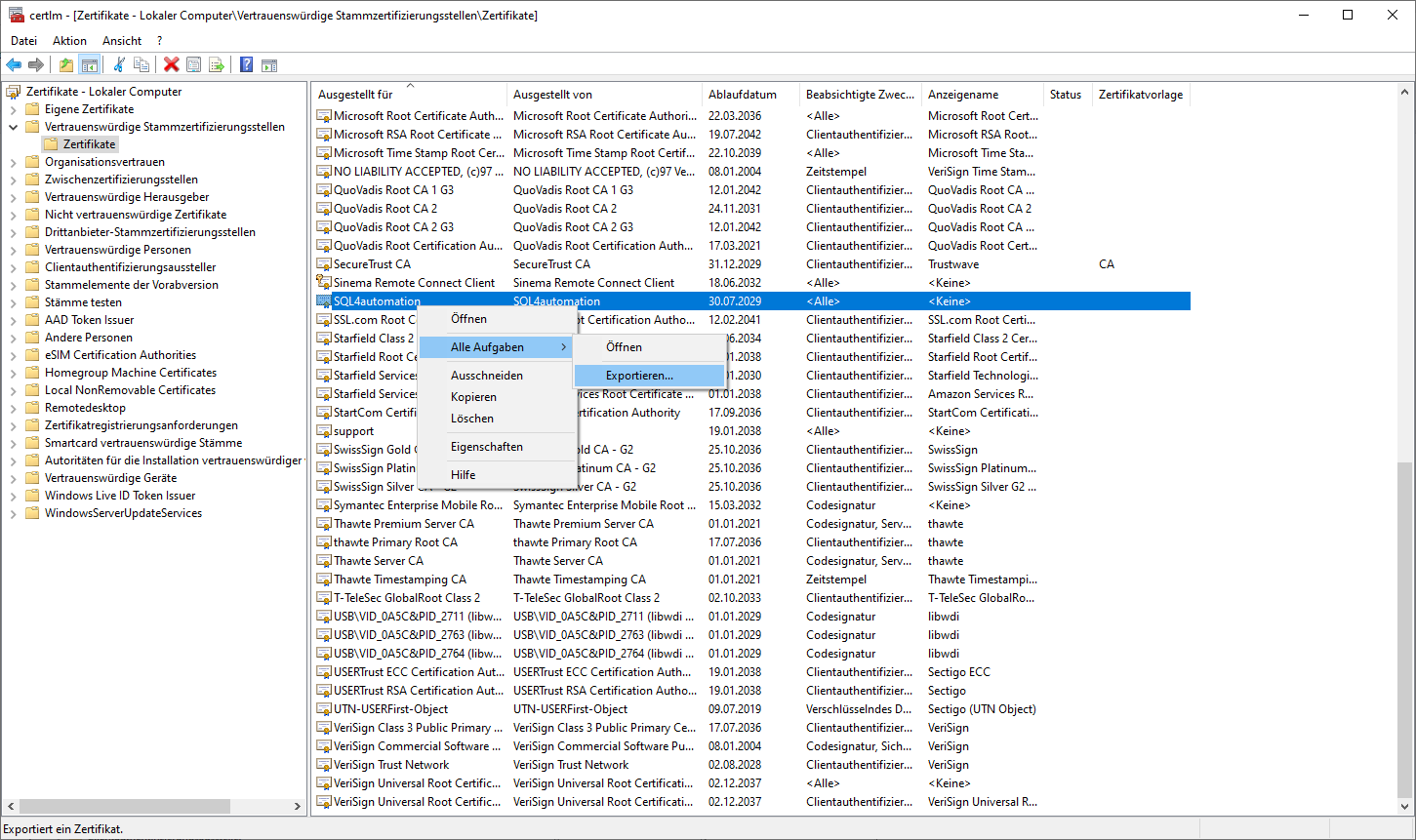
If the CA certificate is not available, it can be exported from the Windows Certificate Store:
certlm.msc
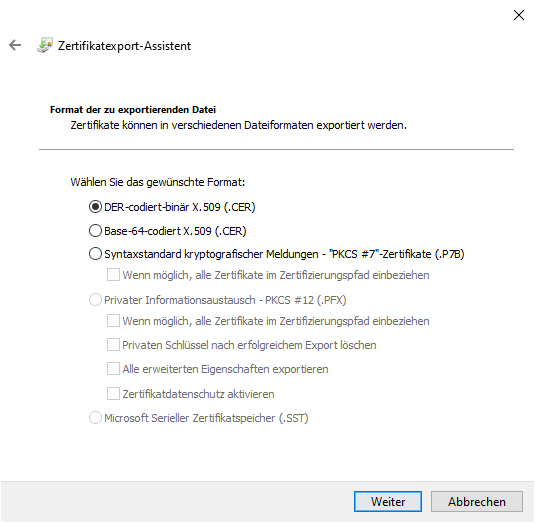
The certificate must then be converted from DER format to readable PEM format using OpenSSL. Rename the file from *.cer to *.cert.:
openssl x509 -in rootCA.cer -inform DER -out rootCA.crt -outform PEM
Then import the certificate into Linux as described above.
Add a new ODBC connection with SQL4automation or edit /etc/odbc.ini directly.
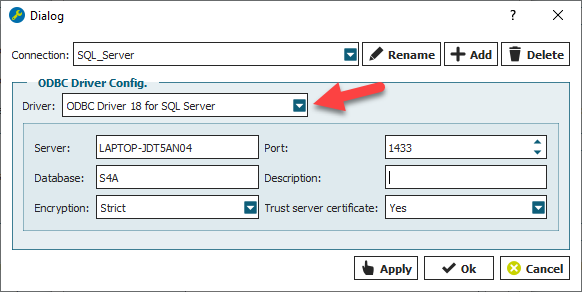
The file then looks something like this:
[SQL4automation]
#description = "Verbindung zu MS SQL Server SQL4automation"
Driver = ODBC Driver 18 for SQL Server
Server = LAPTOP-JDT5AN04
Port = 1433
Database = S4A
#TrustServerCertificate = yes
It is important that the FQDN is used as the server. Alternatively, the option TrustServerCertificate = yes can also be set.