Beckhoff TwinCAT V3 / SQL4TwinCAT3 Version 5
Target: "Standard" / "UTF-16"
Requirements
Version 5 is functionally backward compatible with version 4. Starting with this version, encrypted communication with the connector (from V5.1.0.0) is now possible.
The following chapters only deal with this (new) aspect of communication; for standard functions, please refer to the existing chapters.
Hardware-Architecture and SSL certificates
-
PLC IP address: 10.100.100.213
-
SQL4automation Connector IP address: 10.100.100.211
The following certificates are generated (OpenSSL). Please note that the settings, especially the IP addresses, must be adjusted for the corresponding network architecture.
CLIENT213
openssl genrsa -out client213.key 2048
openssl req -new -key client213.key -out client213.csr -subj "/C=CH/ST=Bern/L=Lyssach/CN=10.100.100.213/O=Inasoft"
openssl x509 -req -in client213.csr -CA rootCA.pem -CAkey rootCA.key -CAcreateserial -out client213.crt -days 1825 -sha256
openssl pkcs12 -export -out client213.p12 -inkey client213.key -in client213.crt
→ PWD: SSLtest
SERVER211
openssl genrsa -out server211.key 2048
openssl req -new -key server211.key -out server211.csr -subj "/C=CH/ST=Bern/L=Lyssach/CN=10.100.100.211/O=Inasoft"
openssl x509 -req -in server211.csr -CA rootCA.pem -CAkey rootCA.key -CAcreateserial -out server211.crt -days 1825 -sha256
openssl pkcs12 -export -out server211.p12 -inkey server211.key -in server211.crt
→ PWD: SSLtest
ROOT CA
openssl genrsa -out rootCA.key 2048
openssl req -x509 -new -nodes -key rootCA.key -sha256 -days 1825 -out rootCA.pem -subj "/C=CH/ST=Bern/L=Lyssach/CN=SQL4automation/O=Inasoft"
openssl pkcs12 -export -out rootCA.p12 -inkey rootCA.key -in rootCA.pem
→ PWD: SSLtest
Commissioning TLS encryption
Before commissioning, the certificates for the SQL4automation Connector must be copied to the corresponding paths.
-
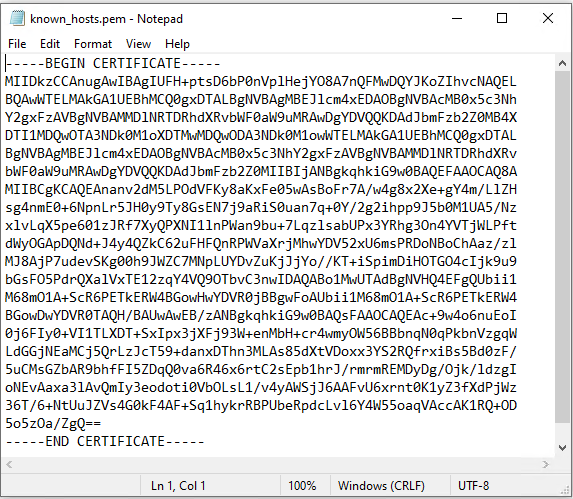
Path “C:\ProgramData\SQL4automation\certs\CA” Copy the contents of RootCA to the file
-
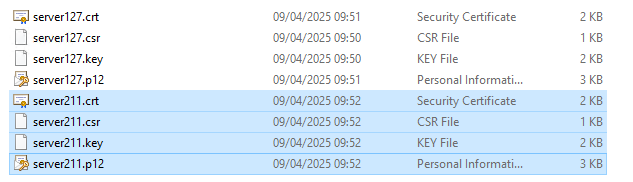
Path “C:\ProgramData\SQL4automation\certs\S4AConnector” The server certificates are copied to this location.
-
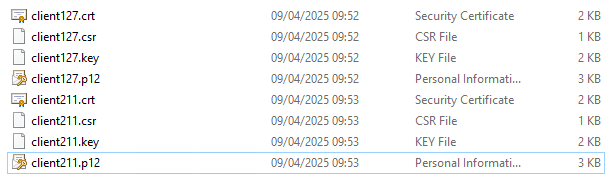
Path “C:\ProgramData\SQL4automation\certs\S4AQueryTool” This is where the certificates are located for testing with the query tool.
After copying the RootCA, the SQL4automation Connector service must be restarted before operation.
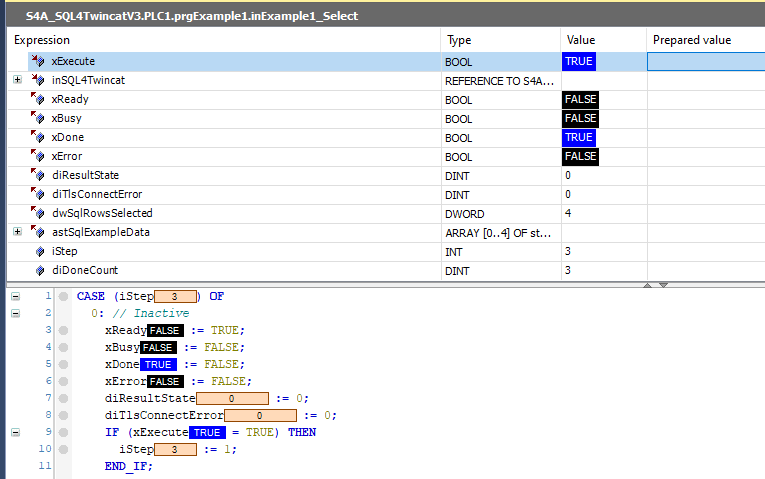
In the next step, it is recommended to establish the connection between SQL4automation and the controller WITHOUT TLS encryption.
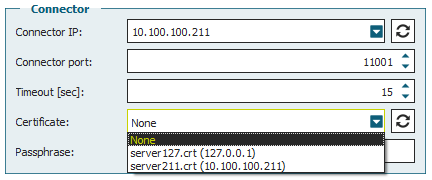
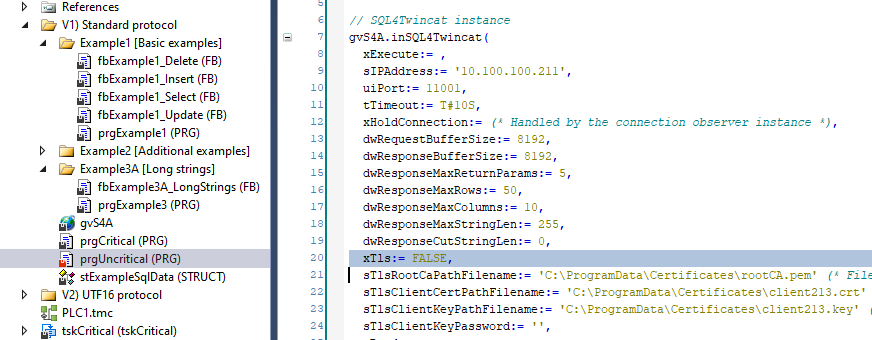
Only when communication works without encryption do we recommend activating encryption. Please note that the system time must be checked at this point and adjusted if necessary!
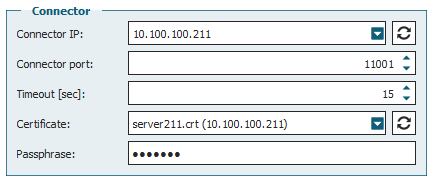
Passphrase: SSLtest
In the programming environment, activate the encryption and reference the certificates.
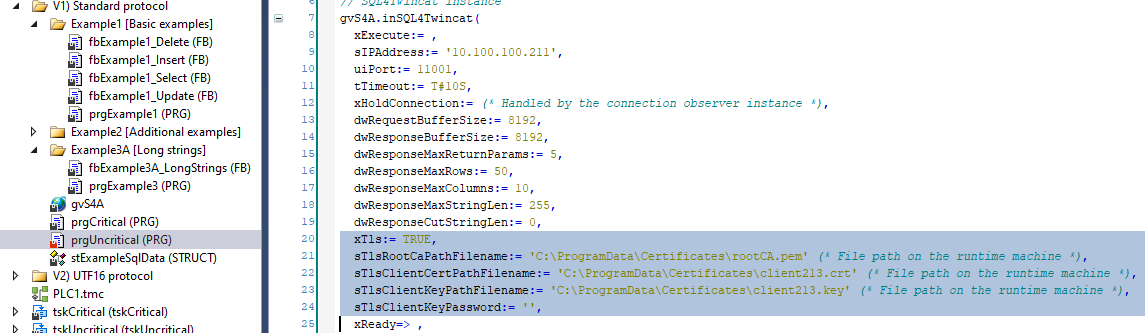
Copy the certificates to the corresponding folder (e.g. “C:\ProgramData\Certificates”).
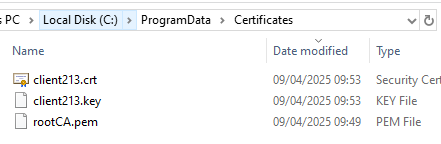
Download the code changes online and run a test query.