Siemens S7-300 CP343 / S7-400 CP443 / SIMATIC Manager
Target: "Siemens S7"
Requirements
The following blocks and sources are needed for connecting to the Connector:
• All blocks and sources in the folder S7-Programm
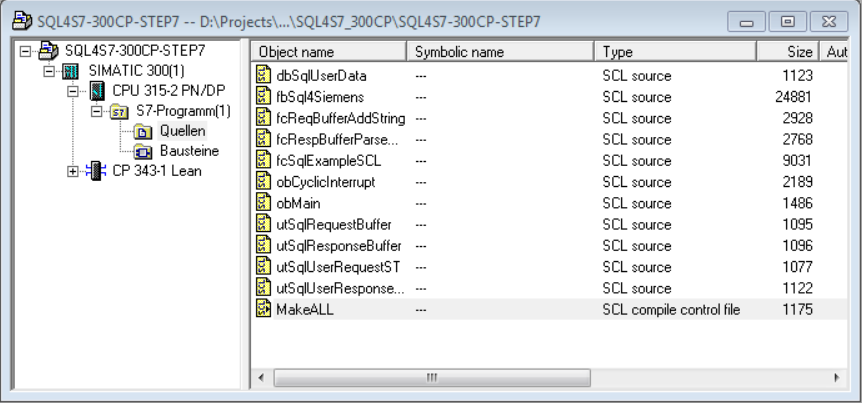
Please note that the block «fbSql4Siemens» is different for the S7-300 and the S7-400. The reason for this is that different blocks are used for the data communication.
Therefore, there is an individual sample project for each control system generation.
The blocks are programmed with SCL. All configuration settings are carried out in the sources. The advantage of this is that all blocks are regenerated with the new settings through the SCL script «MakeALL». The symbolic name is relevant for the generation.
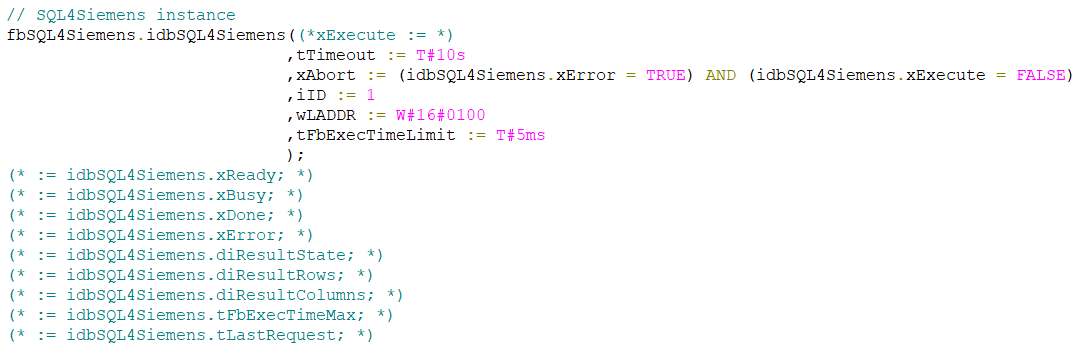
Calling up fbSQL4Siemens
The «fbSql4Siemens» block is called up cyclically. We advise you to do this with a time-controlled OB (e.g. OB35, T=10ms). The following parameters are set:
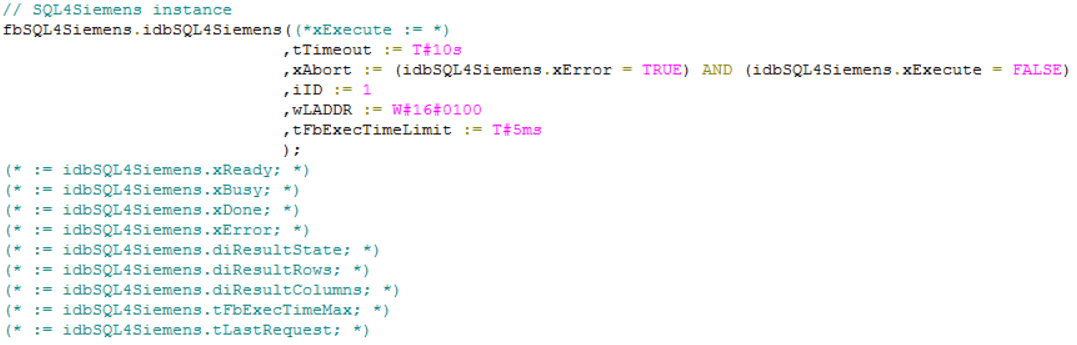
Parameters of fbSQL4Siemens
xExecute         : BOOL;  // start database query
tTimeout         : TIME;  // timeout in seconds
xAbort           : BOOL;  // reset
iID              : INT;   // distinct ID of the connection
wLADDR           : WORD;  // address of the CP
tFbExecTimeLimit : TIME;  // maximum amount of time available for the block per cycle
xReady           : BOOL;  // ready for a database query
xBusy            : BOOL;  // database query running
xDone            : BOOL;  // database query completed
xError           : BOOL;  // database query ended with an error
diResultState    : DINT;  // status of database query / error number
diResultRows     : DINT;  // number of received rows from the database query
diResultColumns  : DINT;  // number of received columns from the database query
tFbExecTimeMax   : TIME;  // measured maximum utilisation time of the block
tLastRequest     : TIME;  // measured time of the last request
Data modules
idbSql4Siemens – instance data module for internal use of the function block Sql4Siemens.
dbSqlUserData – user data such as request string array or response string table
Data types (UDT)
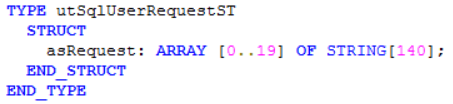
utSqlUserRequestST – Contains the request string array. The size of the data structures is determined automatically in the module «fbSql4Siemens».
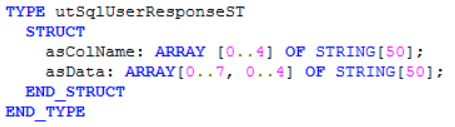
utSqlUserResponseST – contains the response string table. The size of the data structures is automatically determined in the module «fbSql4Siemens».
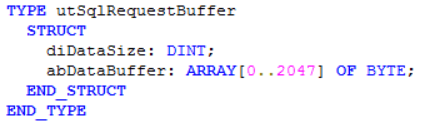
utSqlRequestBuffer – data buffers for sending SQL requests. The size of the data structures is automatically determined in the module «fbSql4Siemens».
utSqlResponseBuffer – data buffer for receiving SQL responses. The size of the data structures is automatically determined in the module «fbSql4Siemens».
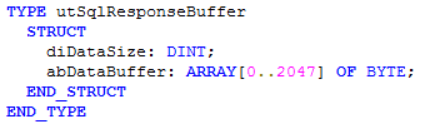
The data types can be adjusted according to the project. The array / data structure sizes are determined according to the amount of data to be read or written.
Configuration of the Connector
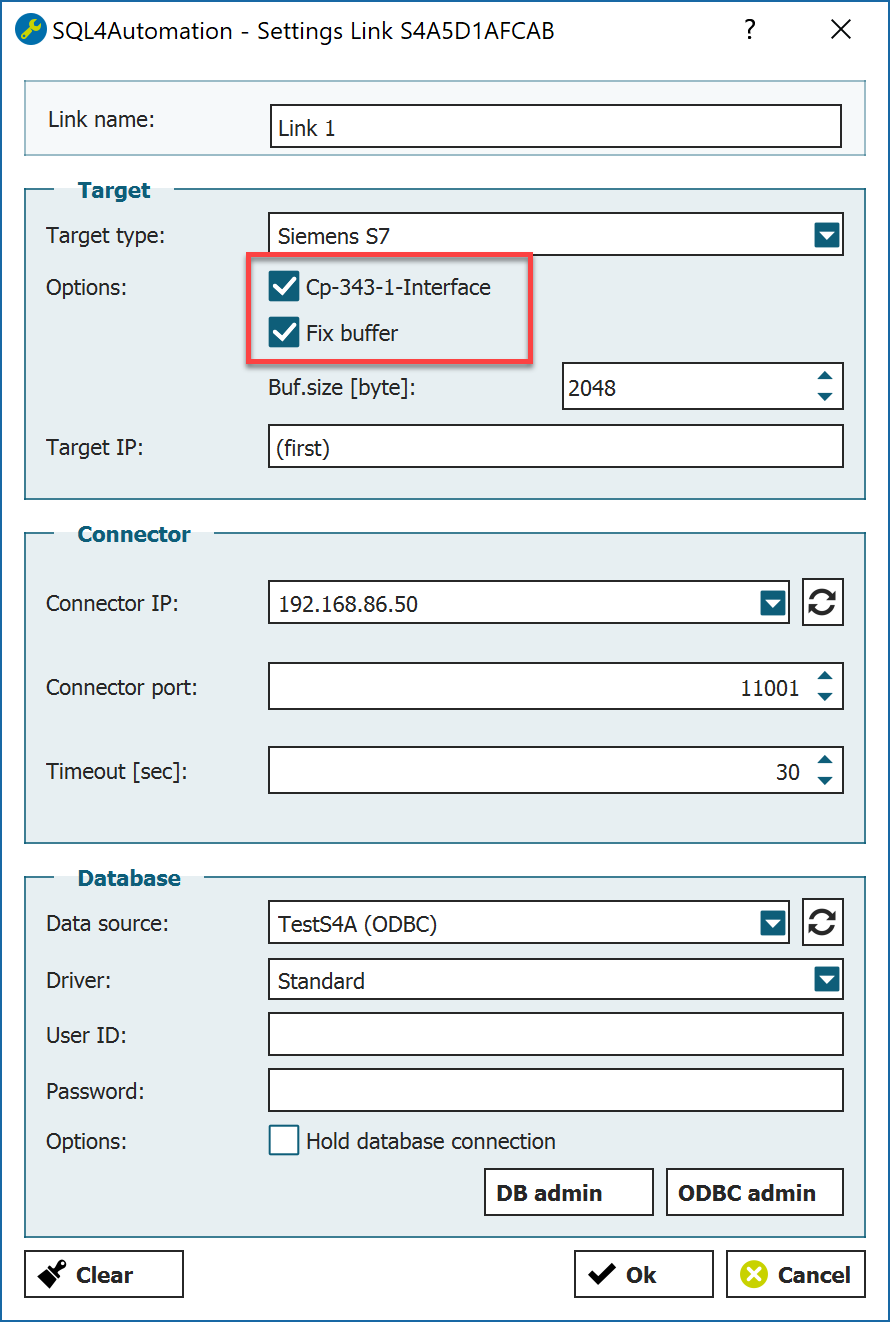
Further options must be defined for the selected Siemens-target in the Connector:
-
Receive buffer Receive buffer size in the utSqlResponseBuffer
-
CP 343-1 Interface Activate
-
Fix Buffer Activate
Configuring the IP address of the CP
The IP address of the CP is configured in the hardware configuration.

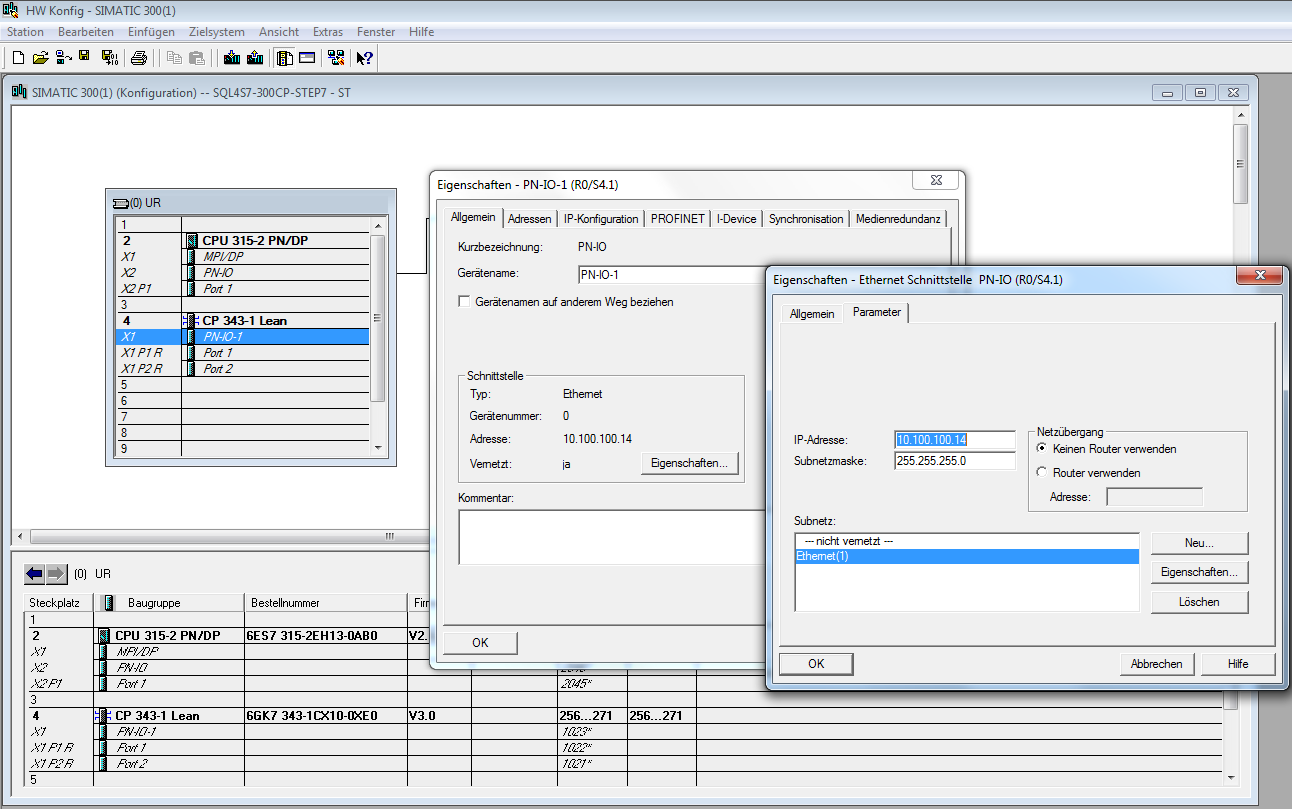
By double-clicking on PN-IO in the CP, Properties, the properties window of the PN-IO interface of the CP is opened. Here the IP address and the subnet mask can be changed.
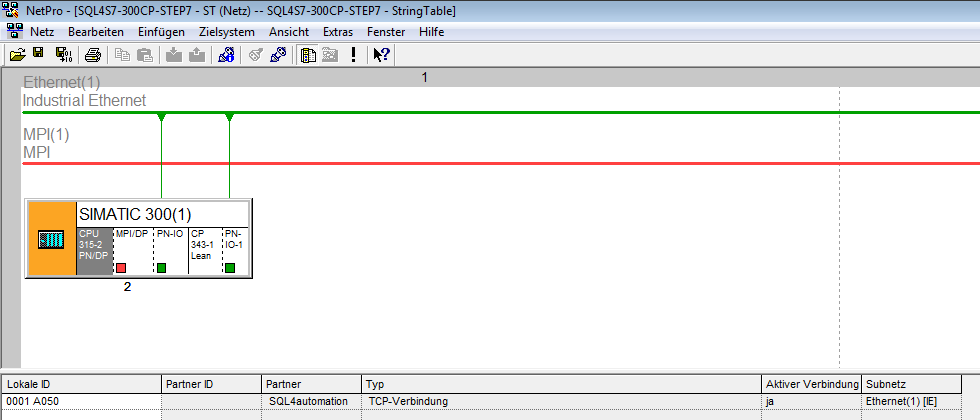
Adding a new network connection
If the communication has been resolved via a communication processor, the connection parameters cannot be set directly in the program code as in the PN/DP version. Here a new network connection must be created.
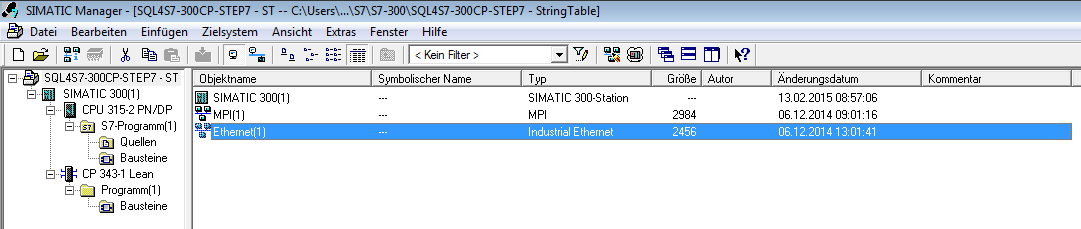
By double-clicking on Ethernet, the NetPro configuration is opened.
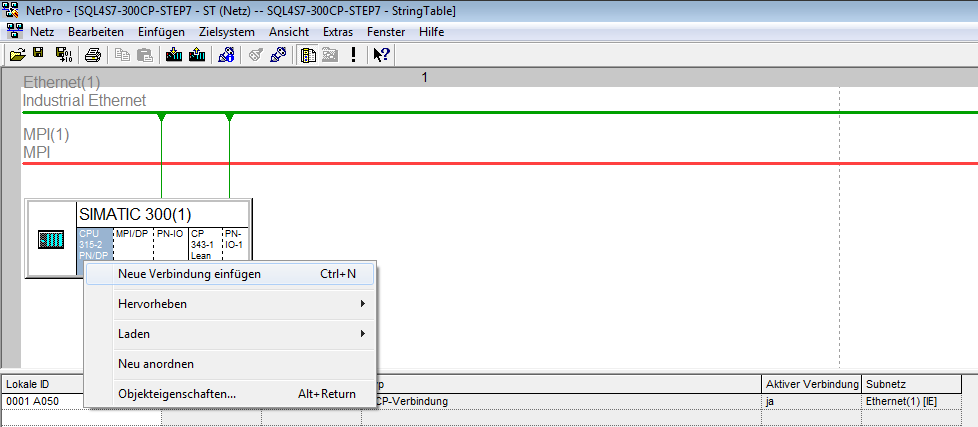
Here a new connection can be added with a right-click on the CPU, “add new connection”.
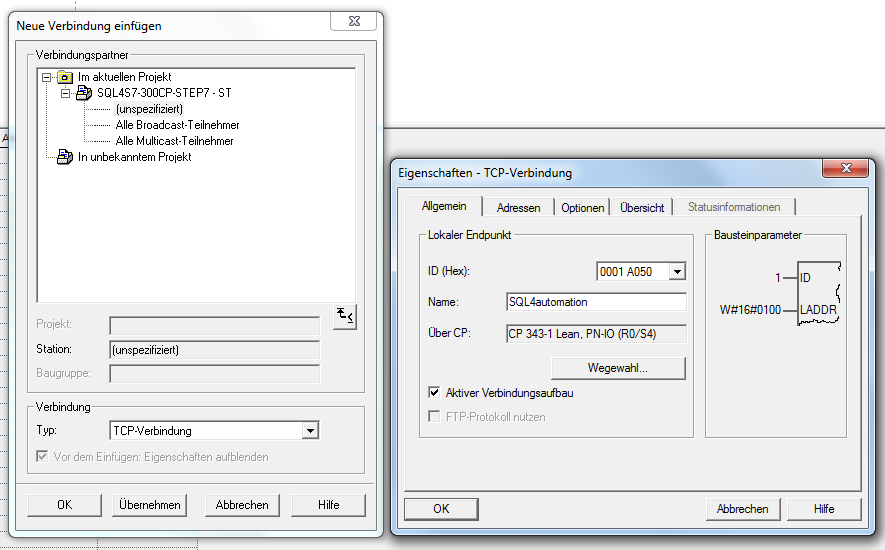
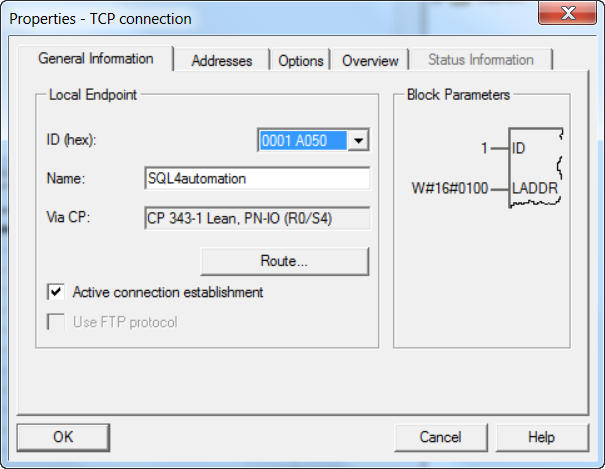
In the following windows TCP connection, the CP and “establish active connection” must be selected.
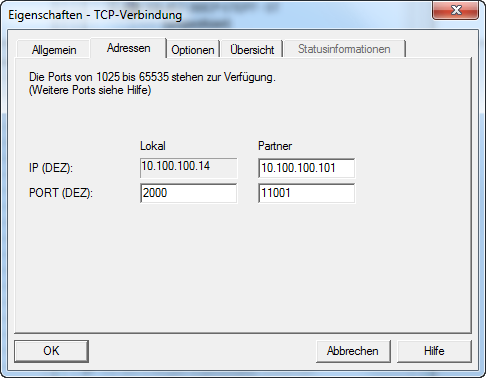
In the tab Addresses the IP and the port of the Connector is inserted on the left-hand side.
With Saving and compiling the current settings are saved and checked for errors. When calling up the SQL4Siemens block, the ID of the connection and the address of the CP must be entered.
Ethernet interface settings
In order to load the program from the PC onto the control, an IP must be assigned to the control.
The IP address of the CPU can be changed in the hardware configurations and loaded into the control.
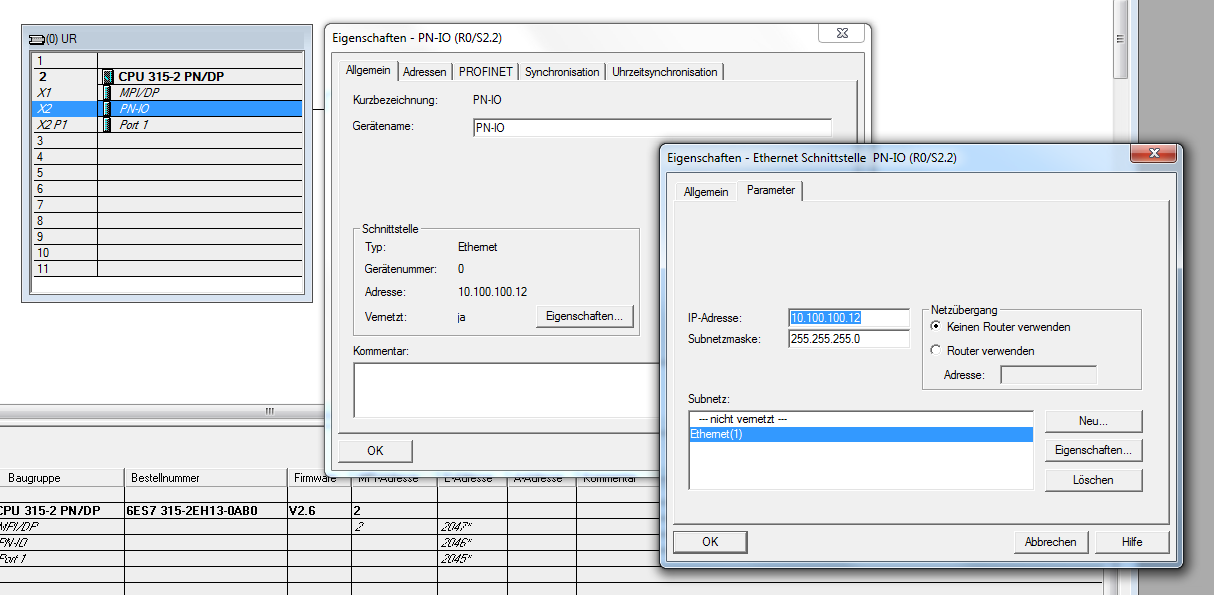
By double-clicking on PN-IO, Properties, the properties window of the PN-IO interface of the CPU is opened. Here the IP address and subnet mask can be changed.
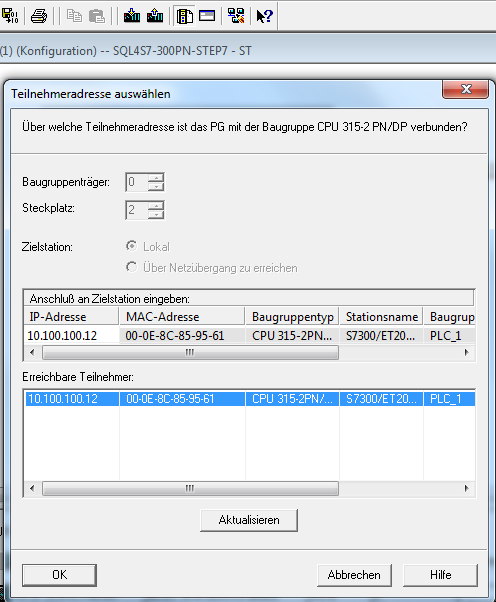
By clicking on the button “load to module” the current hardware configuration can be loaded into the CPU. Display/Update shows all accessible CPUs. Select desired CPU and load current hardware configuration.
Changing the block address
In case there are already blocks with the same address in your project, the SQL4automation blocks are set to a different address as follows:
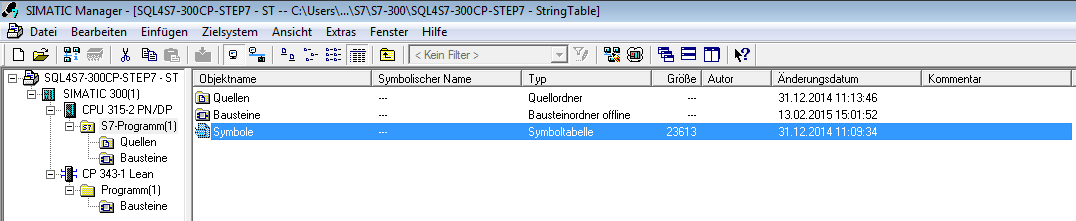
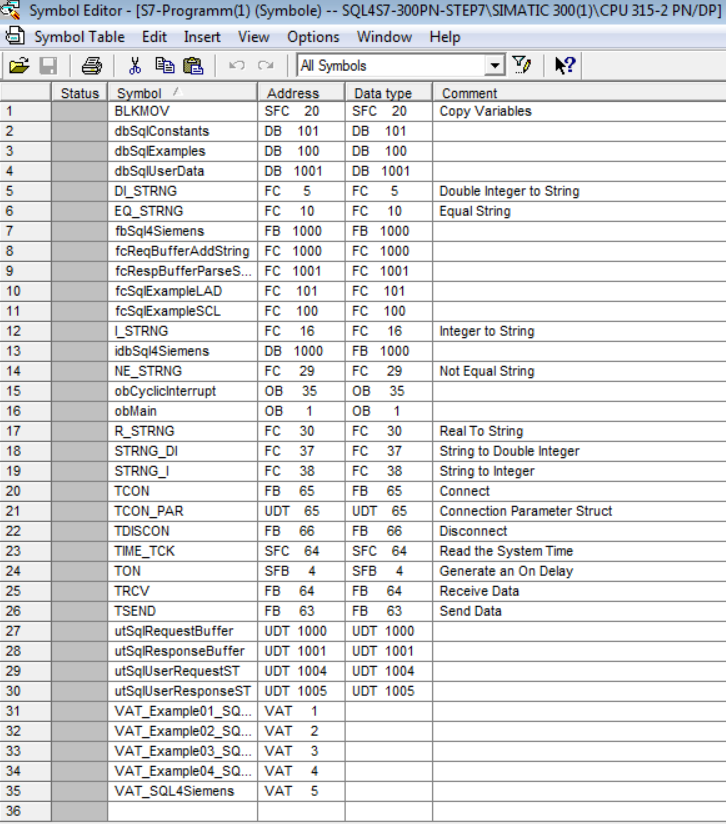
Open the symbol table and change the respective addresses.
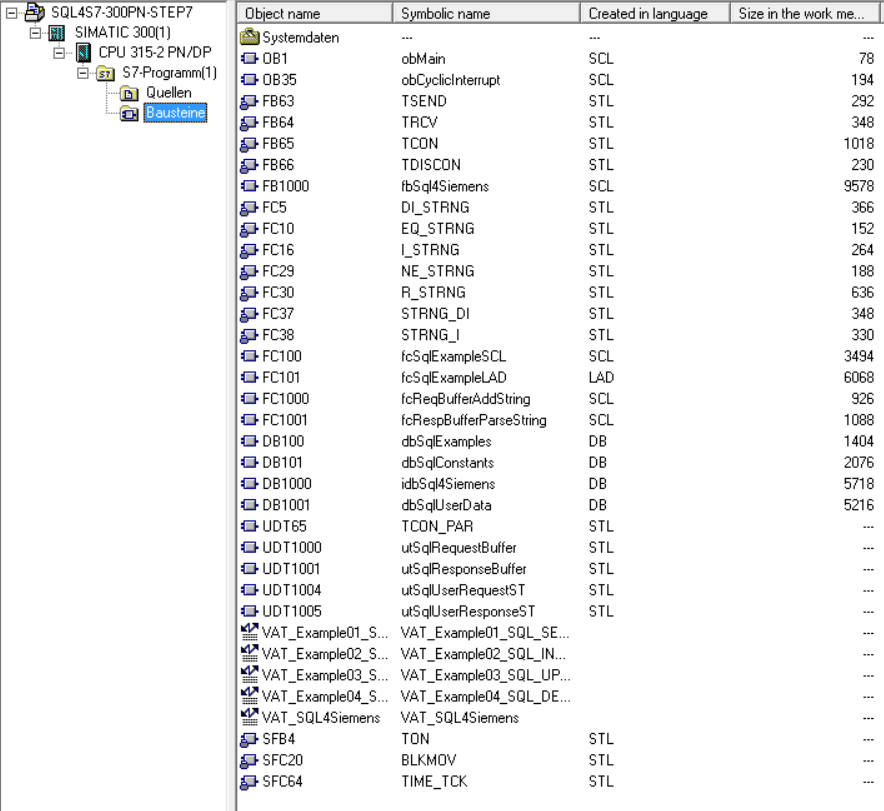
Adjust the object name of the blocks to be changed.
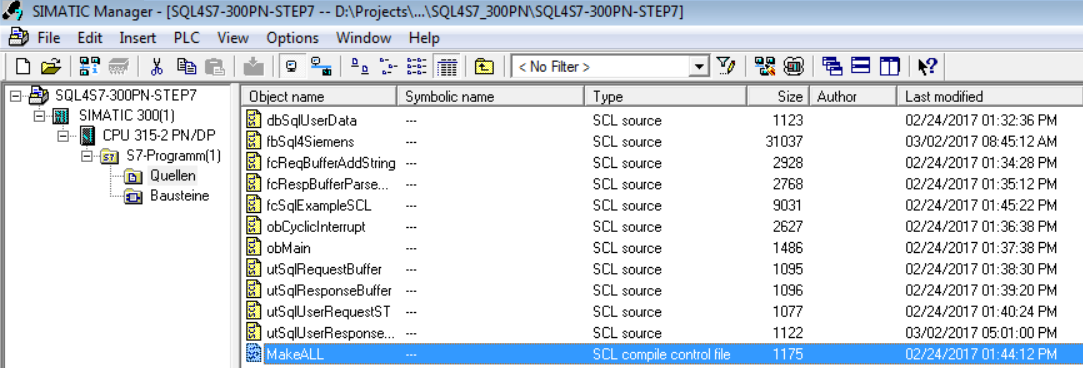
Open under Source, MakeAll and compile.
The sample project
The sample project of the website is executable and, prior to making adaptations to the own application, should be made running first. Thus, possible sources of error may be located more easily.
Adapt the IP address and the remote port to your system when opening the Sql4Siemens in the OB35.
The Connector must be running and the connection to the sample database “S4A_Test_DB.mdb” must be configured.
The configuration of the connection to the database is described in Setting up the connection to the test database.
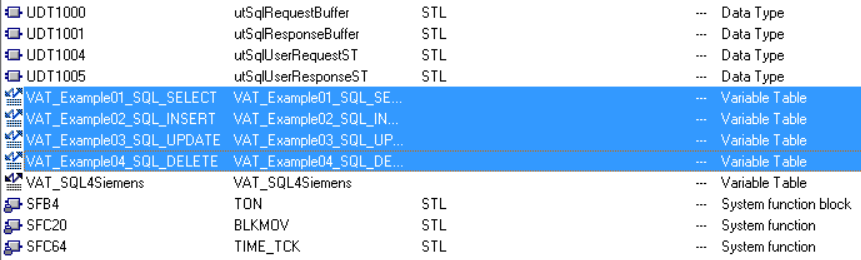
The sample program (OB1) contains a program with the 4 basic SQL commands (SELECT, INSERT, UPDATE, DELETE) and shows how to deal with SQL-data. The respective functions can be easily operated with the following monitoring table:
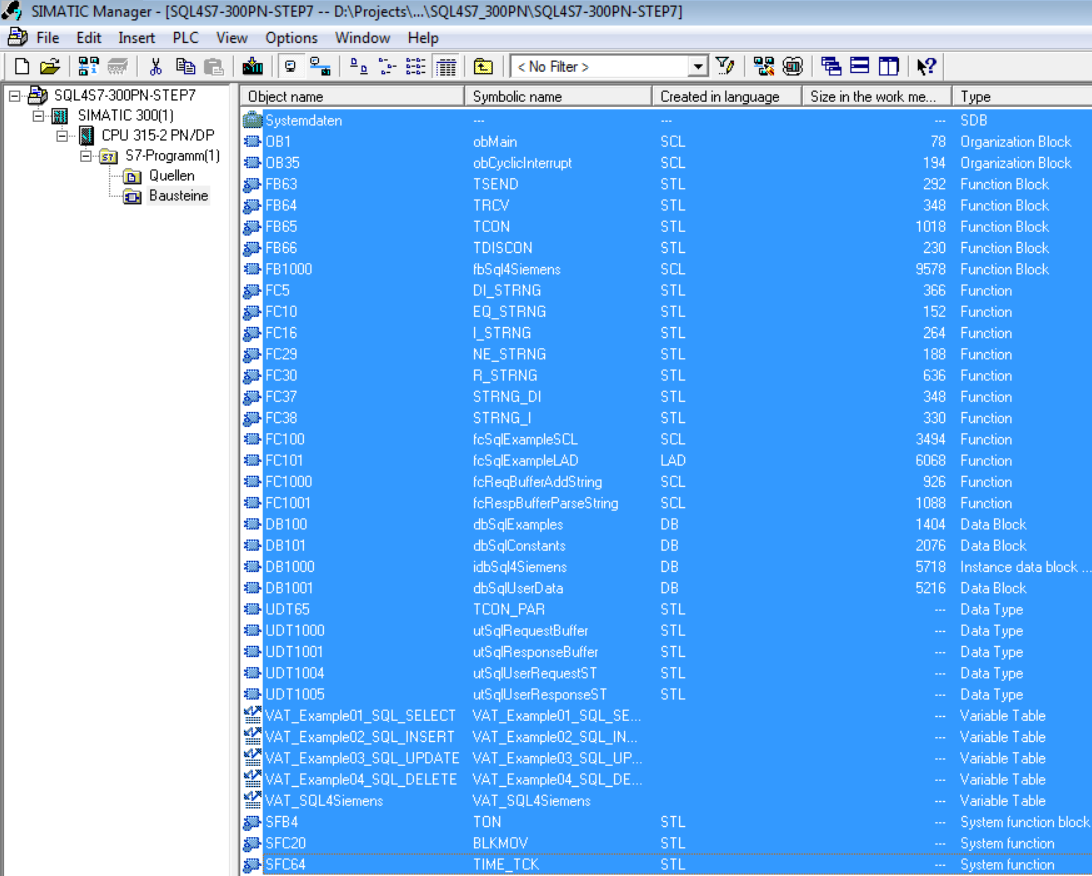
Loading the sample program
The program can be loaded via the Load button.
Operating the sample program
The sample code is accessed from the OB1. There are two blocks with the same function. The first sample is programmed in SCL, the second one in LAD (KOP).
Monitoring table «Example01_SQL_SELECT»
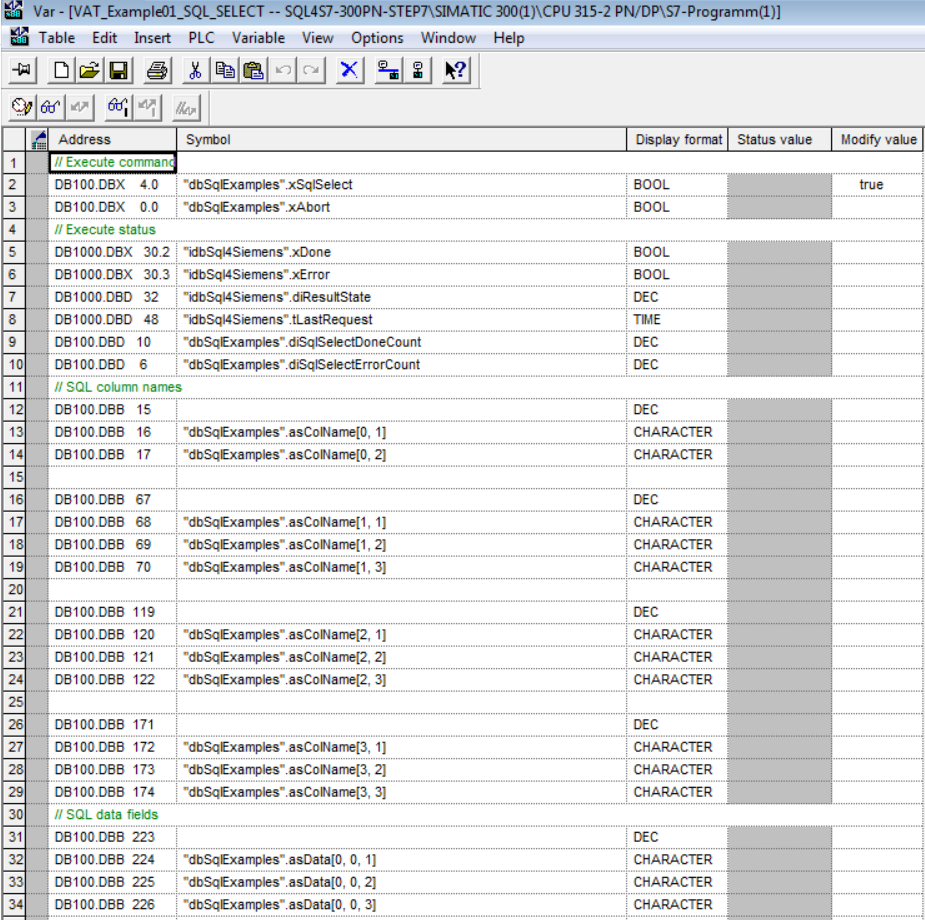
By setting the variable «xSqlSelect», the last 5 records from the sample database are retrieved. If the retrieval has been completed successfully, the «diSqlSelectDoneCount» counter is incremented and the data (column name and data fields) is shown.
If the retrieval has been completed with an error, the «diSqlSelectErrorCount» counter is incremented. In this case, the error code is displayed in the parameter «diResultState». The variable «xSqlSelect» must be reset manually.
Monitoring table «Example02_SQL_INSERT»
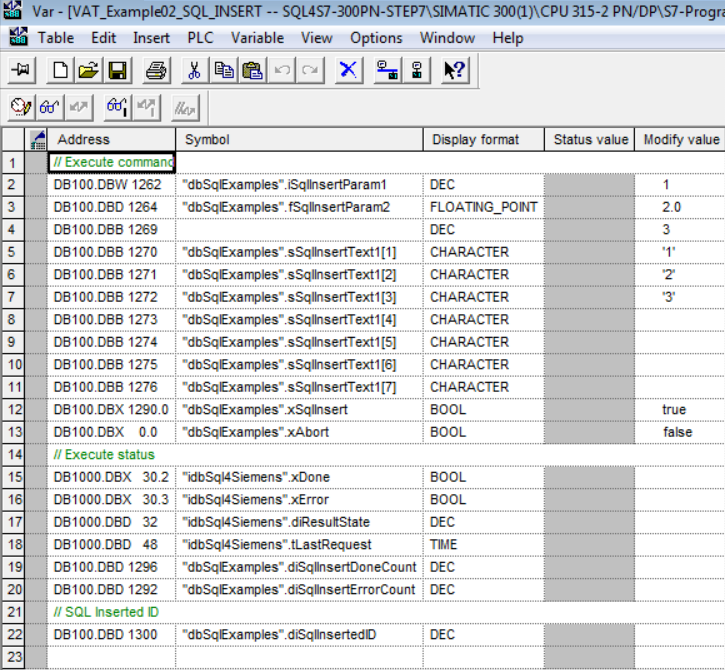
By setting the variable «xSqlInsert», a new record is integrated into the sample database. The values are determined through the parameters «iSqlInsertParam1», «fSqlInsertParam2» and «sSqlInsertText1».
If the execution has been successful the counter «diSqlInsertDoneCount» is incremented. The parameter «diSqlInsertedID» , shows under which ID (primary key) the record has been saved in the database.
If the command has been executed with an error, the counter «diSqlInsertErrorCount» is incremented. In this case, the error code is shown in the parameter «diResultState». The variable «xSqlInsert» must be reset manually.
Monitoring table «Example03_SQL_UPDATE»
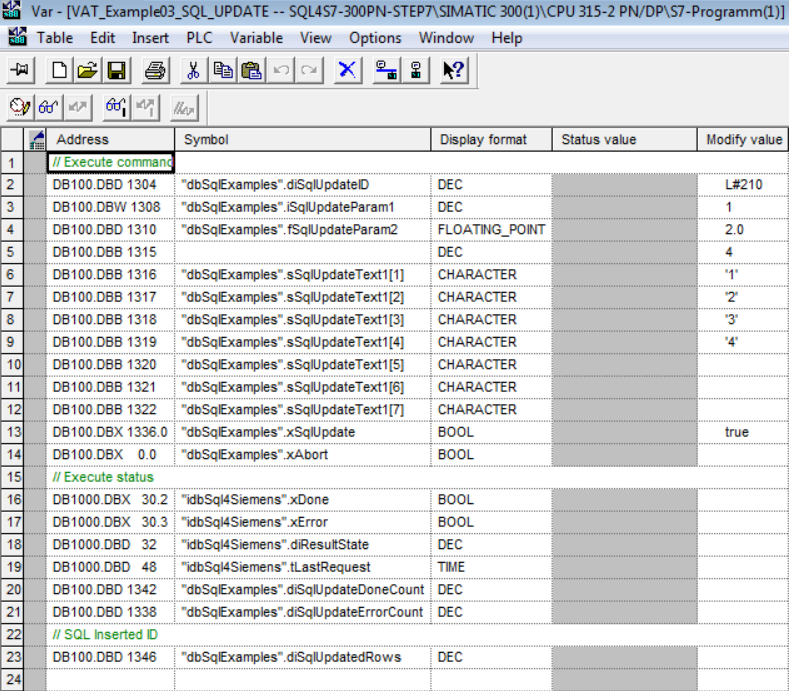
By setting the variable «xSqlUpdate», an existing record in the sample database is updated. The record to be updated must be specified with the parameter «diSqlUpdateID». The new values are determined through the parameters «iSqlUpdateParam1», «fSqlUpdateParam2» and «sSqlUpdateText1».
If the execution has been successful, the counter «diSqlUpdateDoneCount» is incremented. The parameter «diSqlUpdatedRows» shows how the record was updated (in this case 0 or 1).
If the command has been completed with an error, the counter «diSqlUpdateErrorCount» is incremented.
In this case, the error code is displayed in the parameter «diResultState». The variable «xSqlUpdate» must be reset manually.
Monitoring table «Example04_SQL_DELETE»
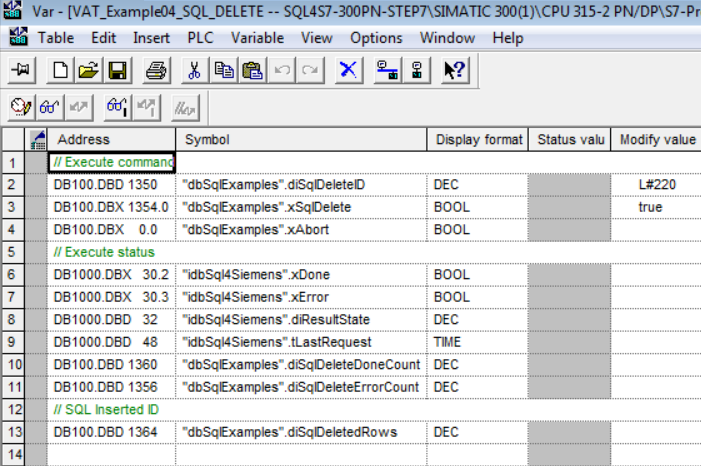
By setting the variable «xSqlDelete», all records in the sample database whose number (primary key) is smaller or equal to the value in the parameter «diSqlDeleteID» are deleted. If the execution has been successful, the counter «diSqlDeleteDoneCount» is incremented. The parameter «diSqlDeletedRows» shows how the records where deleted.
If the command has been executed with an error, the counter «diSqlDeleteErrorCount» is incremented. In this case, the error code is shown in the parameter «diResultState». The variable «xSqlUpdate» must be reset manually.
Error codes return value
The variable “diResultState” describes the error.
| Error number | Error description |
|---|---|
| 1 | Unknown SQL command |
| 2 | Query returns more records than defined with MaxRows. Adjust query or increase MaxRows |
| 3 | Query returns more columns than defined with MaxColumns, adjust query or increase MaxColumns |
| 4 | Query returns more data than the defined puffer size. Adjust query or increase the buffer size in the Connector and the control |
| 5 | Query returns at least one value, which is bigger than defined with MaxStringLength. Adjust query or increase MaxStringLength |
| 10 | Internal Connector error |
| 11 | Internal Connector error, database cannot be opened |
| 21 | No IP address defined |
| 22 | No port number defined |
| 23 | Request string is empty |
| 24 | Number of MaxRows not defined |
| 25 | Number of MaxColumns not defined |
| 29 | Size of MaxStringLength invalid |
| 41 | No connection to SQL4automation-Connector established. Turn off firewall, check IP address and remote port |
| 51 | Error in sending the query. Turn off firewall, check IP address and remote port |
| 91 | Timeout error. No response from the Connector within the time frame. |
| 95 | Error in receiving the data |
| >100 | Error numbers of the ODBC database connection |
| 40002 | General error during the SQL query. Request string is invalid |