Siemens S7-1200/1500 / TIA13
Target: "Siemens S7"
Requirements
Communication takes place on the Siemens S7-1200/1500 controllers via the Profinet interface.
The following blocks are needed for connecting to the Connector:
• All blocks in the folder «Program blocks» 🡪 «SQL4Siemens»
• All data types in the folder «PLC data types» 🡪 «SQL4Siemens»
• MOVE_BLK_VARIANT
• TRCV_C (only with S7-1200)
• TSEND_C
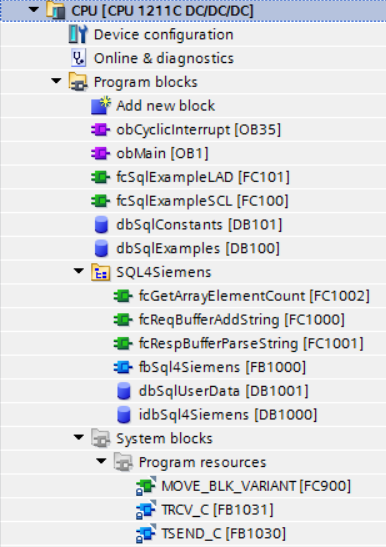
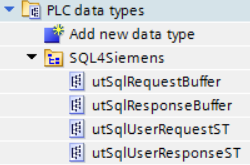
Please note that the “fbSql4Siemens” block differs for the S7-1200 and S7-1500. The reason for this is that data reception had to be implemented differently for the two controller families, as the TRCV blocks from Siemens have different parameters.
For this reason, there is a separate sample project for each controller family.
Aufruf fbSql4Siemens
The “fbSql4Siemens” block is called cyclically. We recommend doing this via a time-controlled OB (e.g., OB35, T=10ms). The following parameters are assigned:
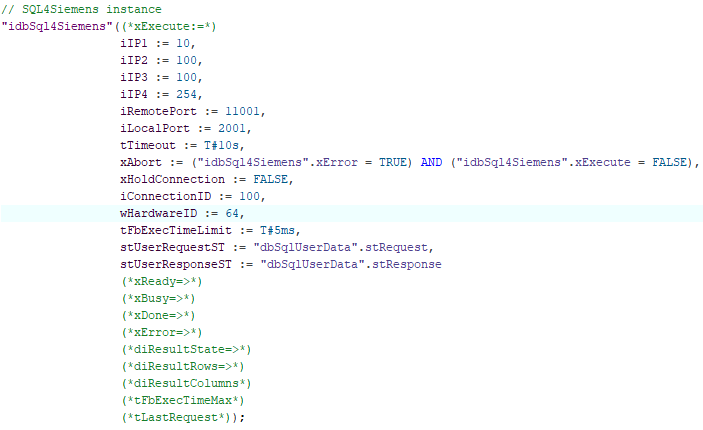
Parameter von fbSql4Siemens
xExecute         : BOOL;                  // Start database query
iIP1             : INT;                   // 1st Position of the configured IP address of the connector
iIP2             : INT;                   // 2nd Position of the configured IP address of the connector
iIP3             : INT;                   // 3rd Position of the configured IP address of the connector
iIP4             : INT;                   // 4th Position of the configured IP address of the connector
iRemotePort      : INT;                   // Set port number of the SQL4automation connector
iLocalPort       : INT;                   // Port used locally on the controller
tTimeout         : TIME;                  // Timeout in seconds
xAbort           : BOOL;                  // Reset
xHoldConnection  : BOOL;                  // Keeps the socket connection open after a database query
iConnectionID    : INT;                   // Unique connection ID
wHardwareID      : BYTE;                  // ID of the Ethernet interface (for details, see below)
tFbExecTimeLimit : TIME;                  // Maximum time available to the building block per cycle
stUserRequestST  : utSqlUserRequestST;    // Query structure (string table)
stUserResponseST : utSqlUserResponseST;   // Response structure (string table)
xReady           : BOOL;                  // Ready for a database query
xBusy            : BOOL;                  // Database query running
xDone            : BOOL;                  // Database query completed
xError           : BOOL;                  // Database query ended with an error
diResultState    : DINT;                  // Status database query / error number
diResultRows     : DINT;                  // Number of rows received from the database query
diResultColumns  : DINT;                  // Number of columns received from the database query
tFbExecTimeMax   : TIME;                  // Measured maximum usage time of the component
tLastRequest     : TIME;                  // Measured time of the last request
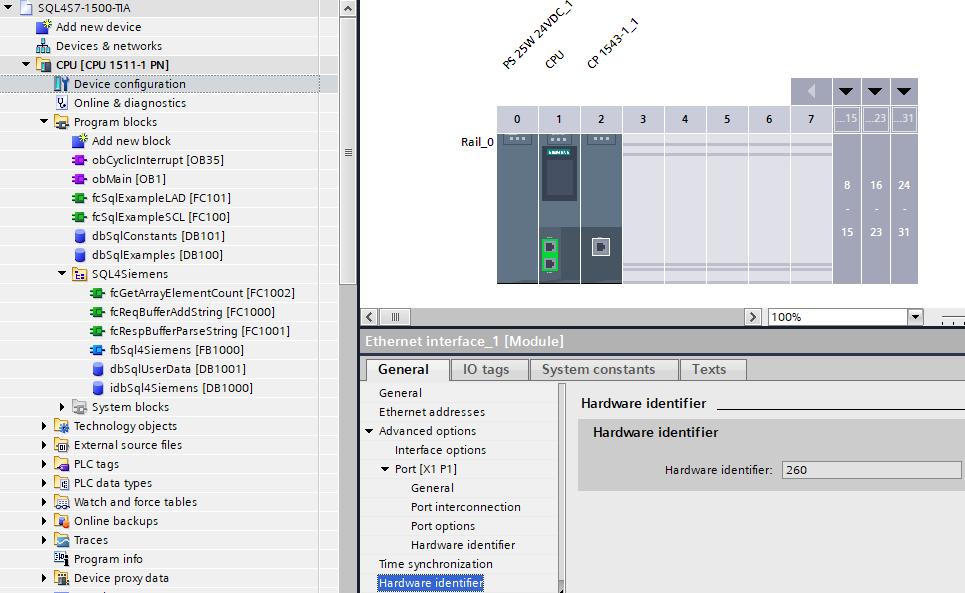
Determine hardware ID: The hardware ID can be found in the device configuration. When you select the desired interface, the details are displayed.
Example of a 1200 onboard interface:
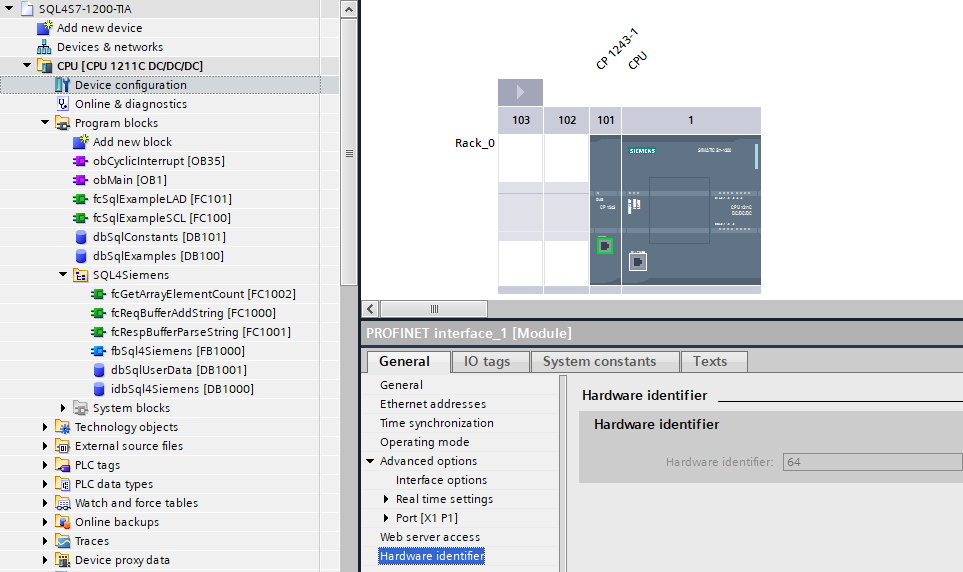
Example of a 1500 CP interface:
Data modules
idbSql4Siemens – Instance data block for internal use of the Sql4Siemens function block.
dbSqlUserData – User data such as request string array or response string table
Data types (UDT)
utSqlUserRequestST – contains the request string array and its corresponding size.

utSqlUserResponseST – contains the response string table and information concerning the number of columns, the number of records and string length.

utSqlRequestBuffer – data buffer for sending the SQL-requests. The size of the data structures is automatically determined in the «fbSql4Siemens» block.

utSqlResponseBuffer – data buffer for receiving the SQL-responses. The size of the data structures is automatically determined in the «fbSql4Siemens» block.

These data types can be adjusted according to the project. The array / data structure sizes are determined according to the amount of data to be read or written
Configuration of the Connector
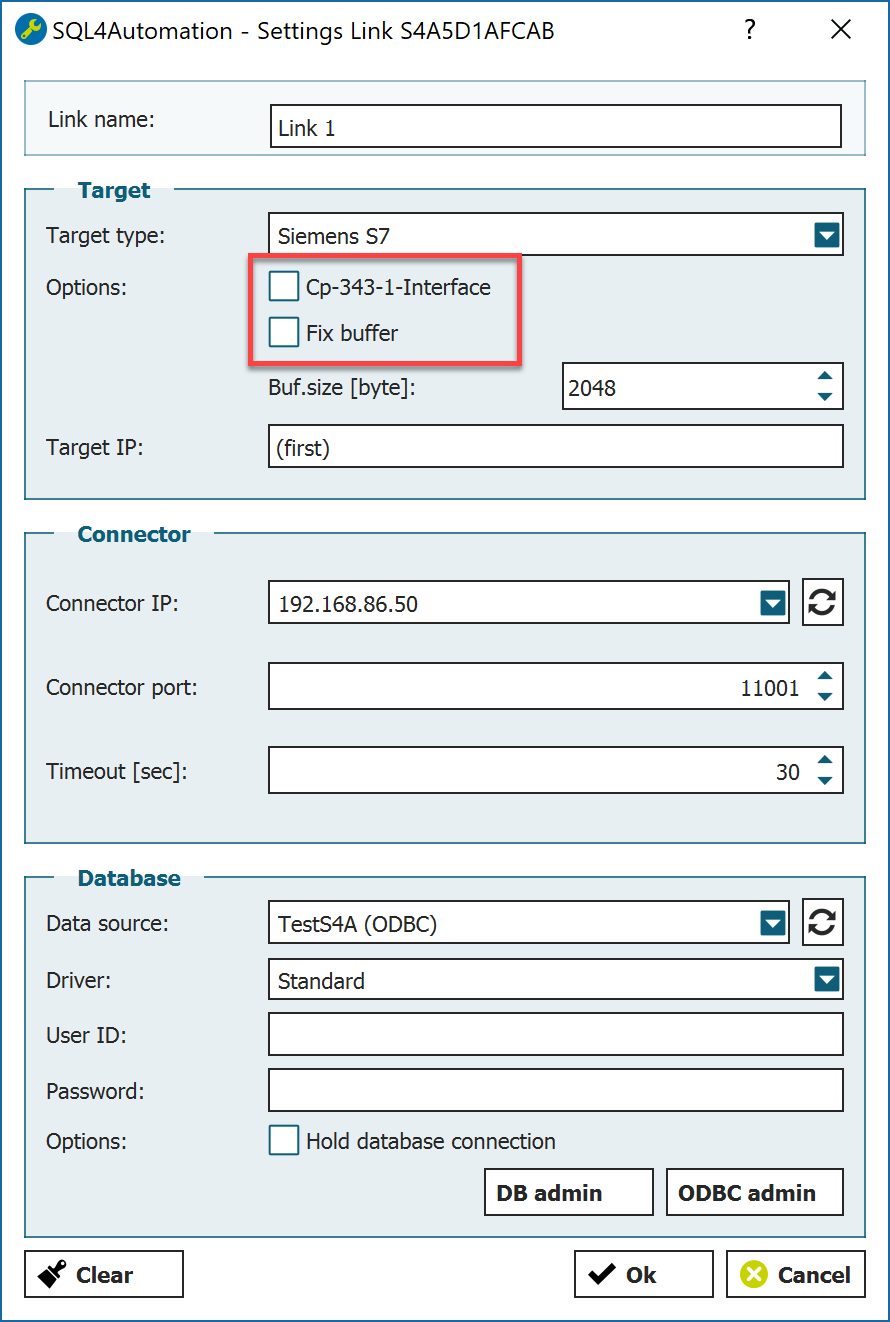
Further options need to be defined for the selected Siemens-Target in the Connector:
-
Receive buffer Size of the receive buffer in the utSqlResponseBuffer
-
CP 343-1 Interface Deactivate
-
Fix Buffer Deactivate
Ethernet interface settings
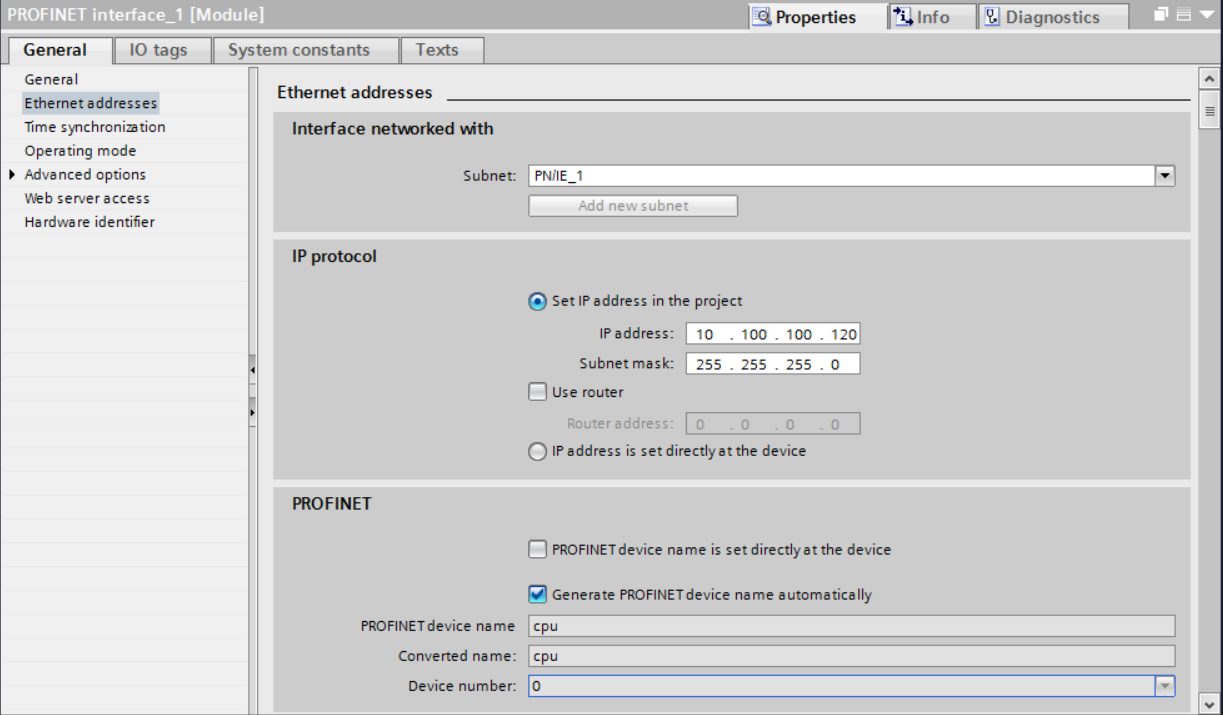
In order to establish a communication via the Ethernet interface on the CPU and the Connector, it has to be parameterised. The IP address of the Ethernet interface must be in the same network address range with the same subnet mask as the Connector.
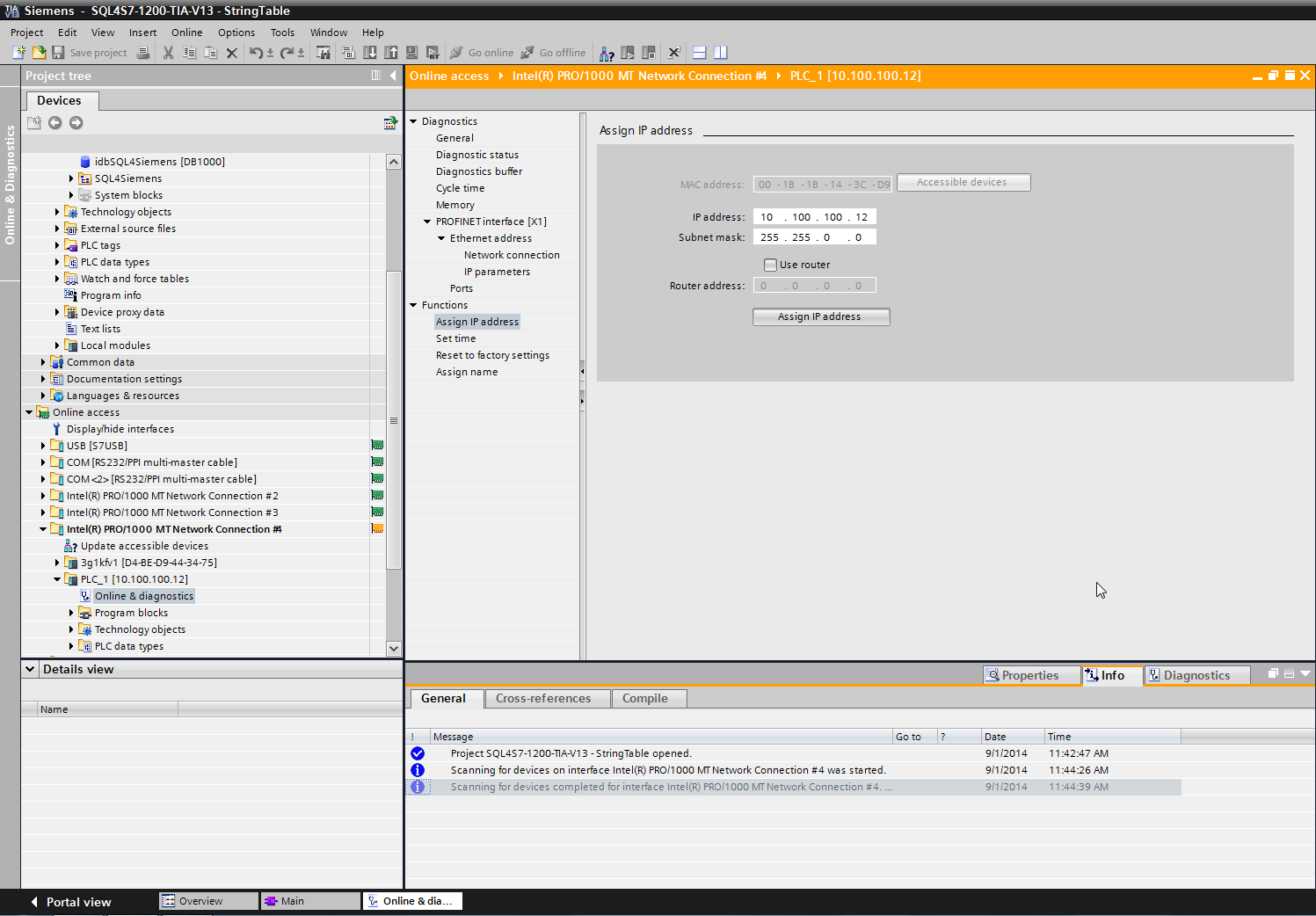
The different network cards can be found under “Online access”. Select the network card, which is connected to the control and scan the network via “Update accessible devices”. The control appears. A new IP address and a subnet mask can be assigned under “Functions”, “Assign IP address” and sent to the control via the button “Assign IP address”.
The sample project
The sample program from the website should be started prior to making adaptations to the own application. This makes finding possible error sources easier.
Adapt the IP address and the remote port to your system when opening the Sql4Siemens in the OB35.
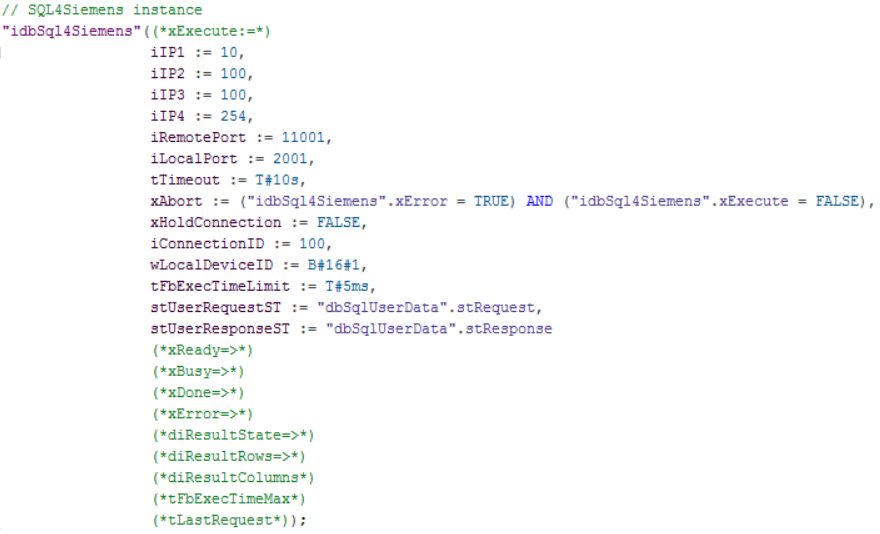
The Connector must be running and the connection to the sample database “S4A_Test_DB.mdb“ must be configured.
The configuration of the connection to the database is described in Setting up the connection to the test database.
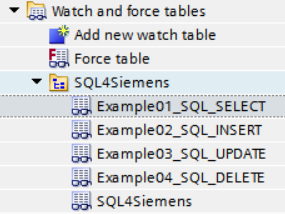
The sample program (OB1) contains a program with the 4 basic SQL commands (SELECT, INSERT, UPDATE, DELETE) and shows how to deal with SQL-data. The respective functions can be easily operated with the following monitoring table:
Loading the sample program
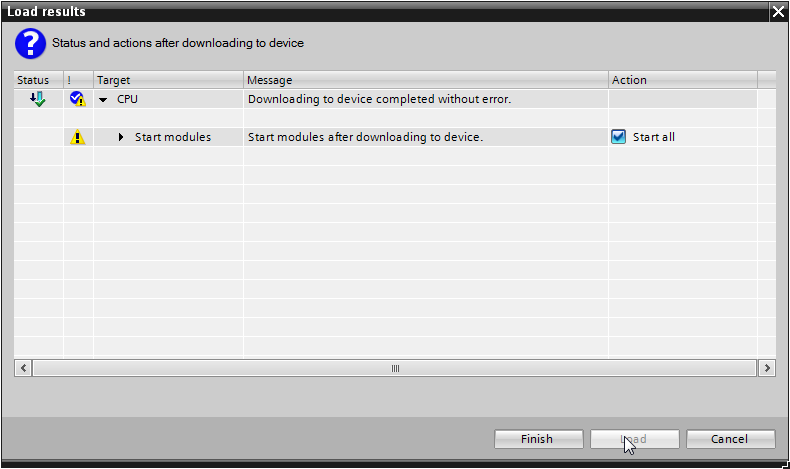
The program can be loaded to the CPU via the “Download to device” button. The connection path must be selected during the first connection. PN/IE is here selected as the “Type of the PG/PC interface”, the network card connected to the control is selected as the “PG/PC interface” and PN/IE_1 is selected as the “Connection to interface/subnet”.
The control can be searched via “Start search”. The control is selected and the project is loaded to the control via the load button.
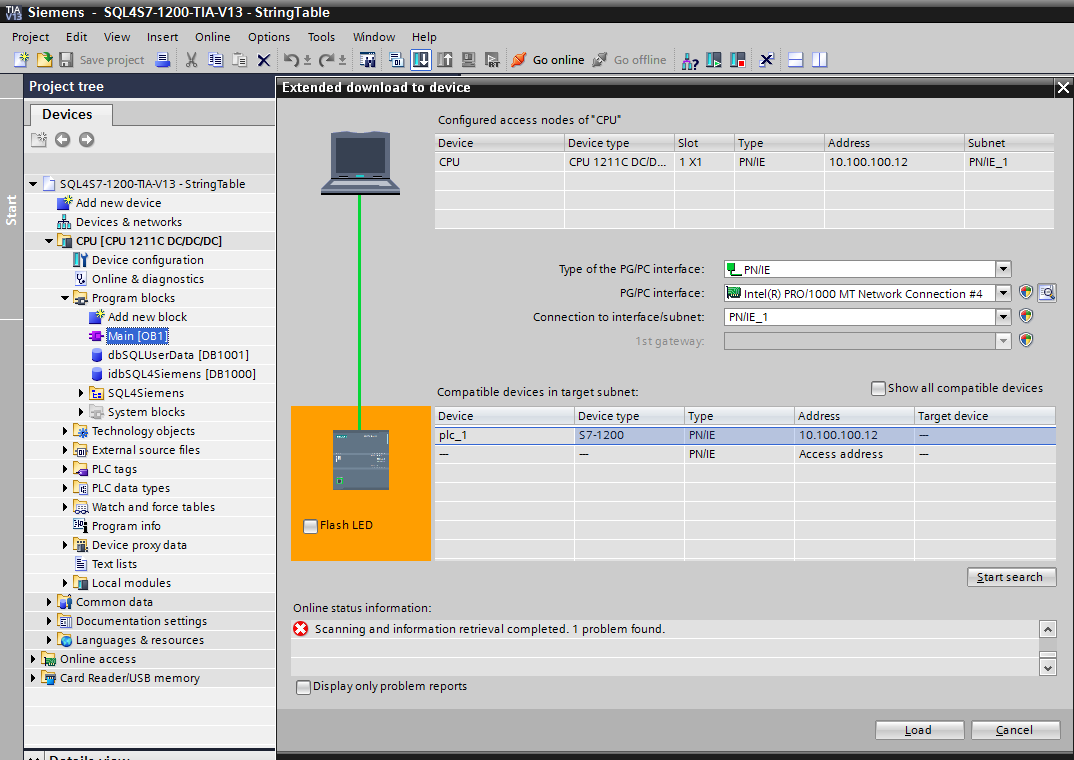
If the project differs too much from the project on the control, which is the case when loading for the first time, the control must be stopped.
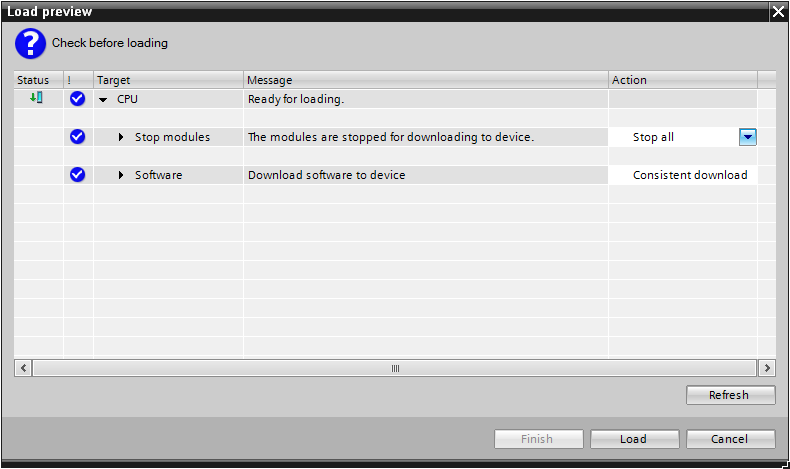
After loading, the control is restarted.
Operating the sample program
The sample code is accessed from the OB1. There are two blocks with the same function. The first sample is in SCL, the second one is programmed in LAD (KOP).
Monitoring table «Example01_SQL_SELECT»
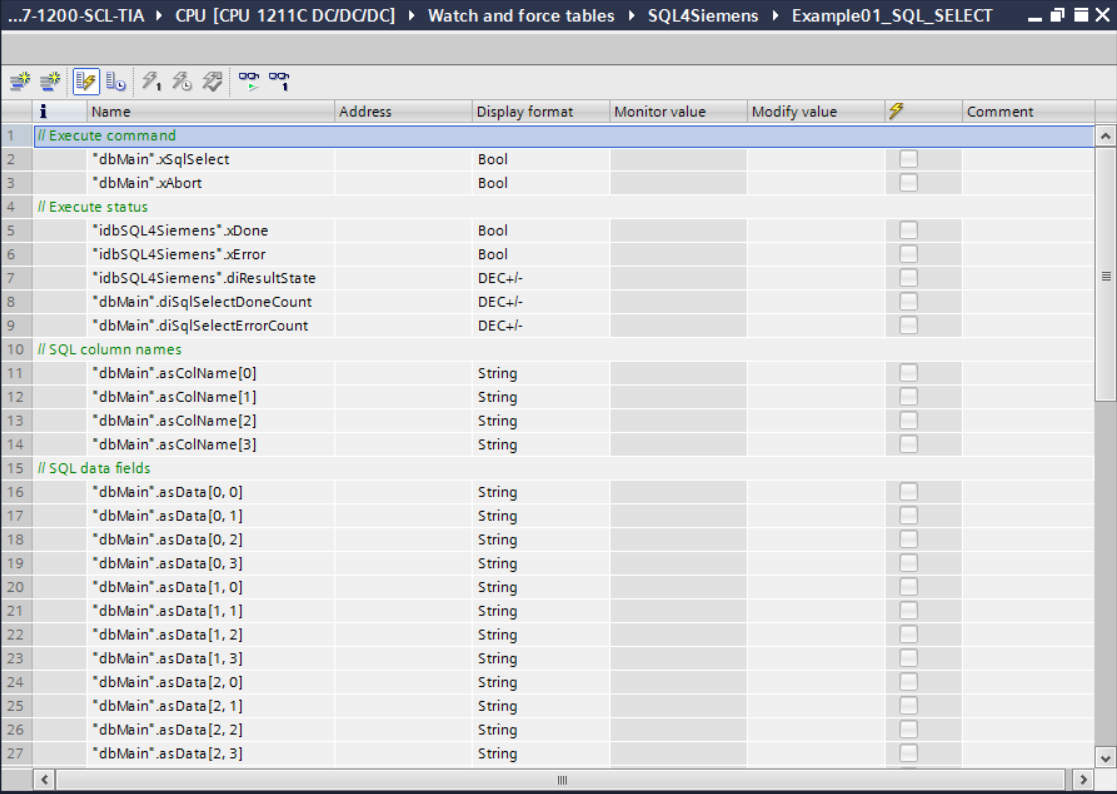
By setting the variable «xSqlSelect», the last 5 records from the sample database are retrieved. If the retrieval has been completed successfully, the «diSqlSelectDoneCount» counter is incremented and the data (column name and data fields) is shown.
If the retrieval has been completed with an error, the «diSqlSelectErrorCount» counter is incremented. In this case, the error code is displayed in the parameter «diResultState». The variable «xSqlSelect» must be reset manually.
Monitoring table «Example02_SQL_INSERT»
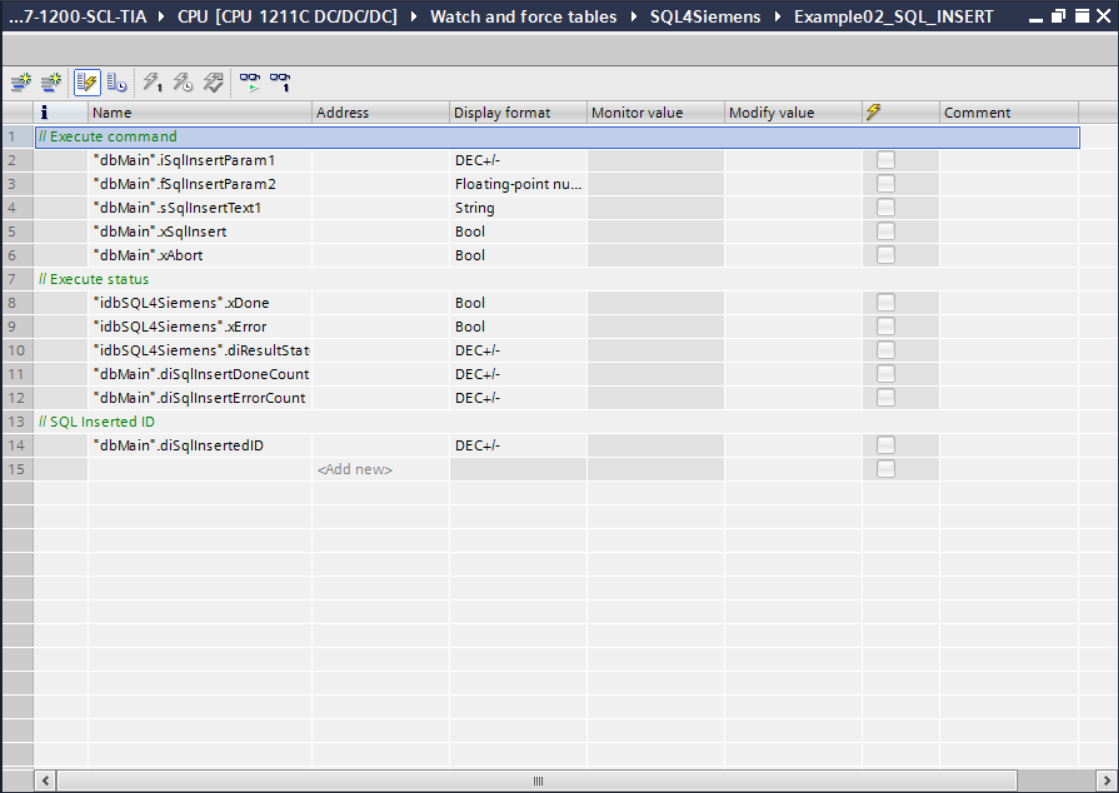
By setting the variable «xSqlInsert», a new record is integrated into the sample database. The values are determined through the parameters «iSqlInsertParam1», «fSqlInsertParam2» and «sSqlInsertText1».
If the execution has been successful the counter «diSqlInsertDoneCount» is incremented. The parameter «diSqlInsertedID» , shows under which ID (primary key) the record has been saved in the database.
If the command has been executed with an error, the counter «diSqlInsertErrorCount» is incremented. In this case, the error code is shown in the parameter «diResultState». The variable «xSqlInsert» must be reset manually.
Monitoring table «Example03_SQL_UPDATE»
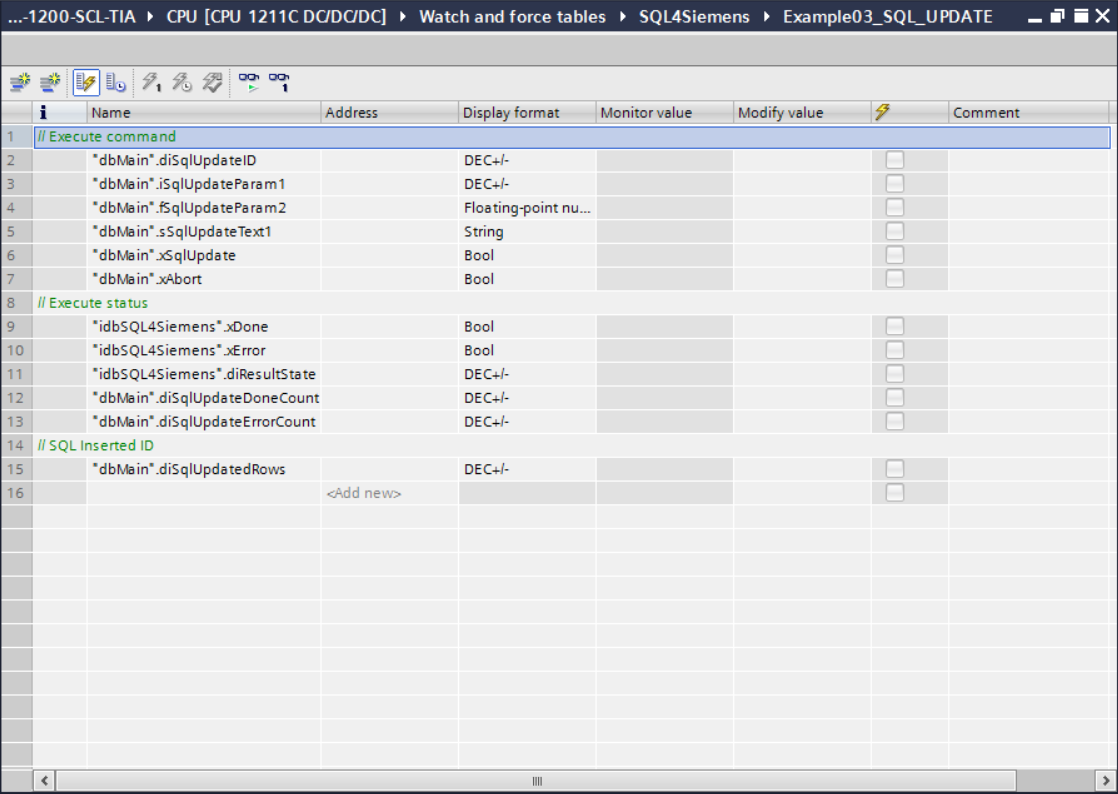
By setting the variable «xSqlUpdate», an existing record in the sample database is updated. The record to be updated must be specified with the parameter «diSqlUpdateID». The new values are determined through the parameters «iSqlUpdateParam1», «fSqlUpdateParam2» and «sSqlUpdateText1».
If the execution has been successful, the counter «diSqlUpdateDoneCount» is incremented. The parameter «diSqlUpdatedRows» shows how the record was updated (in this case 0 or 1).
If the command has been completed with an error, the counter «diSqlUpdateErrorCount» is incremented. In this case the error code is displayed in the parameter «diResultState». The variable «xSqlUpdate» must be reset manually.
Monitoring table «Example04_SQL_DELETE»
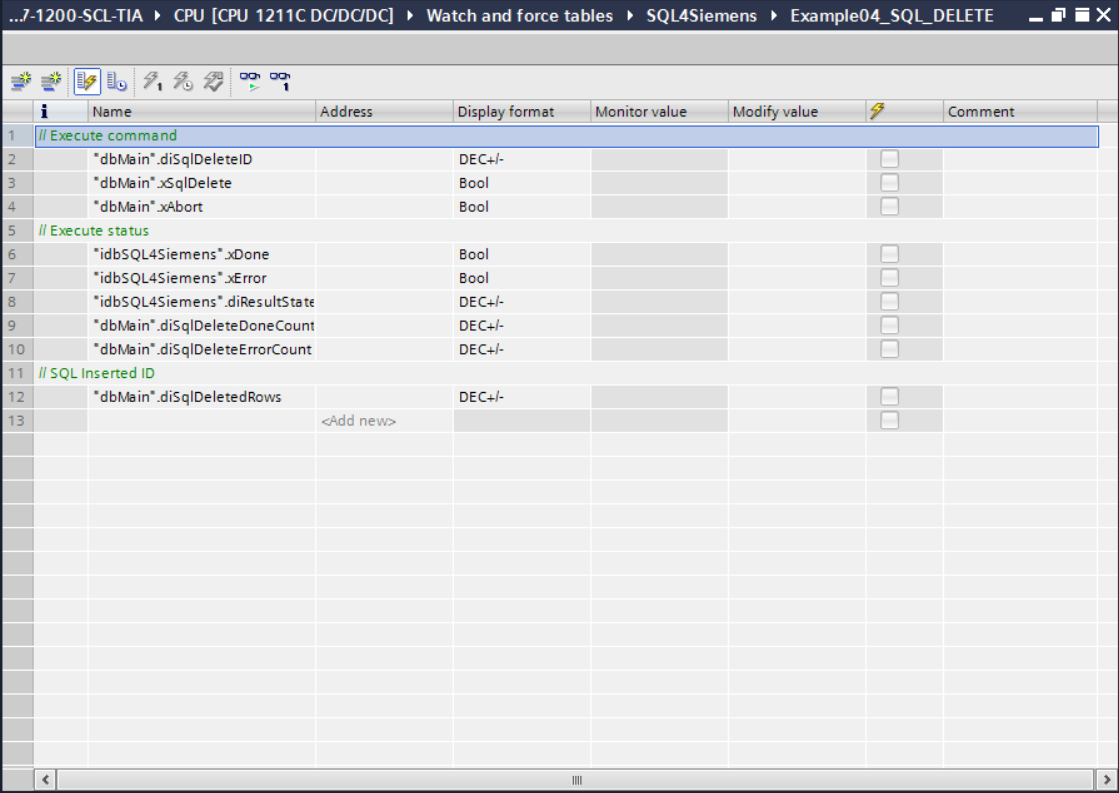
By setting the variable «xSqlDelete», all records in the sample database whose number (primary key) is smaller or equal to the value in the parameter «diSqlDeleteID» are deleted. If the execution has been successful, the counter «diSqlDeleteDoneCount» is incremented. The parameter «diSqlDeletedRows» shows how the records where deleted.
If the command has been executed with an error, the counter «diSqlDeleteErrorCount» is incremented. In this case, the error code is shown in the parameter «diResultState». The variable «xSqlUpdate» must be reset manually.
Error codes return value
The variable “diResultState” describes the error.
| Fehler-Nummer | Fehler-Beschreibung |
|---|---|
| 1 | Unknown SQL command |
| 2 | Query returns more records than defined with MaxRows. Adjust query or increase MaxRows |
| 3 | Query returns more columns than defined with MaxColumns, adjust query or increase MaxColumns |
| 4 | Query returns more data than the defined puffer size. Adjust query or increase the buffer size in the Connector and the control |
| 5 | Query returns at least one value, which is bigger than defined with MaxStringLength. Adjust query or increase MaxStringLength |
| 10 | Internal Connector error |
| 11 | Internal Connector error, database cannot be opened |
| 21 | No IP address defined |
| 22 | No port number defined |
| 23 | Request string is empty |
| 24 | Number of MaxRows not defined |
| 25 | Number of MaxColumns not defined |
| 29 | Size of MaxStringLength invalid |
| 41 | No connection to SQL4automation-Connector established. Turn off firewall, check IP address and remote port |
| 51 | Error in sending the query. Turn off firewall, check IP address and remote port |
| 91 | Timeout error. No response from the Connector within the time frame. |
| 95 | Error in receiving the data |
| >100 | Error numbers of the ODBC database connection |
| 40002 | General error during the SQL query. Request string is invalid |