Activation of a Software License Using a Product Key
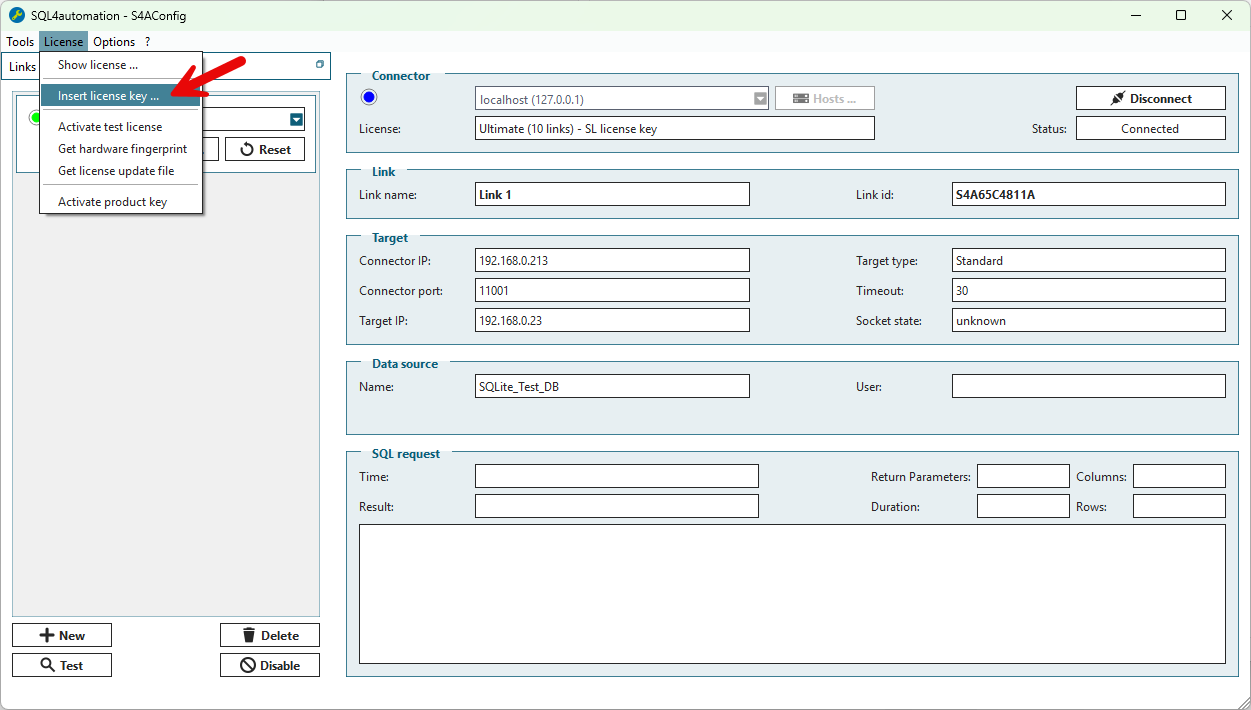
A license can be activated using a product key even if no internet connection is available on the machine running the connector. For the following steps, the ConfigTool must be connected to the connector.
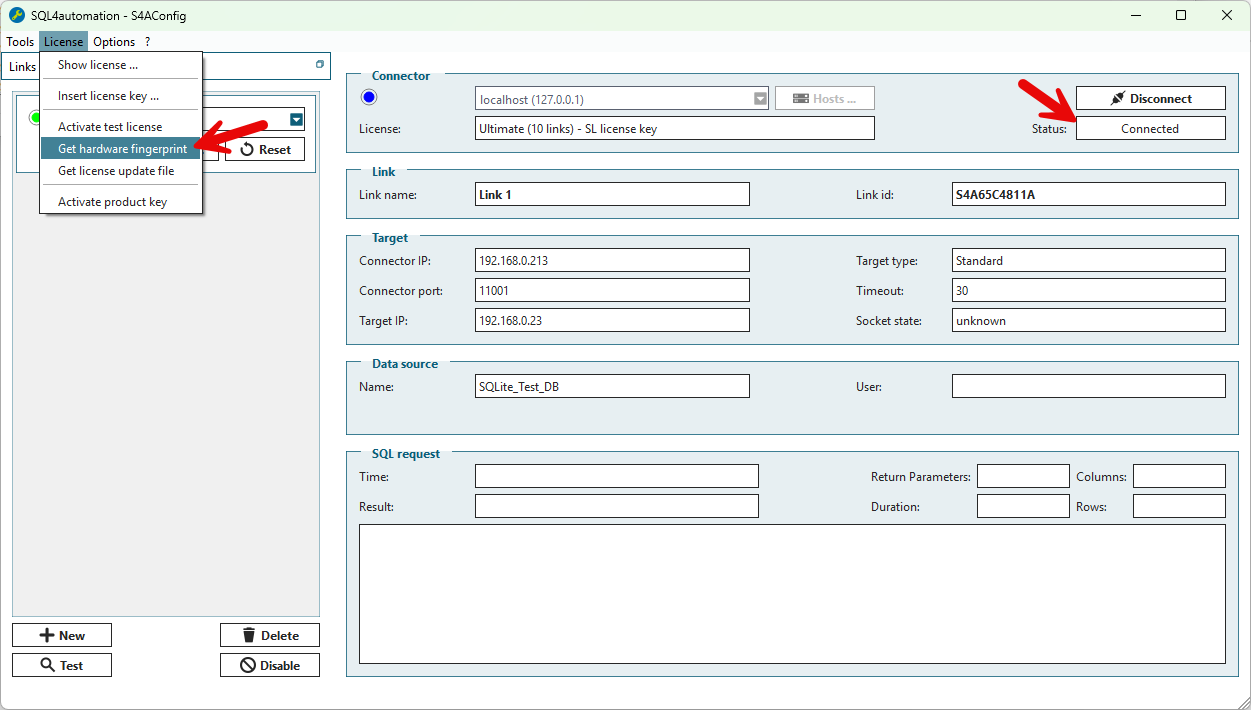
1. Generate a hardware fingerprint
In the ConfigTool, generate a hardware fingerprint for the connector:
2. Log in with the product key
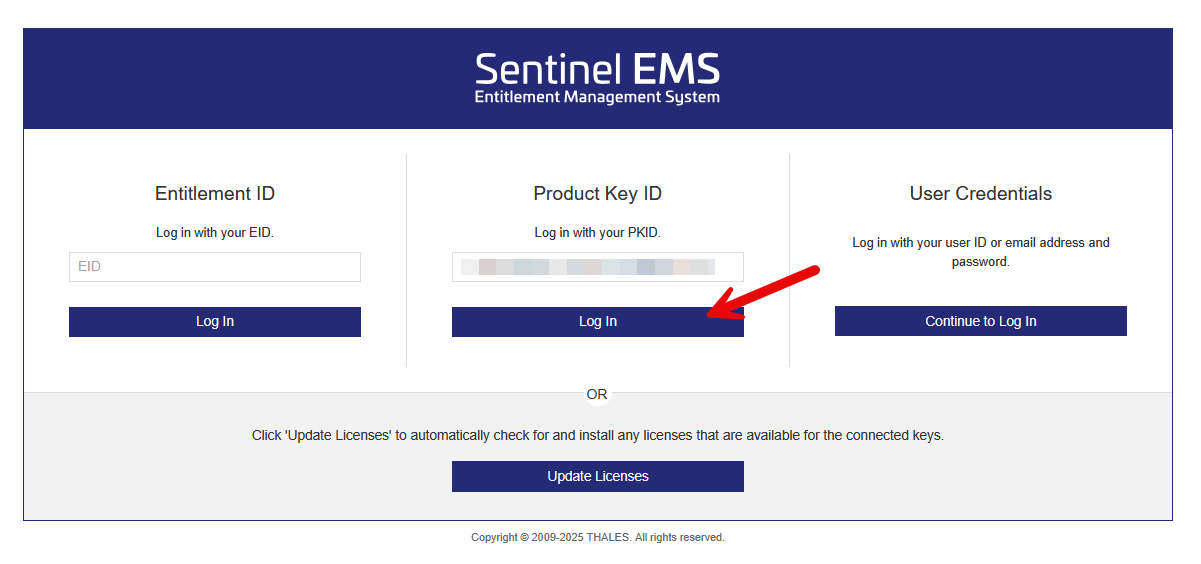
On a computer that has internet access, open the Sentinel customer portal in a web browser:
https://inasoftsystemsgmbh.prod.sentinelcloud.com/customer
Log in using your product key:
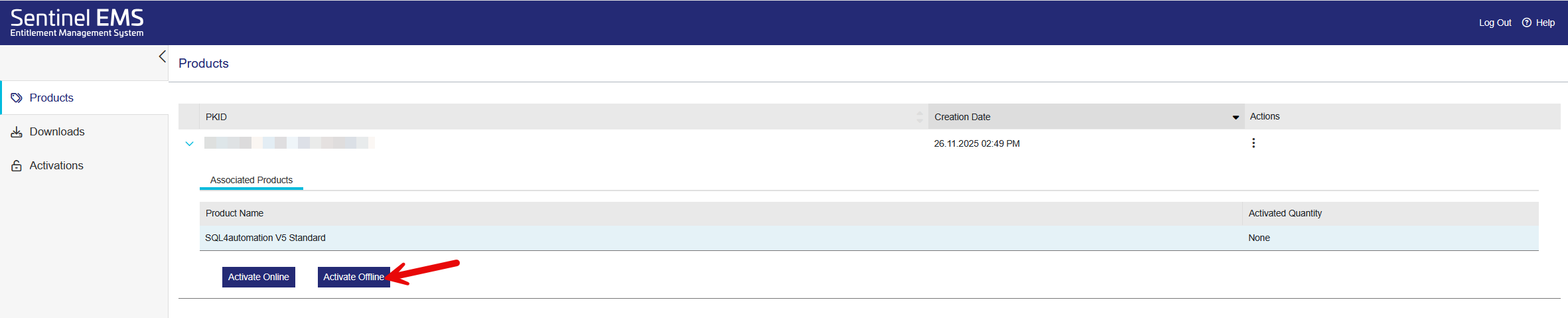
3. Activate the license offline
Choose the offline activation option:
4. Generate the license
Select the hardware fingerprint created in step 1 and generate the license:
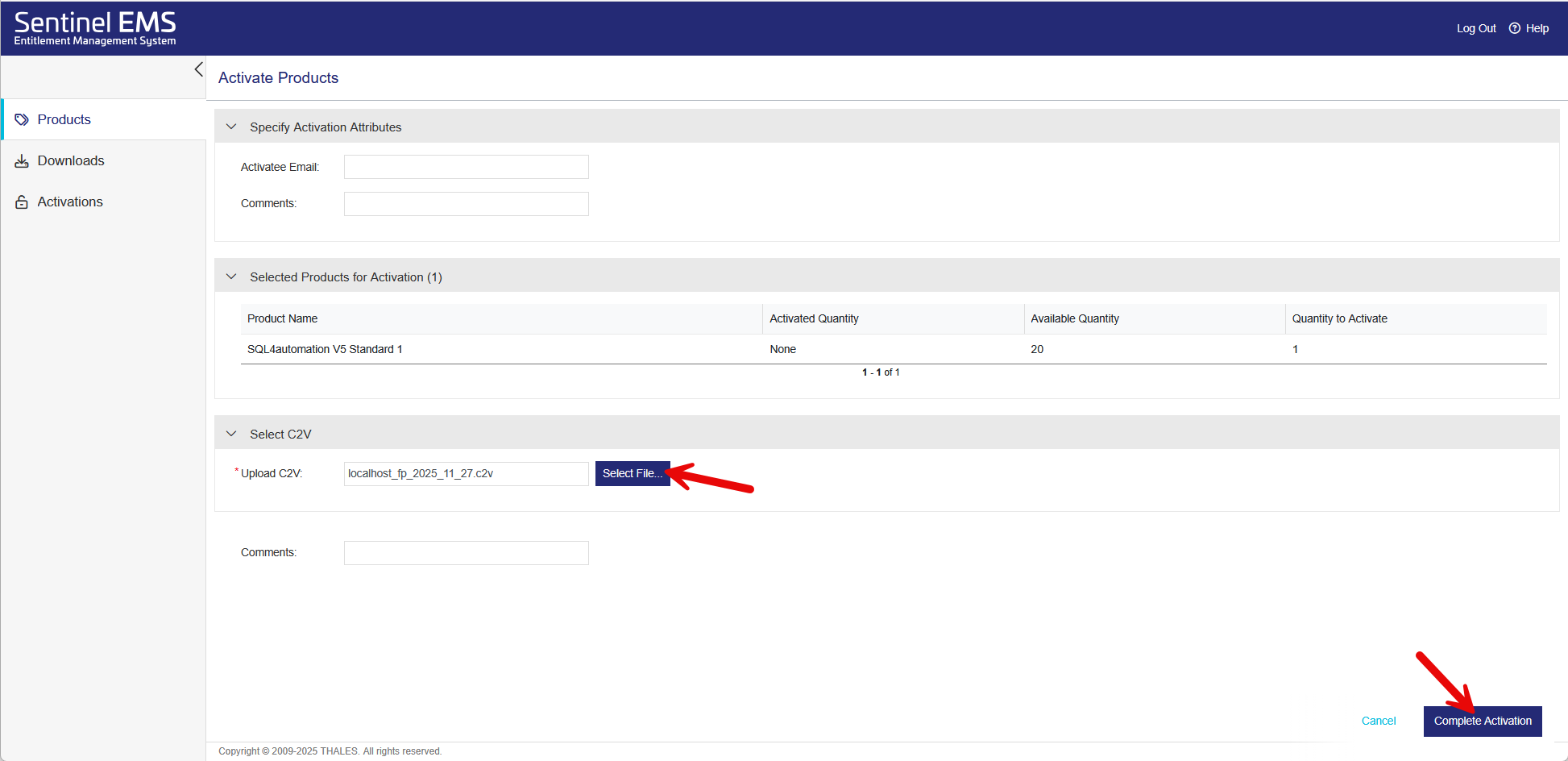
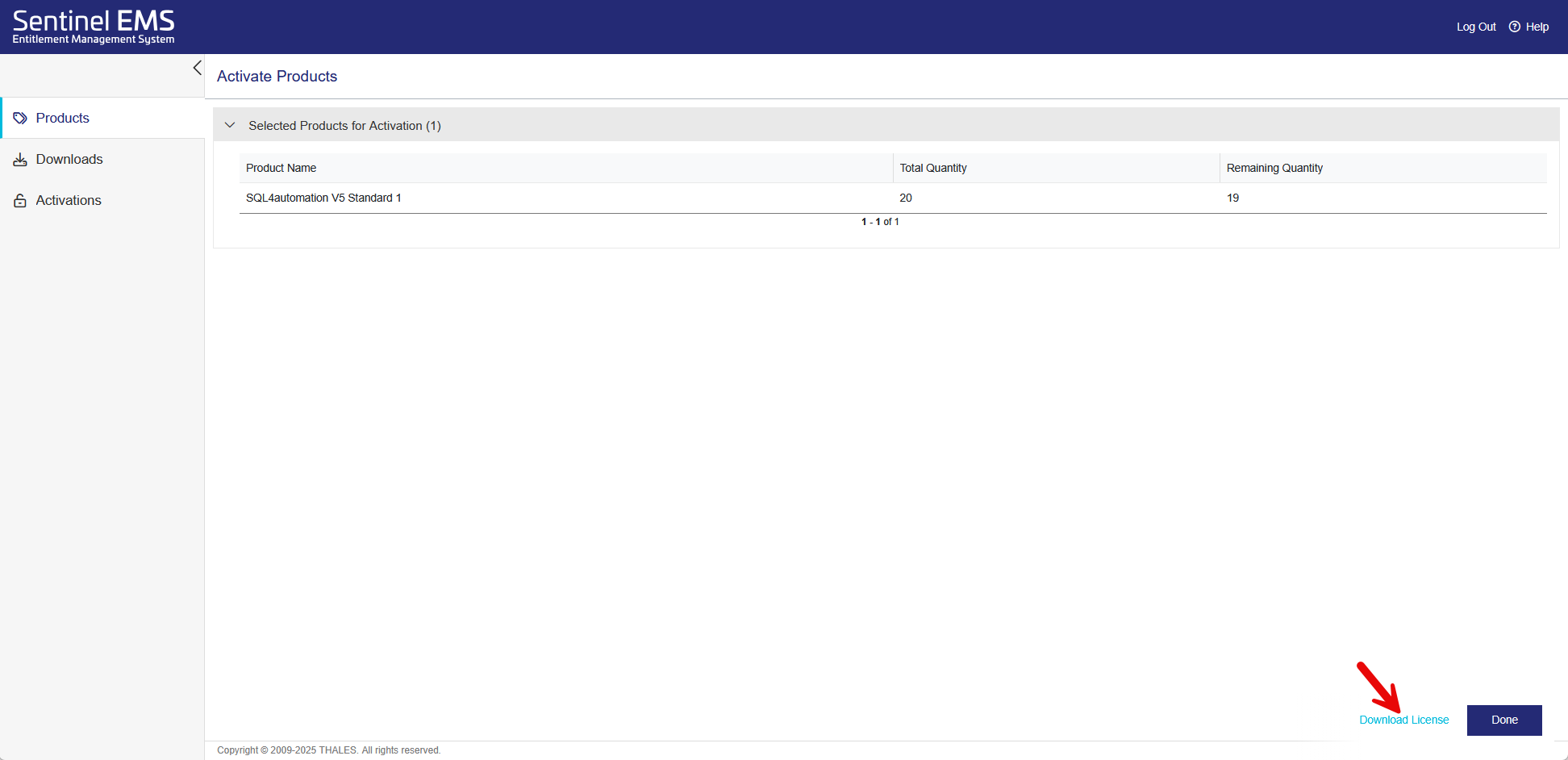
5. Download the license
Download the generated license file:
6. Transfer the license to the Connector
Transfer the downloaded license to the offline machine and apply it to the Connector via Insert License Key in the ConfigTool: