Cloud License Activation
Your cloud license is hosted by Thales/Sentinel on a highly available server and is accessed over the internet. This lets you move the SQL4automation Connector to any location without licensing issues — which is particularly practical for virtual machines in a cluster server. See License Types for a general comparison of the license options.
When you order a cloud license, SQL4automation support sends you an activation link by e-mail. Opening this link creates the connection between the license on the Sentinel cloud server and your computer. Follow the steps below to complete the activation.
1. Uninstall the older version (if applicable)
If a version older than V5 is installed, uninstall it first. Your link settings are retained, but you can back up the configuration file beforehand:
C:\ProgramData\SQL4automation\config\S4AConnector.ini
2. Install the V5 setup
Download and install the V5 setup. You can obtain it from the download area of the website or via the direct link provided in your activation e-mail.
3. Modify the config file (if an earlier version was installed)
If an earlier version was installed, you may need to update the [SentinelWebService] entry in the S4AConfig.ini file:
C:\ProgramData\SQL4automation\config\S4AConfig.ini
![The [SentinelWebService] entry in S4AConfig.ini, pointing to the Sentinel cloud server](/img/manual/cloud-activation-1-config.png)
4. Click on your activation link
Open the activation link that was sent to you by e-mail. This creates the connection to the license on your computer.
5. Verify the connection in the Sentinel Admin Control Center
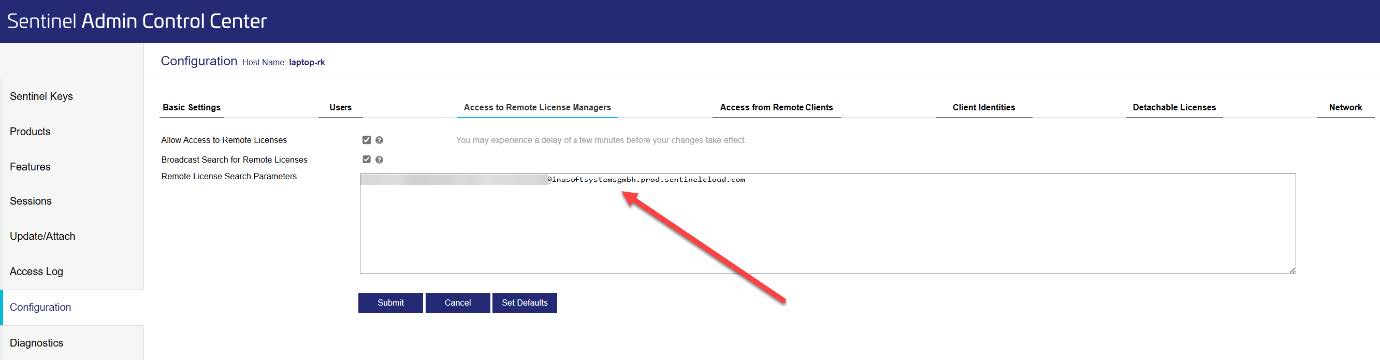
On the local Sentinel Admin Control Center (127.0.0.1:1947), the link to the cloud server can be seen under Configuration → Access to Remote License Managers.
6. Copy your Key ID
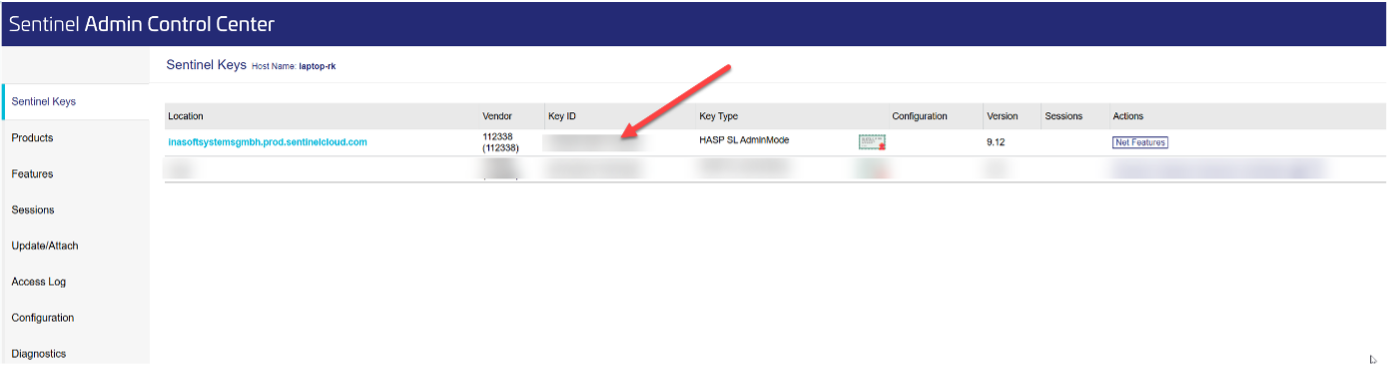
The license is listed under Sentinel Keys. Copy the Key ID.
7. Enter the Key ID in the Config Tool
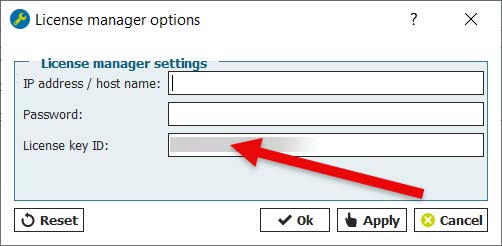
Enter the Key ID in the Config Tool under Options → License manager options.
Keep the IP address / host name field empty.
8. Confirm successful activation
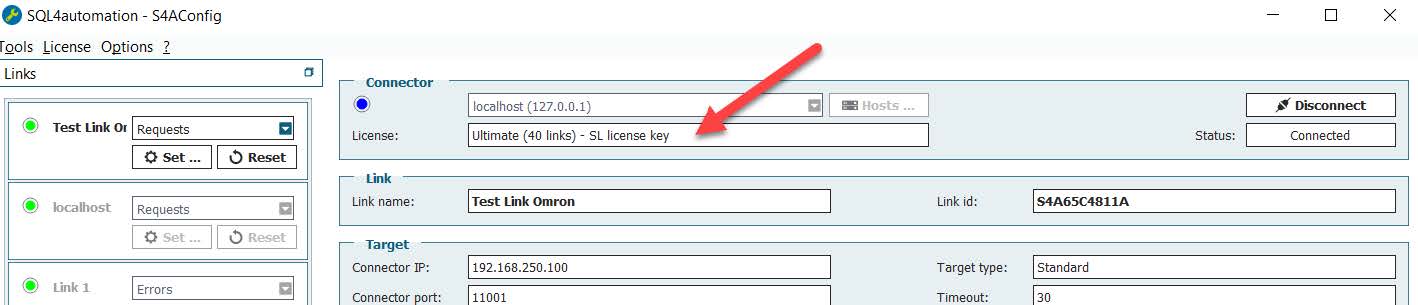
If everything was successful, the cloud license is displayed in the Config Tool — for example, "Ultimate (40 links)".
Need help?
If you encounter any issues or would like remote support during activation, contact info@sql4automation.com.