Data Sources
Generally, under Windows the connection to the database is realized via ODBC. As a consequence, all SQL databases can be used. Especially in the case of Linux, direct database connections to a few selected databases can also be established.
Data Sources under Windows (ODBC)
ODBC data sources (Open Database Connectivity) facilitate access to data from a wide range of database administration systems. For the 32bit installation of SQL4automation the 32bit ODBC driver is used, for the 64bit version the 64bit ODBC driver is used.
ODBC Data Source Administrator
With the ODBC Data Source Administrator, the connections to the SQL server are configured. There are several ways of launching the ODBC Data Source Administrator:
Config Tool In the Config Tool, the ODBC Data Source Administrator can be launched under the link settings or via [Tools – ODBC Admin]. The correct ODBC administrator is automatically started here.
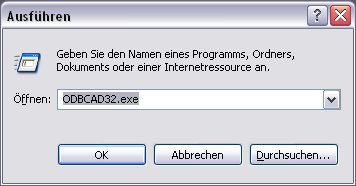
Windows The ODBC data source administrator can be started in the start menu using the run dialog with the command line [ODBCAD32.exe] (32bit) or under [Start – System and Security – Administration] (32bit or 64bit depending on the operating system).
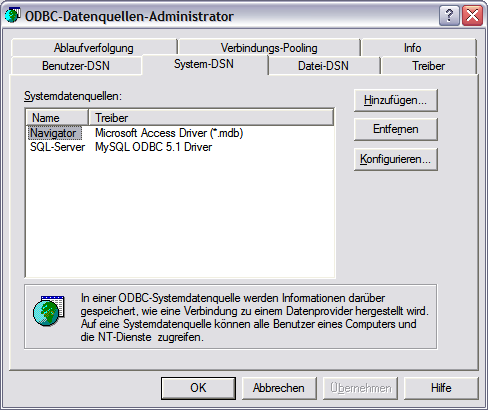
To be able to use the ODBC connection in the SQL4automation Connector, the connection must be configured under System-DSN. A new connection can be created by clicking the "Add" button.
Depending on the database connector, the configuration windows have a different appearance. With every configuration, a specific name is assigned (DSN Data Source Name). The SQL server is indicated with the Host name or the IP address, in the case of MS Access databases simply the *.mdb file is selected, and the target database to the SQL server is defined. In order to test the connection to the database, the user name and password must be entered. Afterwards, these entries will be deleted, as the user name and password will be stored in the SQL4automation Connector. In this way, unauthorized access to the database by third parties is prevented. The MS Access Database does not support secure access with user and password.
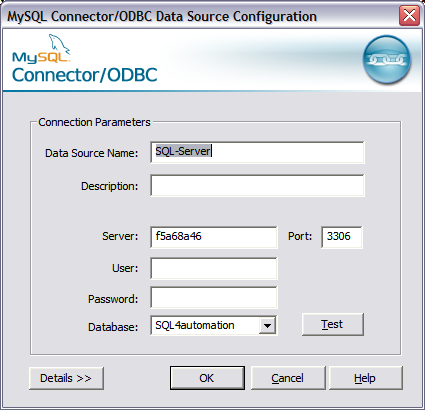
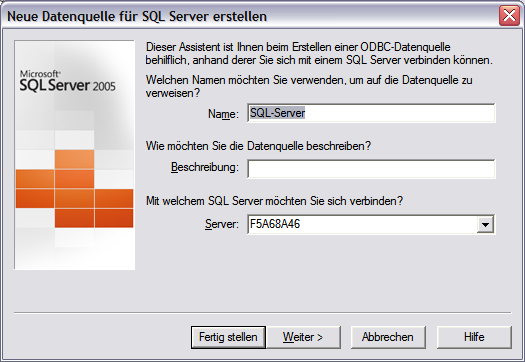
MySQL — Microsoft SQL Server 2005
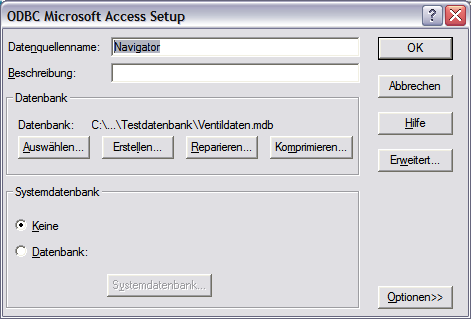
MS Access
The saved settings are used by the SQL4automation Connector through the Data Source Name.
Setting up the connection to the test database
If the 32bit version of the SQL4automation connector has been installed the Access database can be used as test database.
In case the 64bit version of the SQL4automation connector has been installed, the 64bit SQLite ODBC driver has to be downloaded from the SQLite homepage and to be installed. Microsoft does not provide a 64bit ODBC driver for the access database.
32bit installation of SQL4automation
To set up the connection to the test database, please start the ODBC Administrator from the Config Tool and add a new system DSN as described in 4.1.1 ODBC Data Source Administrator.
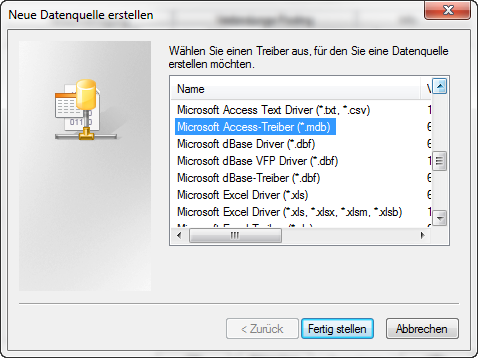
Select the Microsoft Access driver (*.mdb).
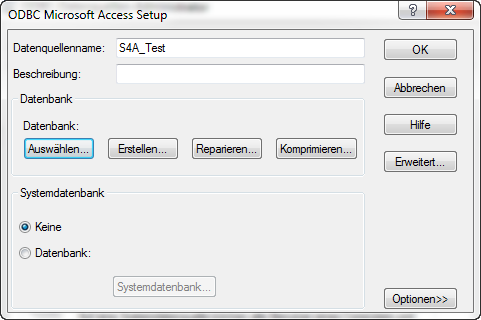
Choose an appropriate name for your connection:
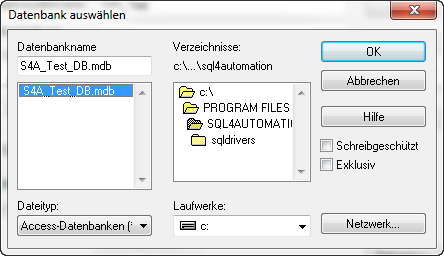
You may select the test database S4A-Test_DB.mdb via "select". The S4A_Test_DB.mdb is located in the installation directory of the SQL4automation Connectors.
64bit installation of SQL4automation
In order to set up the connection to the test database, start the ODBC administrator out of the Config Tool and add a new system DSN as described in ODBC Data Source Administrator.
Select the SQLite3 ODBC driver.
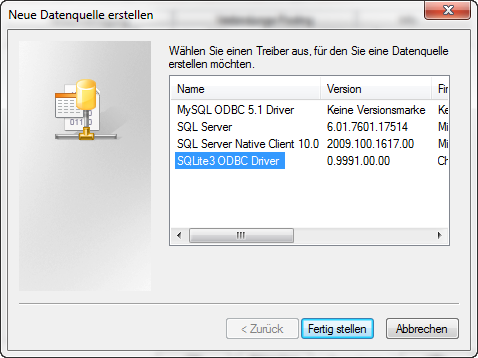
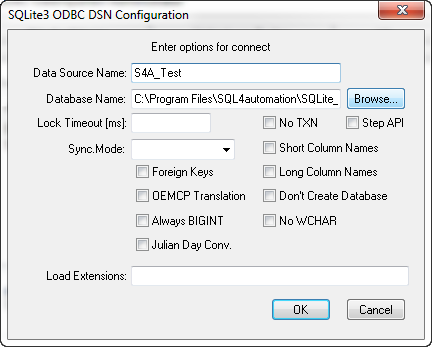
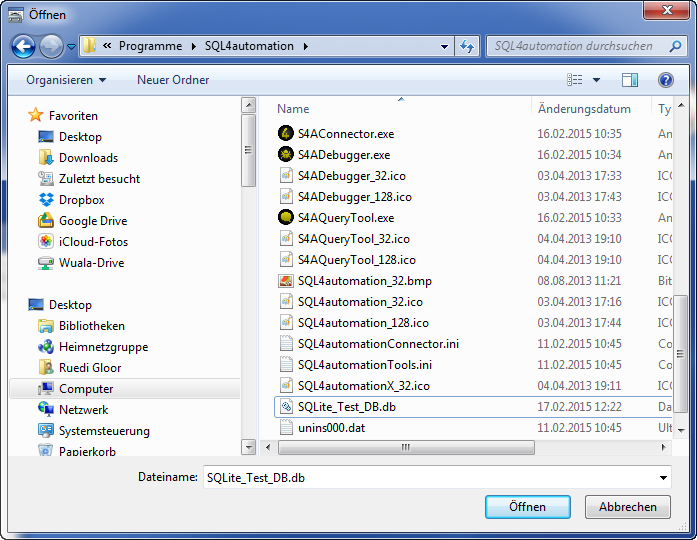
Choose an appropriate name for the ODBC connection and select the test database in the installation directory of the SQL4automation connector.
Transferring settings to the SQL4automation Connector
As described under Configuration, the connection is configured in the SQL4automation Connector. The created DSN may be selected and the user name and password may be entered.