ODBC-Verbindung unter Linux
Es muss der neuste ODBC-Treiber für Windows heruntergeladen werden: Microsoft ODBC driver download
Kopieren Sie das CA-Zertifikat unter /usr/share/ca-certificates und benennen Sie die Endung pem in crt um.
Laden Sie die CA-Zertifikate: sudo dpkg-reconfigure ca-certificates (das Zertifikat hinzufügen)
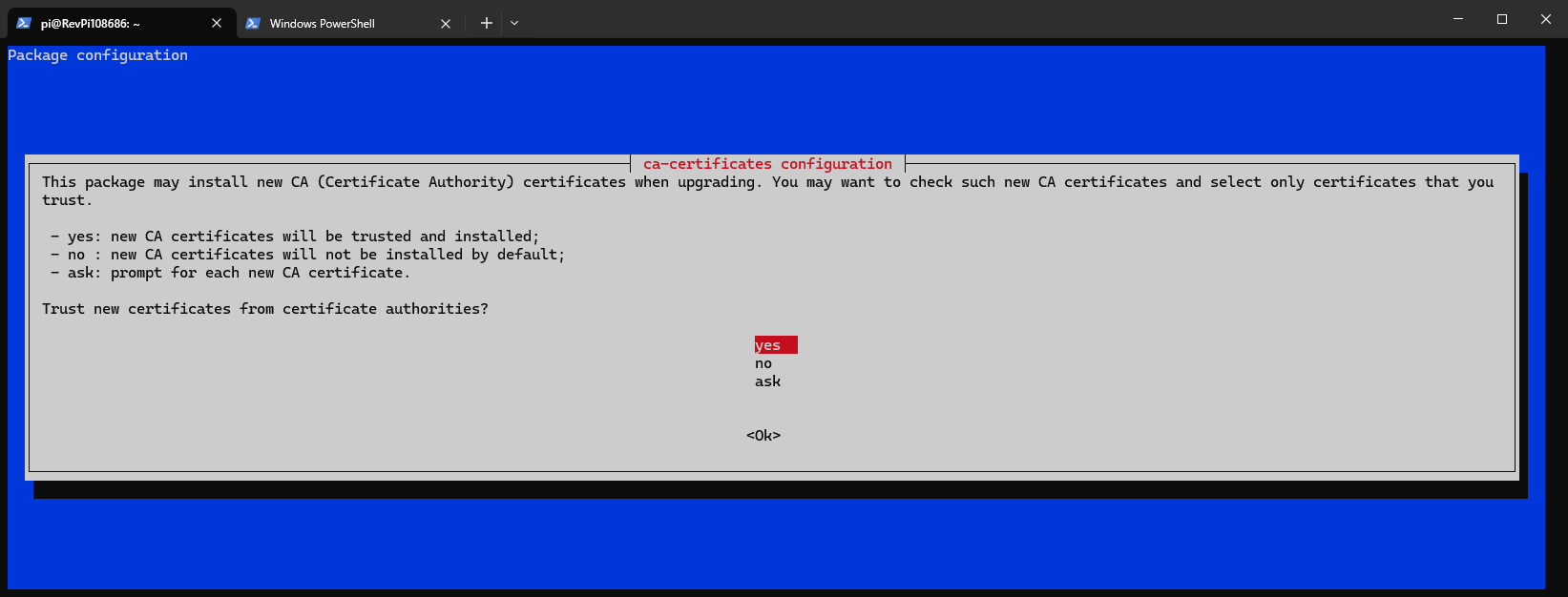
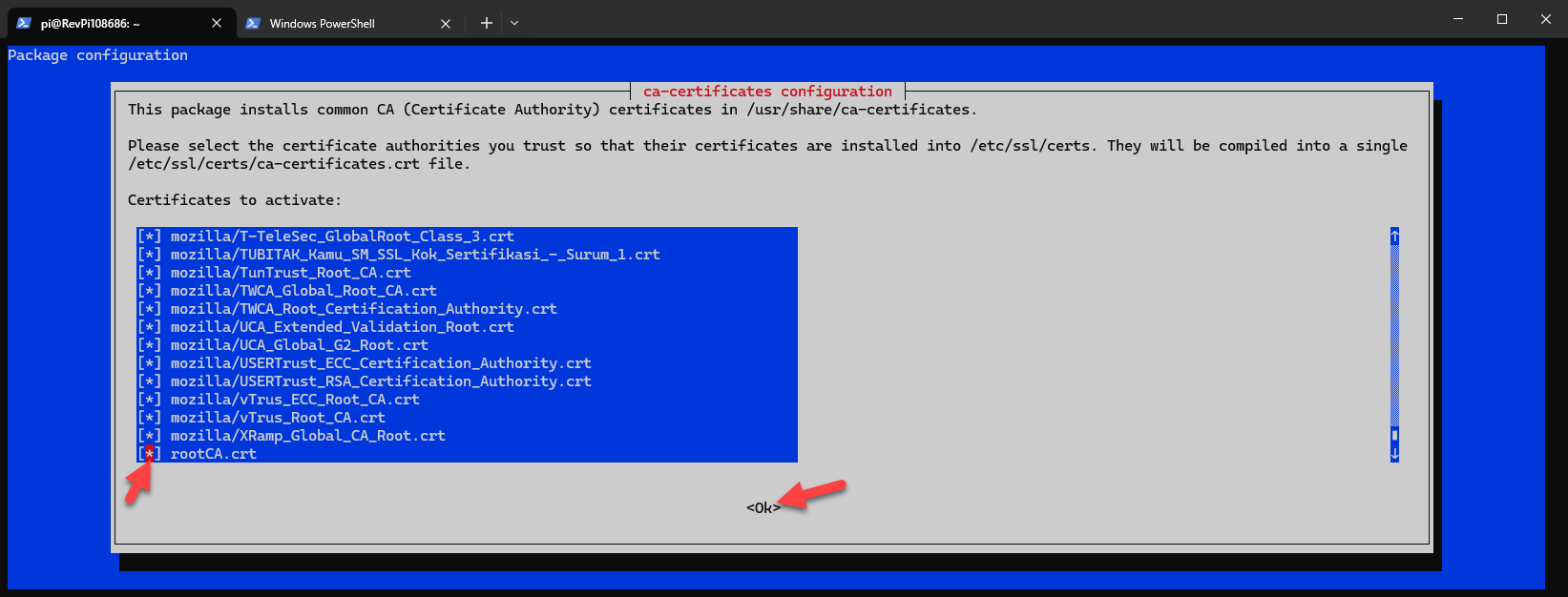
Falls das CA-Zertifikat nicht vorhanden ist, kann es aus dem Windows Zertifikats-Store exportiert werden:
certlm.msc
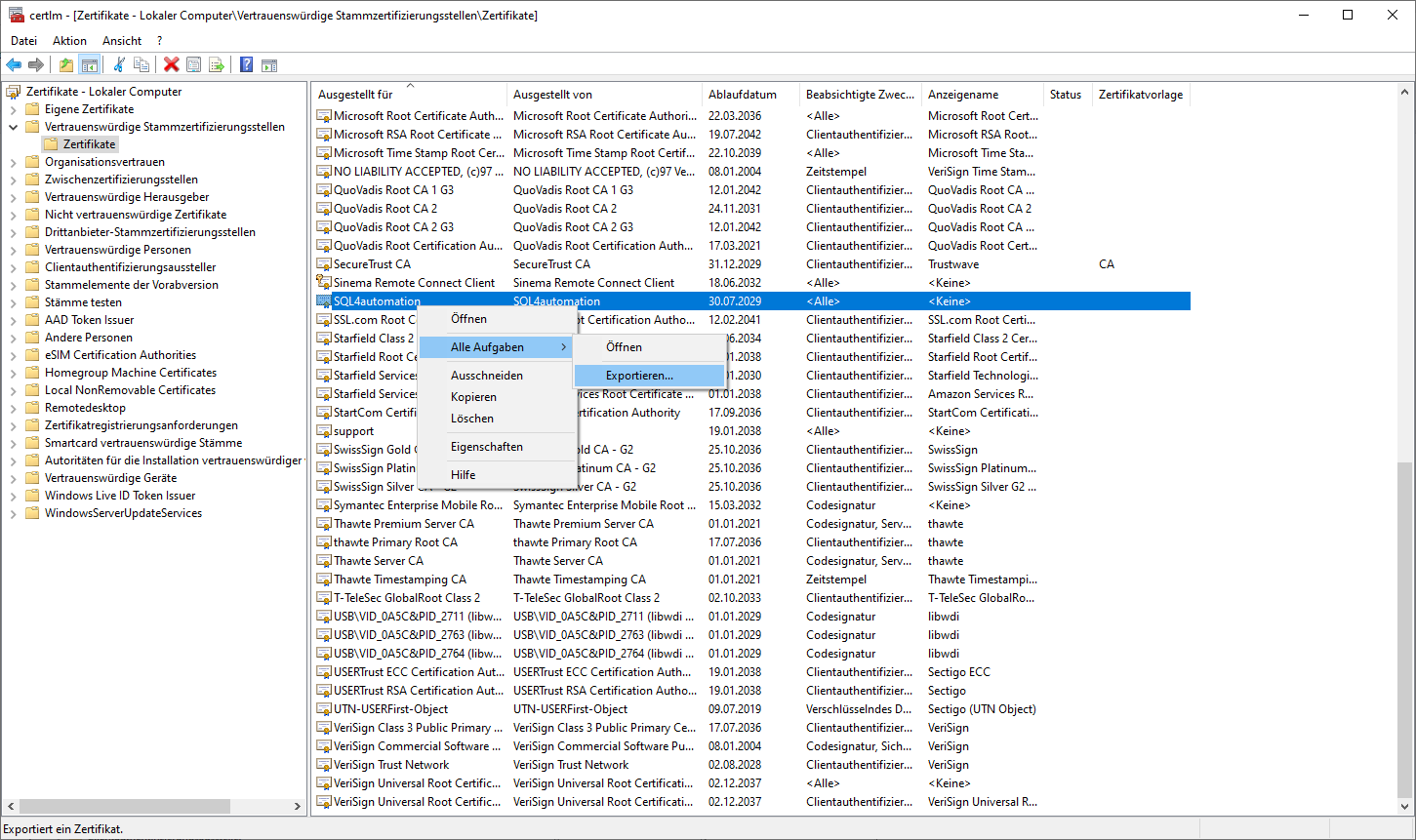
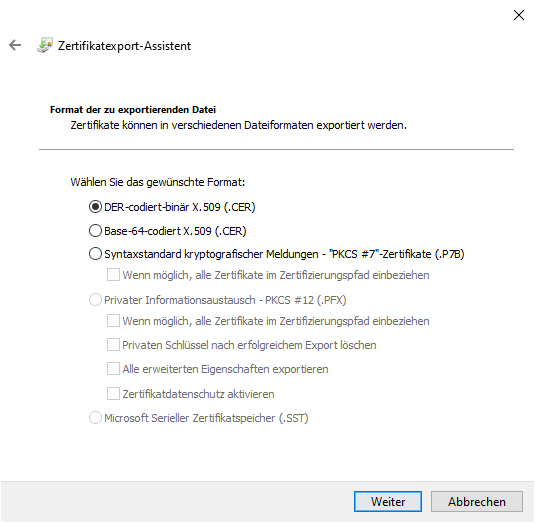
Das Zertifikat muss anschließend mit OpenSSL vom DER-Format ins lesbare PEM-Format konvertiert werden. Benennen Sie dabei die Datei von *.cer in *.cert um:
openssl x509 -in rootCA.cer -inform DER -out rootCA.crt -outform PEM
Danach das Zertifikat wie weiter oben beschrieben in Linux importieren.
Fügen Sie mit SQL4automation eine neue ODBC-Verbindung hinzu oder bearbeiten Sie die /etc/odbc.ini direkt.
Die Datei sieht dann etwa so aus:
[SQL4automation]
#description = "Verbindung zu MS SQL Server SQL4automation"
Driver = ODBC Driver 18 for SQL Server
Server = LAPTOP-JDT5AN04
Port = 1433
Database = S4A
#TrustServerCertificate = yes
Wichtig ist, dass als Server der FQDN verwendet wird. Alternativ kann auch die Option TrustServerCertificate = yes gesetzt werden.