Siemens S7-1200/1500 V5 / TIA19
Target: "Siemens S7"
Voraussetzungen
Die Version 5 ist funktionell rückwärtskompatibel mit der Version 4. Neu kann ab dieser Version eine verschlüsselte Kommunikation mit dem Connector (ab V5.1.0.0) betrieben werden.
In den nachfolgenden Kapiteln wird nur dieser (neue) Aspekt der Kommunikation behandelt und für die Standard-Funktionen auf die bestehenden Kapitel verwiesen.
Um diese Funktionalität nutzen zu können, gelten folgende Mindestanforderungen betreffend der Siemens-Firmware:
-
S7-1500 CPUs: Firmware >= V2.5
-
S7-1200 CPU: Firmware >= V4.2 Bitte beachten Sie, dass der Verbindungsaufbau mit einer S7-1200 CPU zwar funktioniert, aber Stand heute (April 2025**) bis zu 14 Sekunden betragen kann! Aus unserer Sicht ist dies nicht effizient! Wir empfehlen daher, eine S7-1500 CPU zu verwenden.** Allenfalls könnte man alternativ den lange dauernden Verbindungsaufbau einmalig in Kauf nehmen, dafür aber die Verbindung offen halten (Beispiel «ConnectionObserver», Parameter «xHoldOpen» = TRUE setzen).
Bei älteren CPUs wird der Baustein «TCON_IP_V4_SEC» aus der «Open user communication» Bibliothek nicht unterstützt.
Nachfolgend wird die Konfiguration anhand einer S7-1500 CPU gezeigt.
Hardware-Architektur und SSL-Zertifikate
-
SPS IP-Adresse: 10.100.100.152
-
SQL4automation Connector IP-Adresse: 10.100.100.211
Es werden folgende Zertifikate generiert (OpenSSL). Beachten Sie, dass die Einstellungen, insbesondere die IP-Adressen, für die entsprechende Netzwerk-Architektur angepasst werden müssen.
CLIENT152
openssl genrsa -out client152.key 2048
openssl req -new -key client152.key -out client152.csr -subj "/C=CH/ST=Bern/L=Lyssach/CN=10.100.100.152/O=Inasoft"
openssl x509 -req -in client152.csr -CA rootCA.pem -CAkey rootCA.key -CAcreateserial -out client152.crt -days 1825 -sha256
openssl pkcs12 -export -out client152.p12 -inkey client152.key -in client152.crt
→ PWD: SSLtest
SERVER211
openssl genrsa -out server211.key 2048
openssl req -new -key server211.key -out server211.csr -subj "/C=CH/ST=Bern/L=Lyssach/CN=10.100.100.211/O=Inasoft"
openssl x509 -req -in server211.csr -CA rootCA.pem -CAkey rootCA.key -CAcreateserial -out server211.crt -days 1825 -sha256
openssl pkcs12 -export -out server211.p12 -inkey server211.key -in server211.crt
→ PWD: SSLtest
ROOT CA
openssl genrsa -out rootCA.key 2048
openssl req -x509 -new -nodes -key rootCA.key -sha256 -days 1825 -out rootCA.pem -subj "/C=CH/ST=Bern/L=Lyssach/CN=SQL4automation/O=Inasoft"
openssl pkcs12 -export -out rootCA.p12 -inkey rootCA.key -in rootCA.pem
→ PWD: SSLtest
Inbetriebnahme TLS-Verschlüsselung
Vor der Inbetriebnahme sind die Zertifikate für den SQL4automation Connector in die entsprechenden Pfade zu kopieren.
-
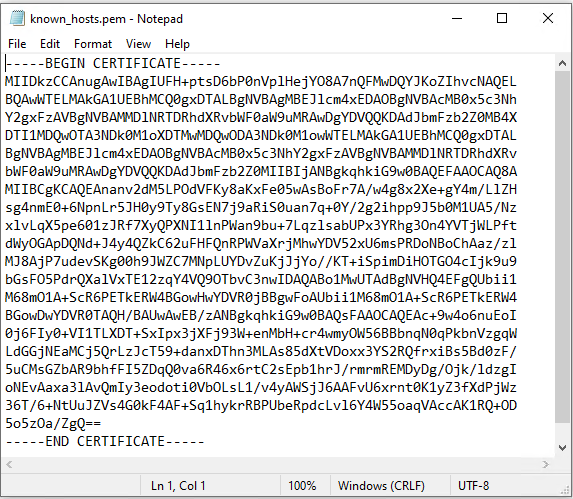
Pfad «C:\ProgramData\SQL4automation\certs\CA» 🡪 Den Inhalt des RootCA in die Datei kopieren
-
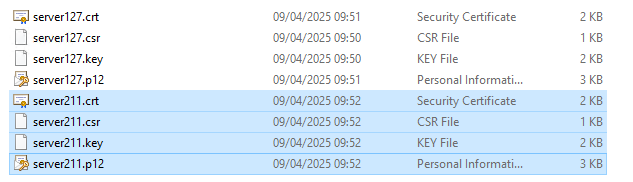
Pfad «C:\ProgramData\SQL4automation\certs\S4AConnector» 🡪 Die Server-Zertifikate werden an diesen Ort kopiert.
-
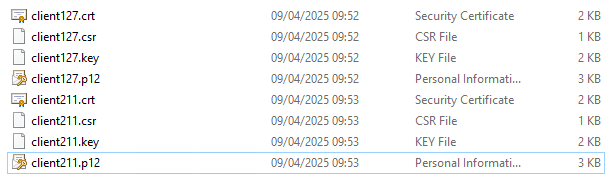
Pfad «C:\ProgramData\SQL4automation\certs\S4AQueryTool» 🡪 Hier liegen die Zertifikate, um mit dem Query-Tool testen zu können.
Nach dem Kopieren des RootCA muss der SQL4automation Connector Dienst vor dem Betrieb neu gestartet werden.
Im weiteren Schritt wird empfohlen, die Verbindung zwischen SQL4automation und der Steuerung OHNE die TLS-Verschlüsselung in Betrieb zu nehmen.
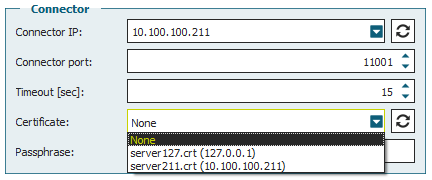
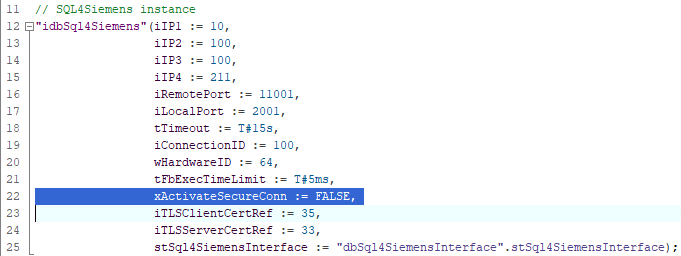
Erst wenn die Kommunikation ohne Verschlüsselung funktioniert, empfehlen wir als nächstes die Verschlüsselung zu aktivieren. Beachten Sie, dass die Systemzeit an dieser Stelle kontrolliert und falls erforderlich eingestellt werden muss!
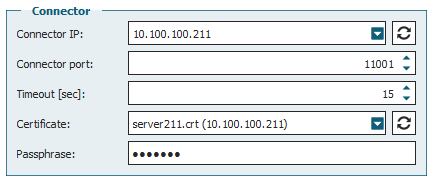
Passphrase: SSLtest
Im TIA-Portal müssen nachfolgende Sicherheitseinstellungen vorgenommen werden:
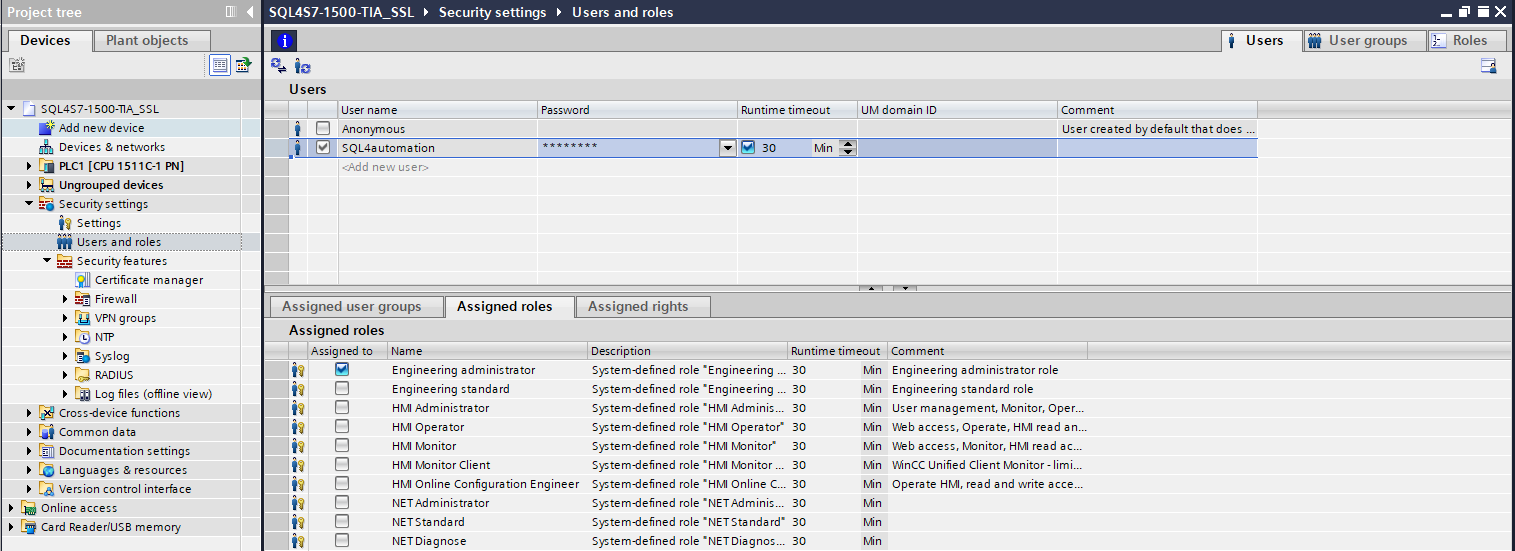
Usr: SQL4automation, pwd: SQL4automation
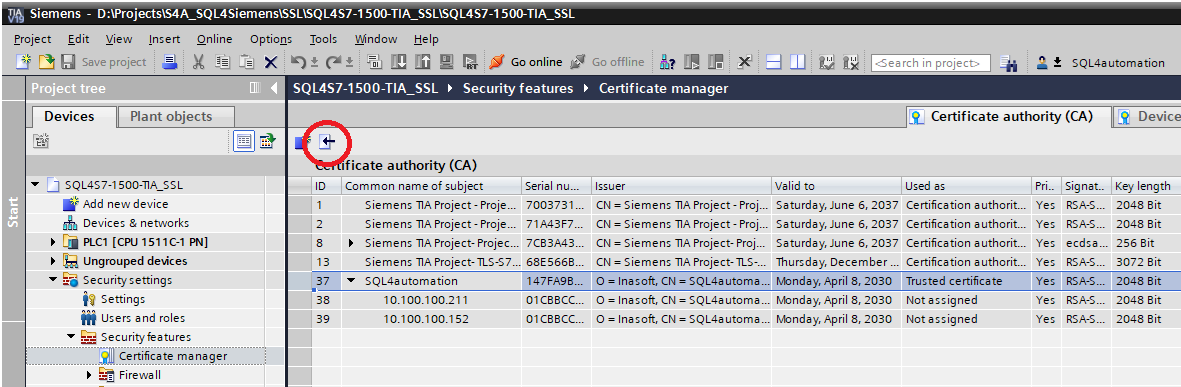
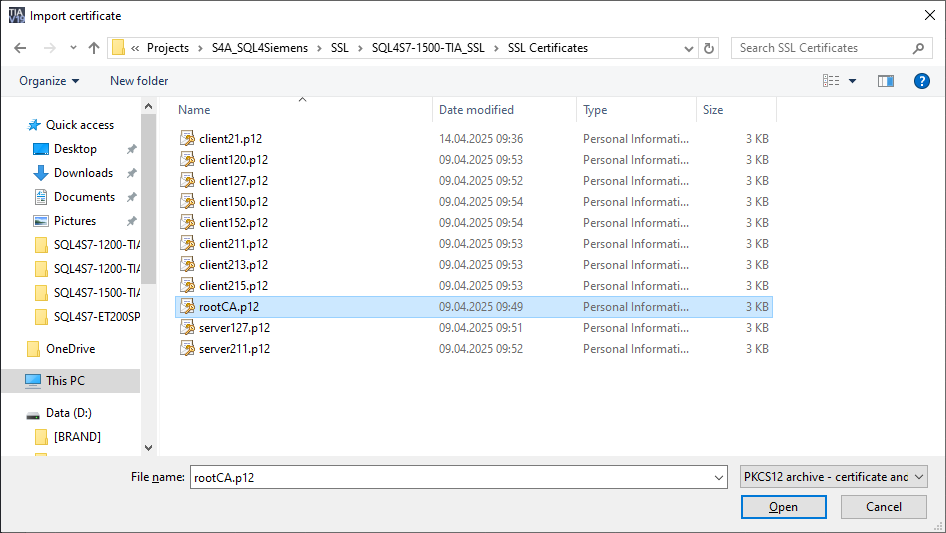
Die drei Zertifikate «rootCA.p12», «server211.p12» und «client152.p12» mit Passwort «SSLtest» importieren.
Nach dem Aktualisieren der Ansicht sind folgende Einträge sichtbar:
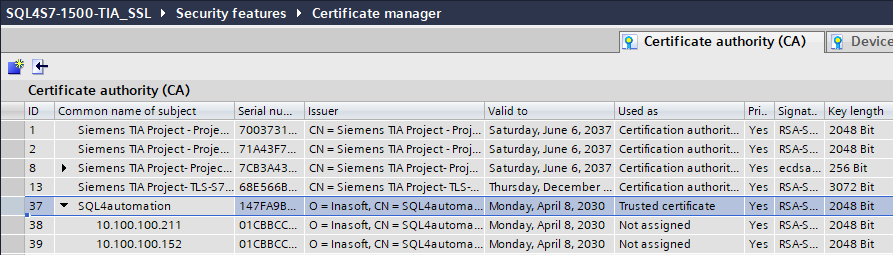
Die IDs werden nachfolgend weiter verwendet. Bitte merken Sie sich die entsprechenden Nummern.
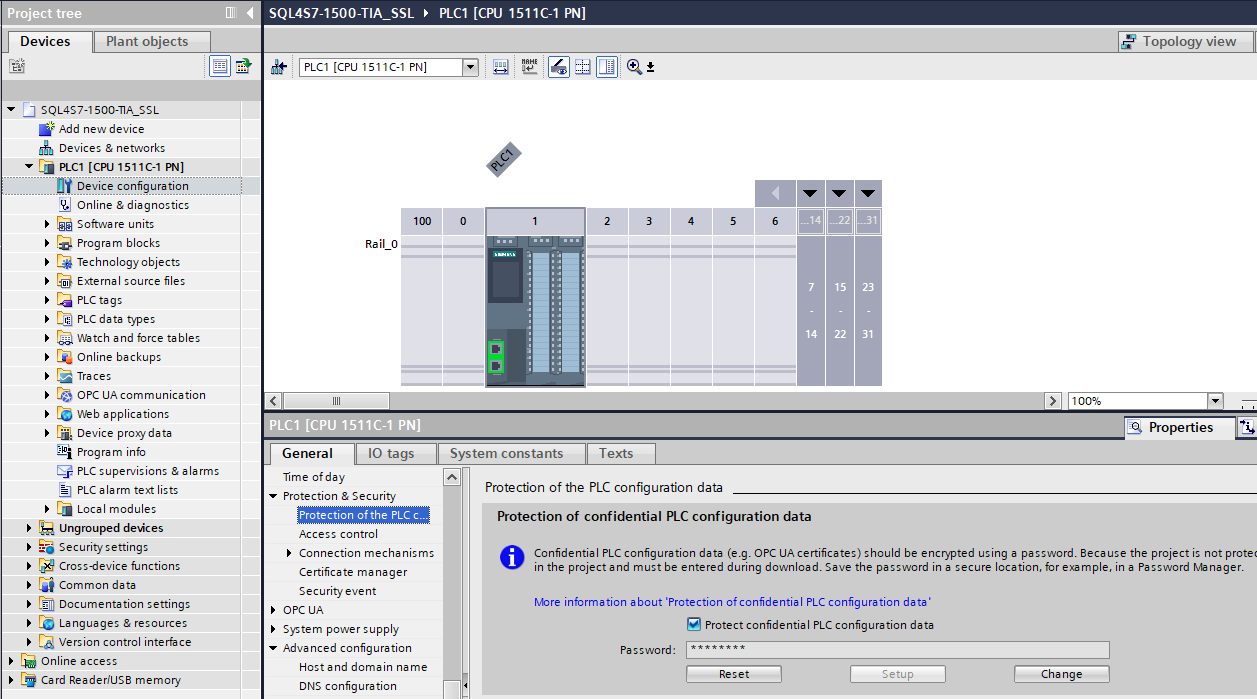
Pwd: SQL4automation
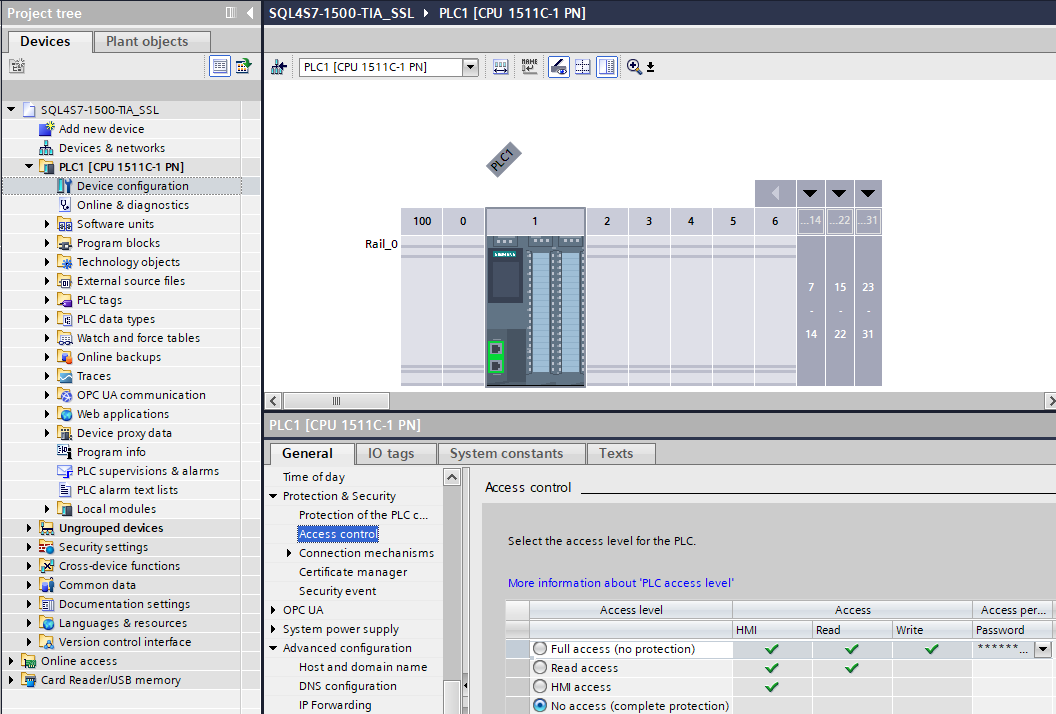
Pwd: SQL4automation
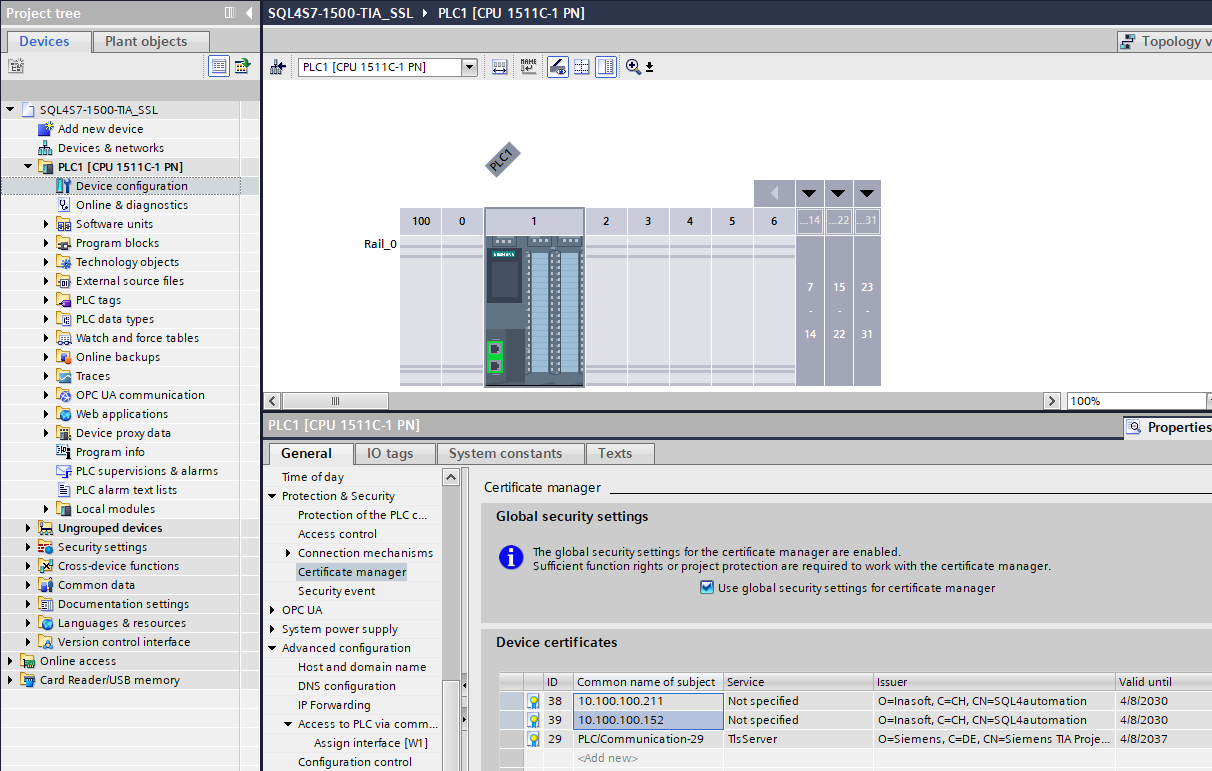
Das Server- und das Client-Zertifikat muss mit «add new» in die Liste aufgenommen werden.
-
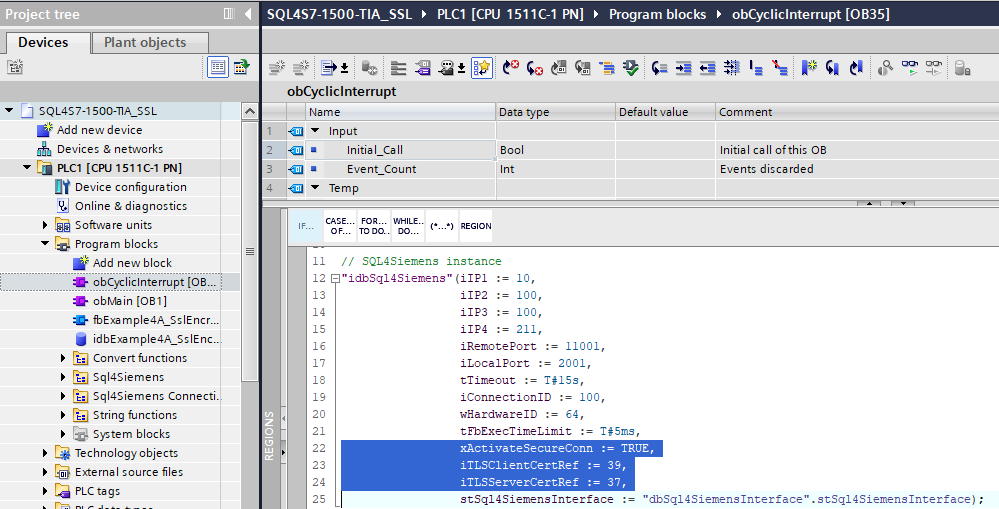
Beim Instanzaufruf von SQL4Siemens die Verschlüsselung aktivieren und die entsprechenden Zertifikate über die Nummern referenzieren.
-
xActivateSecureConn: TRUE
-
iTLSClientCertRef: <Nummer des Client.p12-Zertifikats>
-
iTLSServerCertRef: <Nummer des RootCA.p12-Zertifikats>
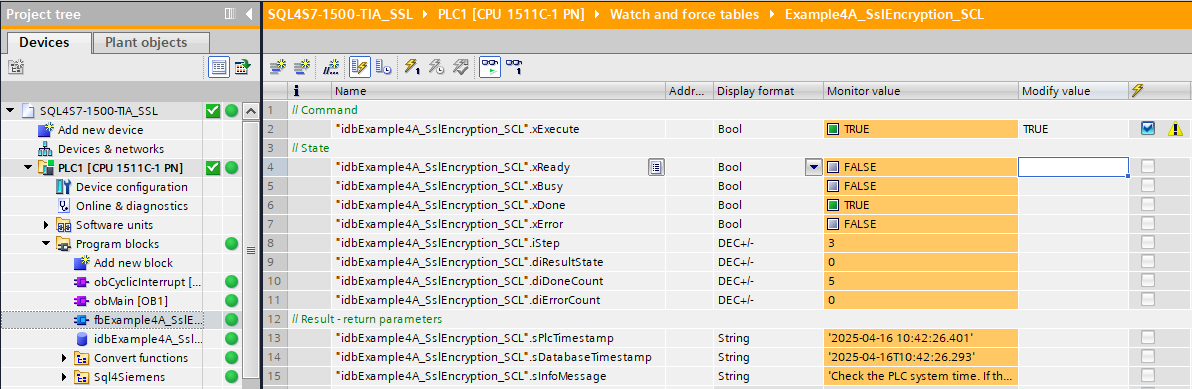
Bei einer erfolgreichen Abfrage werden in der Antwort-Tabelle plausible Werte angezeigt und der Status zeigt «xDone».