Siemens S7-1200/1500 / TIA13
Target: "Siemens S7"
Voraussetzungen
Die Kommunikation erfolgt auf den Siemens S7-1200 / 1500 Steuerungen über die Profinet-Schnittstelle.
Folgende Bausteine werden für die Anbindung an den Connector benötigt:
• Alle Bausteine im Ordner «Program blocks» 🡪 «SQL4Siemens»
• Alle Datentypen im Ordner «PLC data types» 🡪 «SQL4Siemens»
• MOVE_BLK_VARIANT
• TRCV_C (nur bei S7-1200)
• TSEND_C
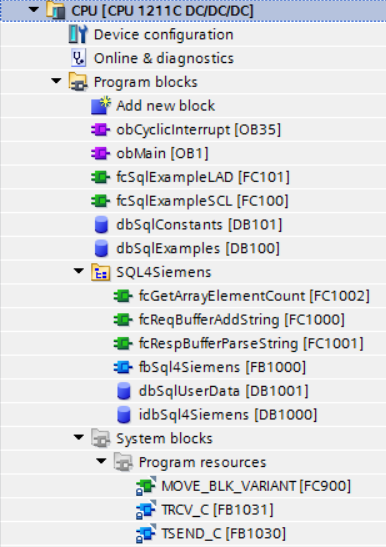
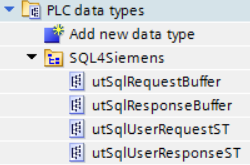
Beachten Sie, dass sich der Baustein «fbSql4Siemens» für die S7-1200 und die S7-1500 unterscheidet. Der Grund liegt in der Tatsache, dass der Datenempfang für die beiden Steuerungsfamilien unterschiedlich gelöst werden musste, da die TRCV-Bausteine von Siemens unterschiedliche Parameter haben.
Aus diesem Grund gibt es für beide Steuerungsfamilien ein eigenes Beispiel-Projekt.
Aufruf fbSql4Siemens
Der Baustein «fbSql4Siemens» wird zyklisch aufgerufen. Wir empfehlen, dies über einen zeitgesteuerten OB (z.B. OB35, T=10ms) zu tun. Folgende Parameter werden belegt:
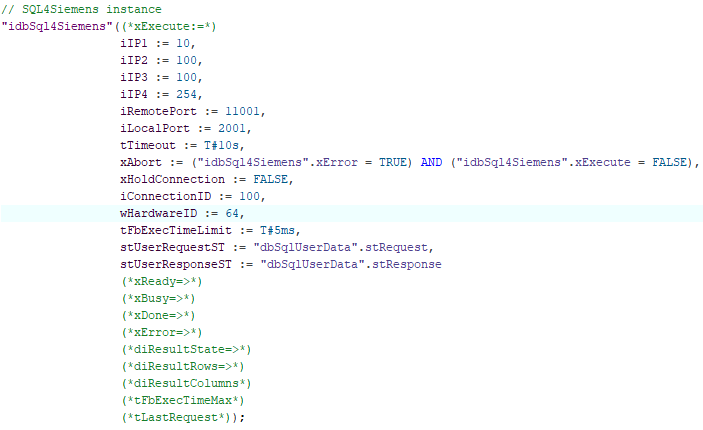
Parameter von fbSql4Siemens
xExecute           : BOOL;                 // Datenbankanfrage starten
iIP1               : INT;                  // 1. Stelle der eingestellten IP-Adresse des SQL4automation-Connectors
iIP2               : INT;                  // 2. Stelle der eingestellten IP-Adresse des SQL4automation-Connectors
iIP3               : INT;                  // 3. Stelle der eingestellten IP-Adresse des SQL4automation-Connectors
iIP4               : INT;                  // 4. Stelle der eingestellten IP-Adresse des SQL4automation-Connectors
iRemotePort        : INT;                  // Eingestellte Port-Nummer des SQL4automation-Connectors
iLocalPort         : INT;                  // Port, der lokal auf der Steuerung verwendet wird
tTimeout           : TIME;                 // Timeout in Sekunden
xAbort             : BOOL;                 // Reset
xHoldConnection    : BOOL;                 // Behält nach einer Datenbankabfrage die Socketverbindung offen
iConnectionID      : INT;                  // Eindeutige ID der Verbindung
wHardwareID        : BYTE;                 // ID der Ethernet-Schnittstelle (Details, siehe unten)
tFbExecTimeLimit   : TIME;                 // Zeit, welche dem Baustein pro Zyklus maximal zur Verfügung steht
stUserRequestST    : utSqlUserRequestST;   // Anfragestruktur (String-Tabelle)
stUserResponseST   : utSqlUserResponseST;  // Antwortstruktur (String-Tabelle)
xReady             : BOOL;                 // Bereit für eine Datenbankabfrage
xBusy              : BOOL;                 // Datenbankabfrage läuft
xDone              : BOOL;                 // Datenbankabfrage abgeschlossen
xError             : BOOL;                 // Datenbankabfrage endete mit einem Fehler
diResultState      : DINT;                 // Status Datenbankabfrage / Fehlernummer
diResultRows       : DINT;                 // Anz. erhaltene Zeilen aus der Datenbankabfrage
diResultColumns    : DINT;                 // Anz. erhaltene Spalten aus der Datenbankabfrage
tFbExecTimeMax     : TIME;                 // Gemessene maximale Nutzungszeit des Bausteins
tLastRequest       : TIME;                 // Gemessene Zeit der letzten Anfrage
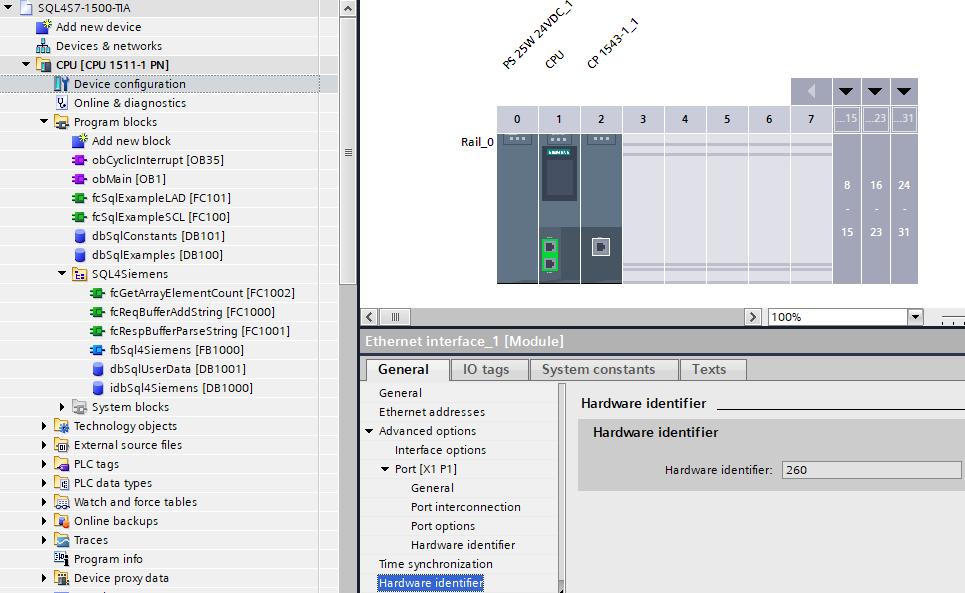
wHardwareID ermitteln: Die Hardware-ID ist in der Gerätekonfiguration ersichtlich. Beim Selektieren der gewünschten Schnittstelle werden die Details eingeblendet.
Beispiel einer 1200 OnBoard-Schnittstelle:
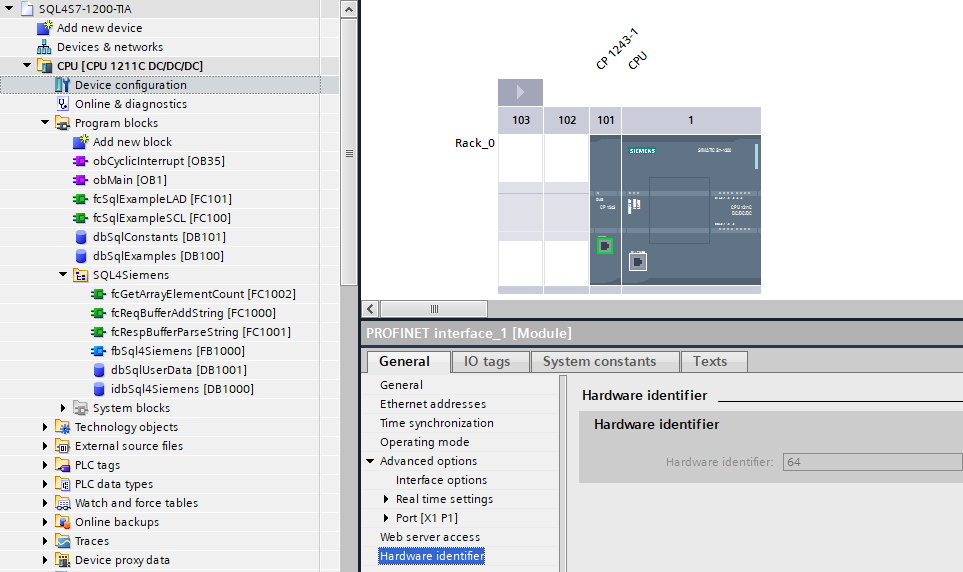
Beispiel einer 1500 CP-Schnittstelle:
Datenbausteine
idbSql4Siemens – Instanz-Datenbaustein zur internen Verwendung des Funktionsblocks Sql4Siemens.
dbSqlUserData – Benutzerdaten wie Request-String-Array oder Antwort-String-Tabelle
Datentypen (UDT)
utSqlUserRequestST – Enthält das Anfrage-String-Array und die dazugehörende Größe.

utSqlUserResponseST – Enthält die Antwort-String-Tabelle und die Informationen über Anzahl Spalten, Anzahl Datensätze und String-Länge.

utSqlRequestBuffer – Datenpuffer zum Senden der SQL-Anfragen. Die Größe der Datenstrukturen wird im Baustein «fbSql4Siemens» automatisch ermittelt.

utSqlResponseBuffer – Datenpuffer zum Empfangen der SQL-Antworten. Die Größe der Datenstrukturen wird im Baustein «fbSql4Siemens» automatisch ermittelt.

Diese Datentypen können projektspezifisch angepasst werden. Je nach Größe der zu lesenden oder schreibenden Datenmengen werden hier die Array- bzw. Datenstrukturgrößen definiert.
Konfiguration des Connectors
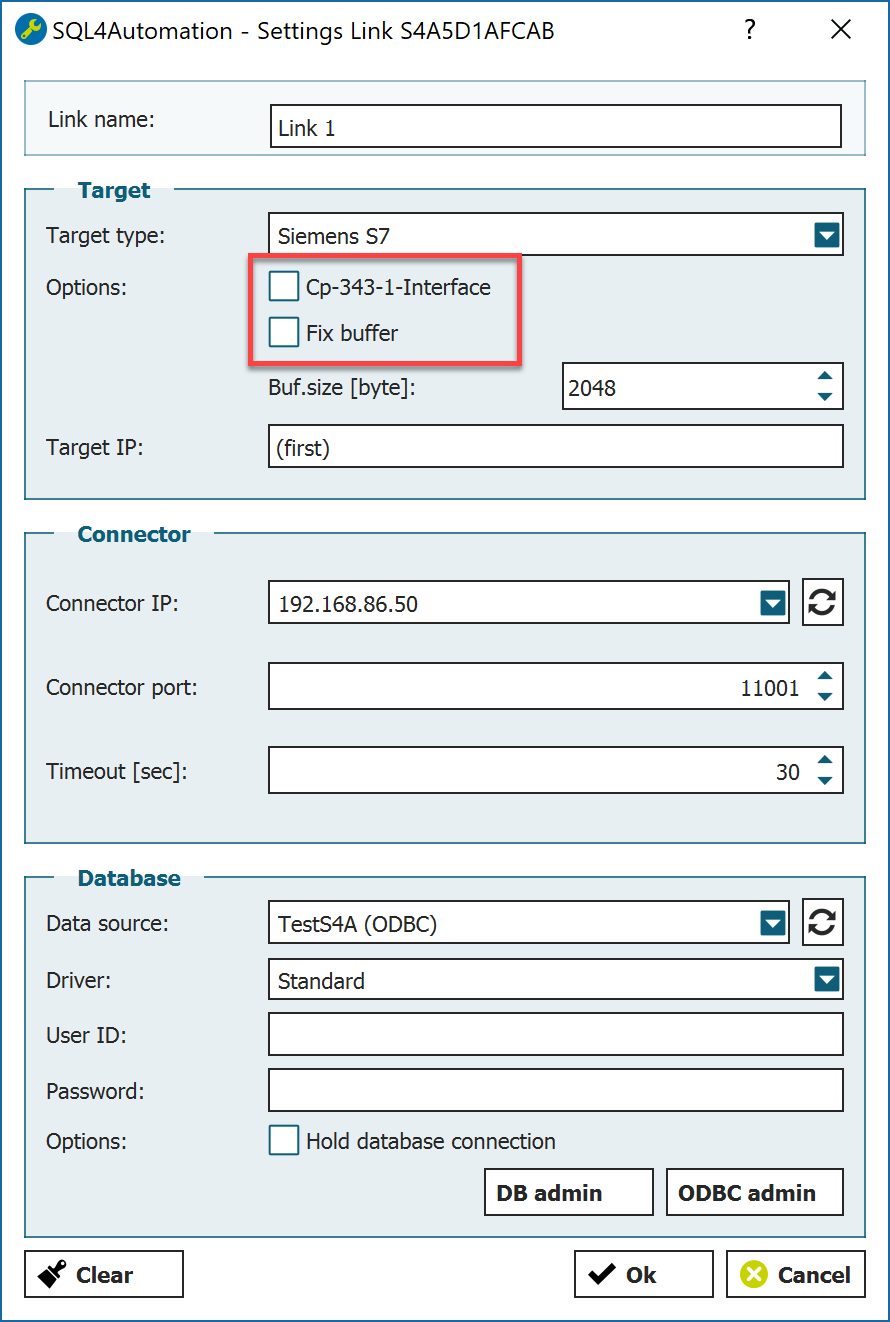
Bei dem angewählten Siemens-Target im Connector müssen weitere Optionen definiert werden:
-
Empfangspuffer Größe des Empfangspuffers im utSqlResponseBuffer
-
CP 343-1 Interface Deaktivieren
-
Fix Buffer Deaktivieren
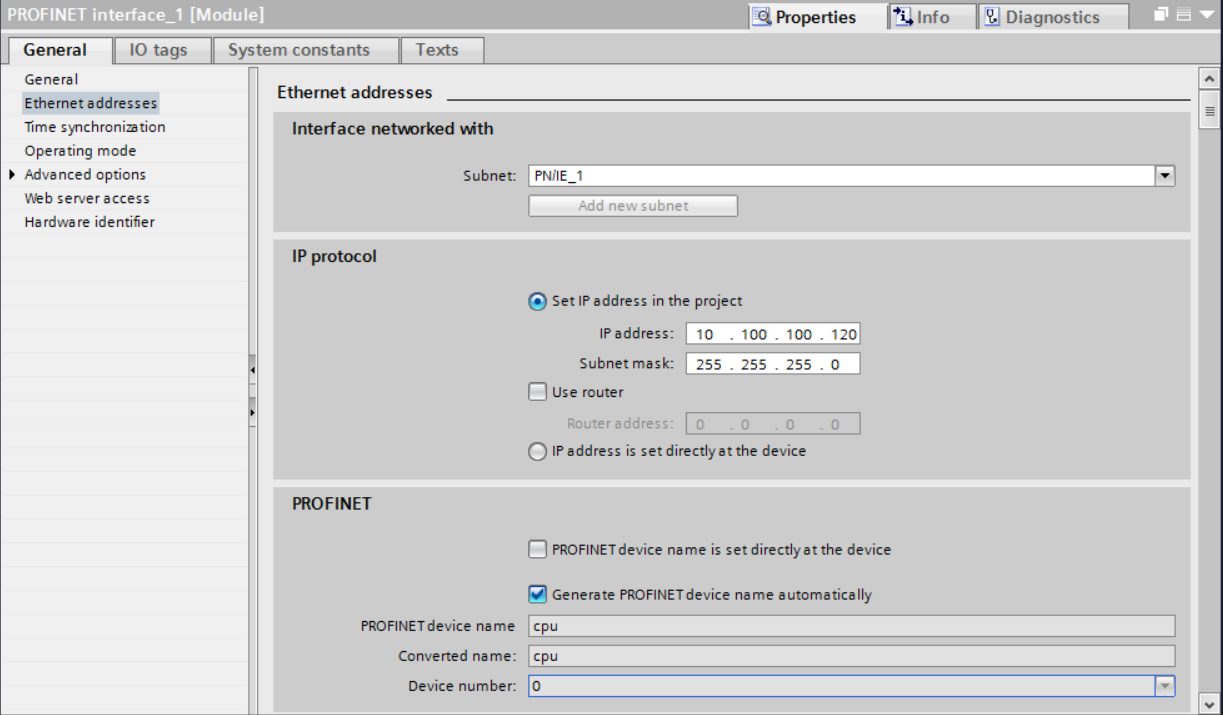
Einstellungen Ethernet-Schnittstelle
Um eine Kommunikation über die Ethernet-Schnittstelle auf der CPU und dem Connector herzustellen, muss diese parametriert werden. Die IP-Adresse der Ethernet-Schnittstelle muss im gleichen Netzwerkadressbereich mit gleicher Subnet-Maske sein, wie die des Connectors.
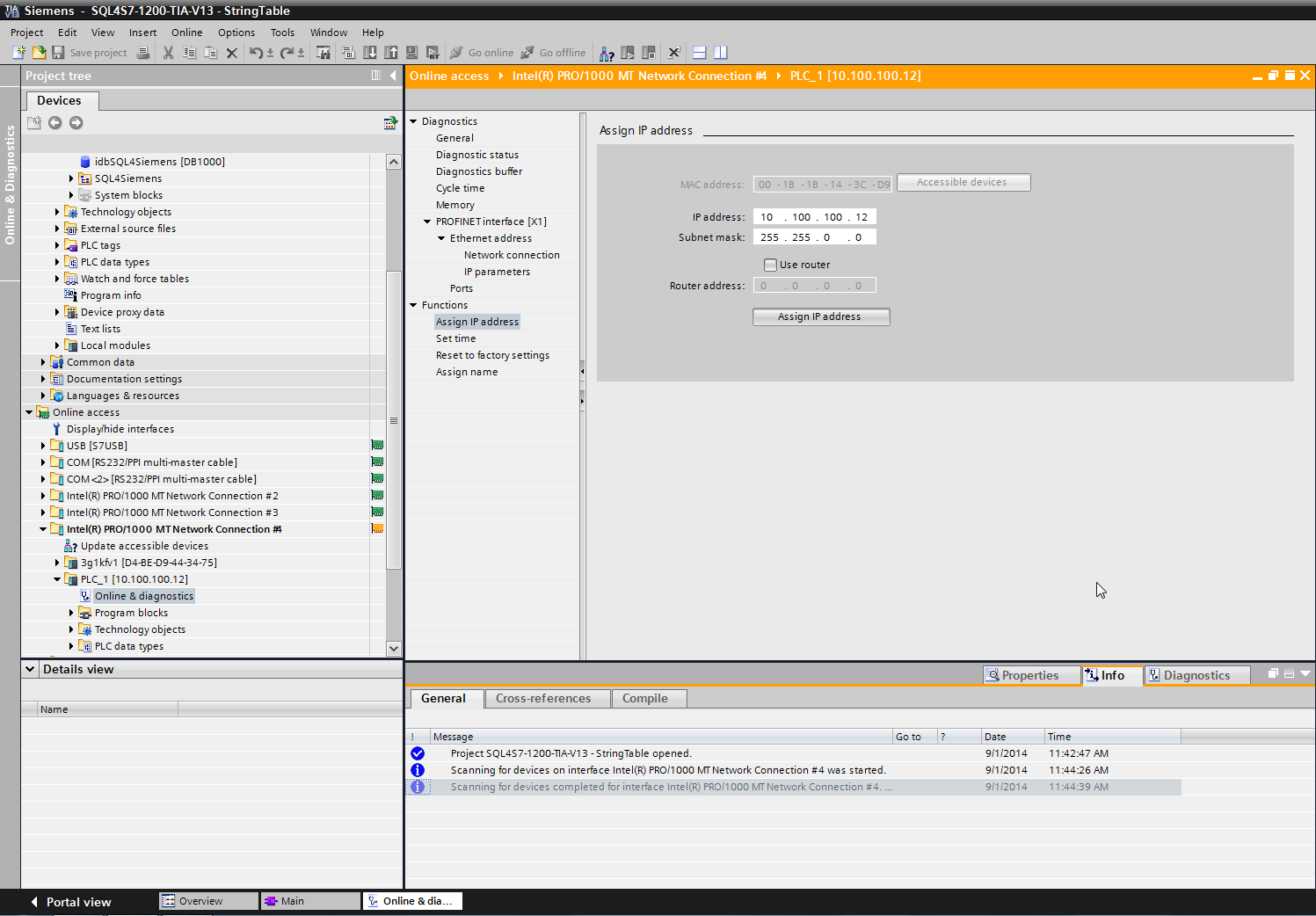
Unter „Online access“ befinden sich die verschiedenen Netzwerkkarten. Wählen Sie die Netzwerkkarte aus, mit welcher die Steuerung verbunden ist und scannen Sie das Netzwerk mit „update accessible devices“. Die Steuerung erscheint. Unter „Functions“, „Assign IP address“ kann eine neue IP Adresse und Subnetmaske vergeben und mit dem Button „Assign IP address“ an die Steuerung geschickt werden.
Das Beispielprojekt
Das Beispielprogramm von der Webseite sollte vor Anpassungen an die eigene Applikation zuerst zum Laufen gebracht werden. Dadurch sind etwaige Fehlerquellen einfacher zu finden.
Passen Sie die IP-Adresse und den Remote-Port beim Aufruf des Sql4Siemens im OB35 an Ihr System an.
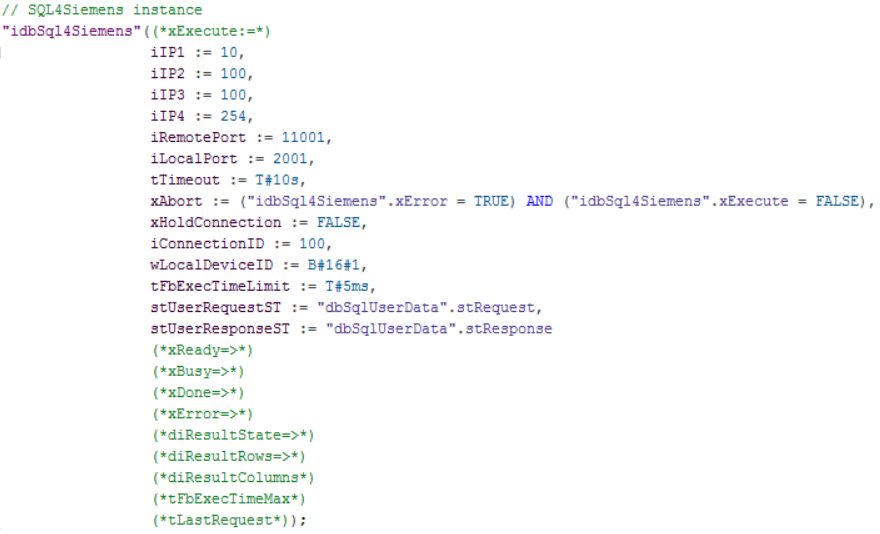
Der Connector muss gestartet und die Verbindung zur Beispiel-Datenbank „S4A_Test_DB.mdb“ konfiguriert sein.
Wie die Verbindung zur Testdatenbank konfiguriert wird, ist unter Einrichten der Verbindung an die Testdatenbank beschrieben.
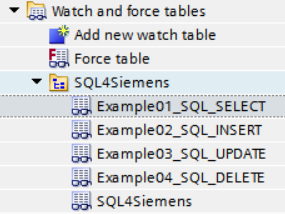
Das Beispielprogramm (OB1) zeigt eine Anwendung mit den 4 SQL-Grundbefehlen (SELECT, INSERT, UPDATE, DELETE) sowie den Umgang mit den SQL-Daten. Die einzelnen Funktionen können über folgende Beobachtungstabellen einfach bedient werden:
Laden des Beispielprogramms
Das Programm kann über den „Download to device“ Button auf die CPU geladen werden. Bei der ersten Verbindung muss der Verbindungspfad ausgewählt werden. Dabei wird für Type oft PG/PC interface: PN/IE, PG/PC interface: Die Netzwerkkarte mit welcher die Steuerung verbunden ist und Connection interface/subnet: PN/IE_1 ausgewählt.
Über „Start search“ kann die Steuerung gesucht werden. Die Steuerung wird ausgewählt und über den Button load wird das Projekt auf die Steuerung geladen.
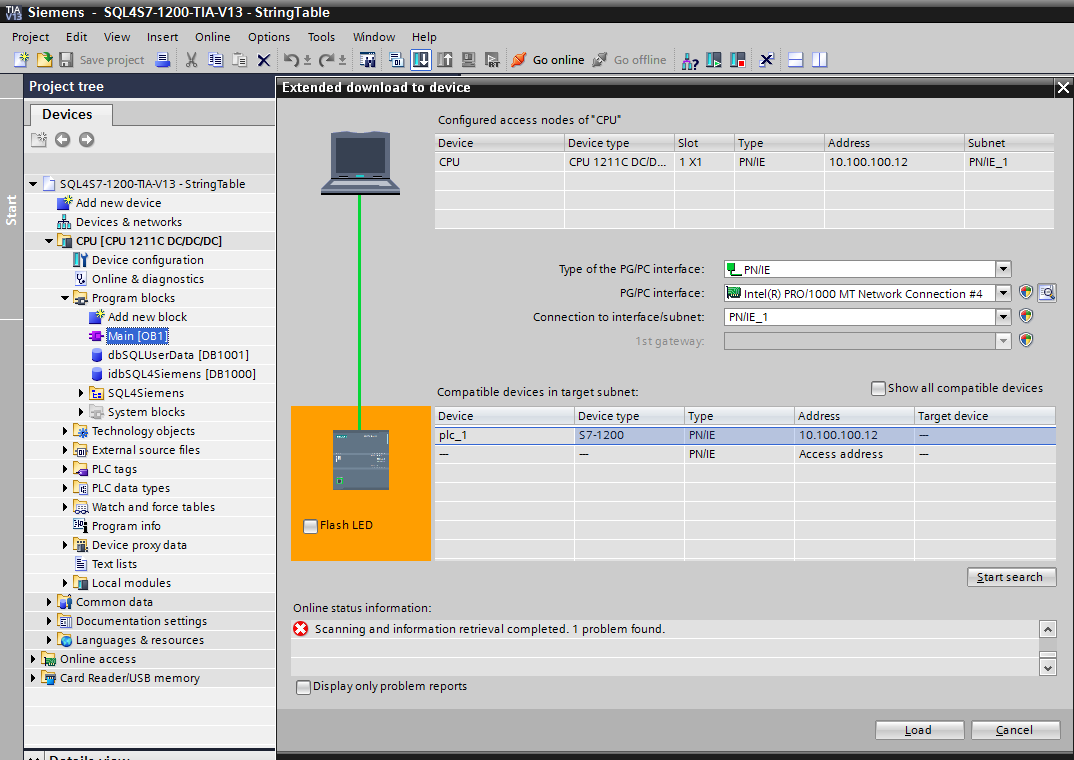
Falls das Projekt auf dem PC sich zu fest vom Projekt auf der Steuerung unterscheidet, was ja beim ersten Mal Laden der Fall ist, muss die Steuerung gestoppt werden.
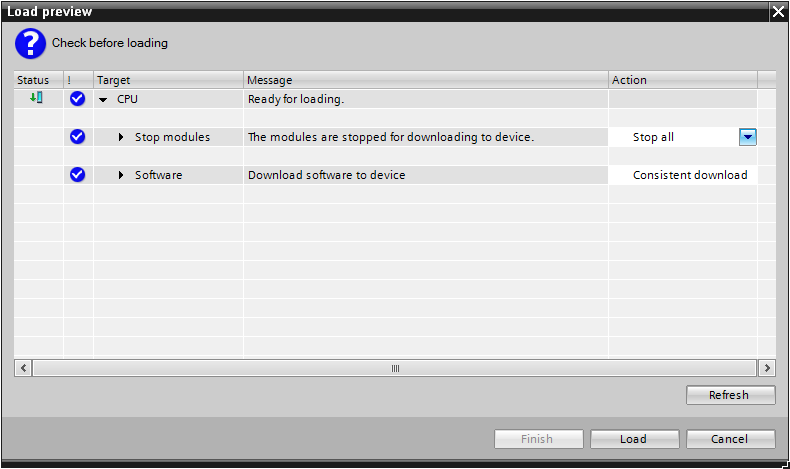
Nach dem Laden wird die Steuerung neu gestartet.
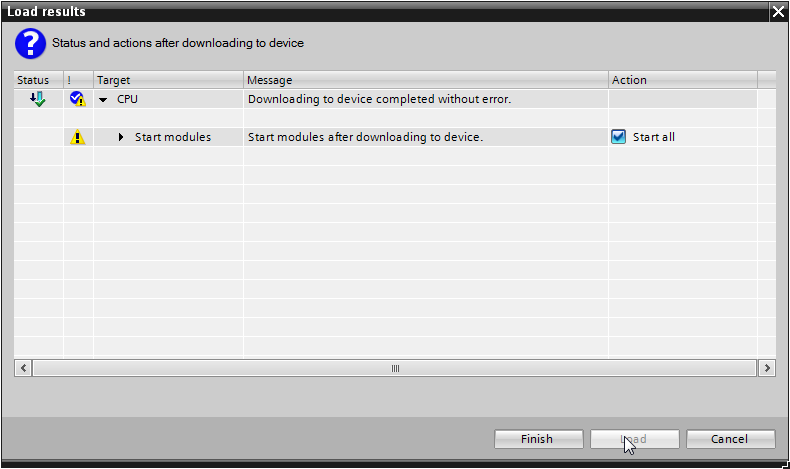
Bedienung des Beispielprogramms
Der Beispiel-Code wird aus dem OB1 aufgerufen. Es gibt zwei Bausteine, welche die gleiche Funktionalität aufweisen. Das eine Beispiel ist in SCL, das andere in LAD (KOP) programmiert.
Beobachtungstabelle «Example01_SQL_SELECT»
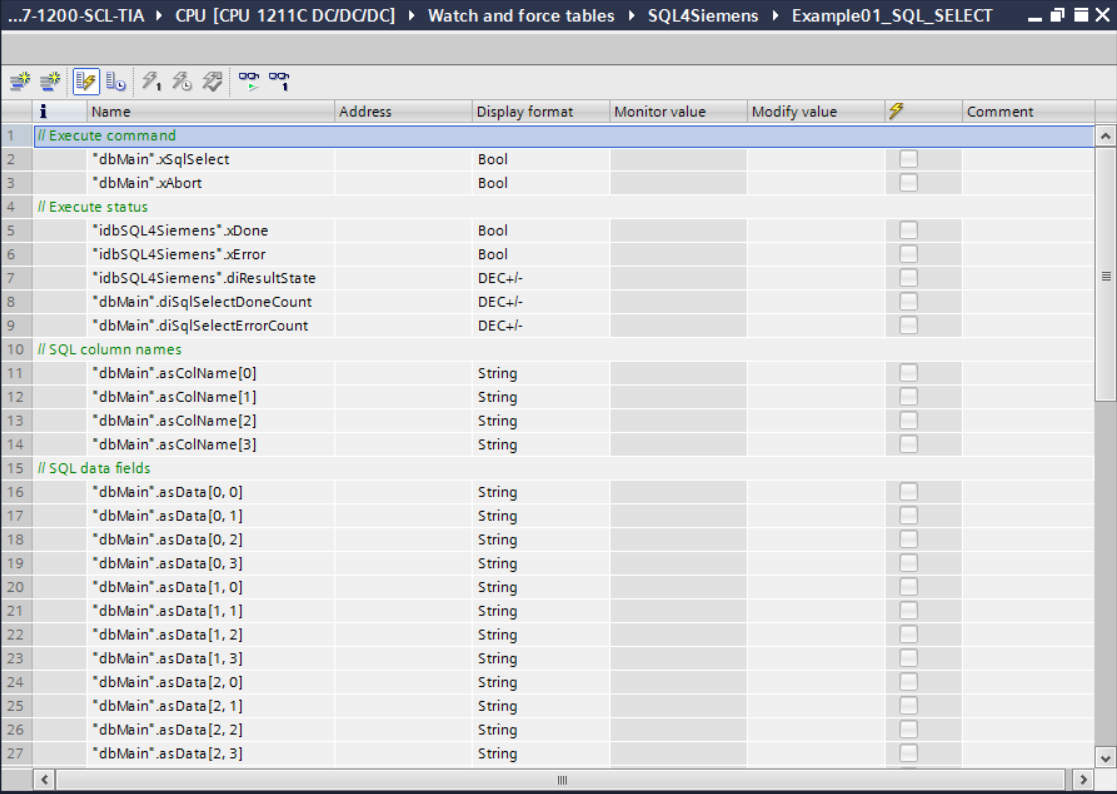
Durch Setzen der Variable «xSqlSelect» werden die letzten 5 Datensätze aus der Beispiel-Datenbank abgefragt. Bei einer erfolgreichen Abfrage wird der Zähler «diSqlSelectDoneCount» inkrementiert und die Daten (Spaltennamen und Datenfelder) werden angezeigt.
Wurde die Anfrage mit Fehler beendet, wird der Zähler «diSqlSelectErrorCount» inkrementiert. In diesem Fall wird der Fehlercode im Parameter «diResultState» angezeigt. Die Variable «xSqlSelect» muss manuell zurückgesetzt werden.
Beobachtungstabelle «Example02_SQL_INSERT»
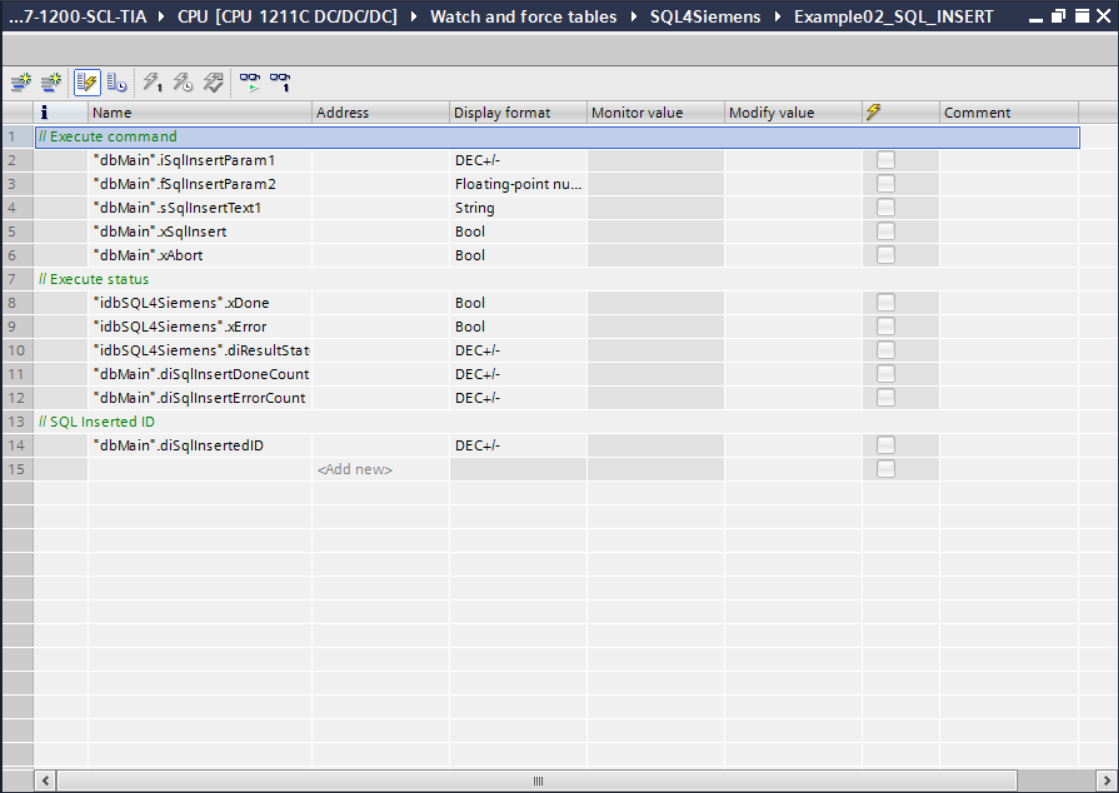
Durch Setzen der Variable «xSqlInsert» wird ein neuer Datensatz in die Beispiel-Datenbank eingefügt. Die Werte werden über die Parameter «iSqlInsertParam1», «fSqlInsertParam2» und «sSqlInsertText1» vorgegeben.
Bei einer erfolgreichen Ausführung wird der Zähler «diSqlInsertDoneCount» inkrementiert. Unter dem Parameter «diSqlInsertedID» ist ersichtlich, unter welcher ID (Primärschlüssel) der Datensatz in der Datenbank gespeichert wurde.
Wurde der Befehl mit Fehler beendet, wird der Zähler «diSqlInsertErrorCount» inkrementiert. In diesem Fall wird der Fehlercode im Parameter «diResultState» angezeigt. Die Variable «xSqlInsert» muss manuell zurückgesetzt werden.
Beobachtungstabelle «Example03_SQL_UPDATE»
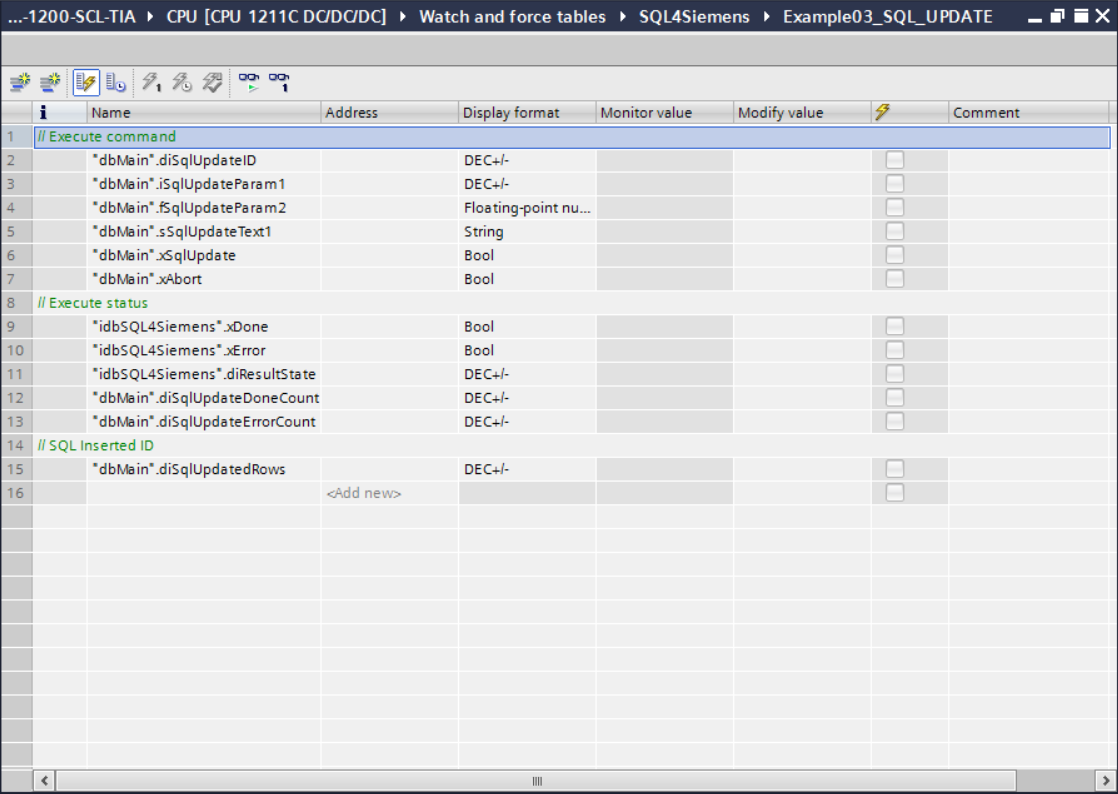
Durch Setzen der Variable «xSqlUpdate» wird ein bestehender Datensatz in der Beispiel-Datenbank aktualisiert. Mit dem Parameter «diSqlUpdateID» muss angegeben werden, welcher Datensatz aktualisiert werden soll. Die neuen Werte werden über die Parameter «iSqlUpdateParam1», «fSqlUpdateParam2» und «sSqlUpdateText1» vorgegeben.
Bei einer erfolgreichen Ausführung wird der Zähler «diSqlUpdateDoneCount» inkrementiert. Unter dem Parameter «diSqlUpdatedRows» ist ersichtlich, welcher Datensatz aktualisiert wurde (In diesem Beispiel 0 oder 1).
Wurde der Befehl mit Fehler beendet, wird der Zähler «diSqlUpdateErrorCount» inkrementiert. In diesem Fall wird der Fehlercode im Parameter «diResultState» angezeigt. Die Variable «xSqlUpdate» muss manuell zurückgesetzt werden.
Beobachtungstabelle «Example04_SQL_DELETE»
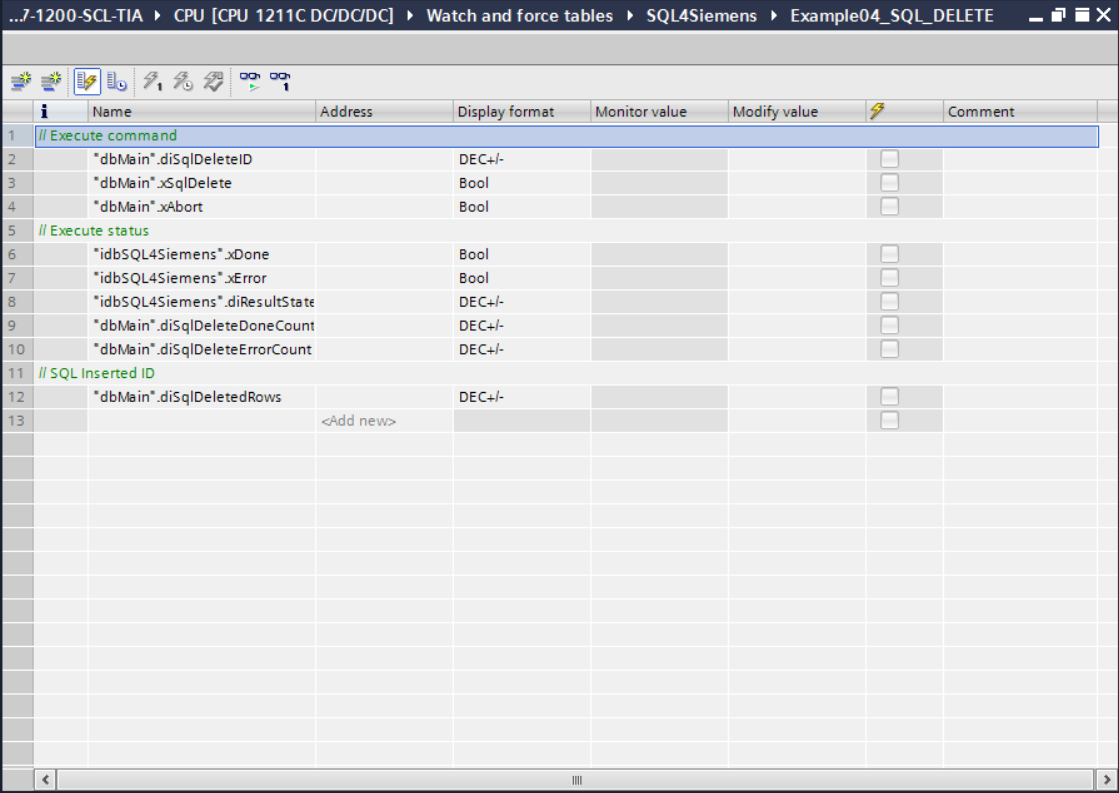
Durch Setzen der Variable «xSqlDelete» werden alle Datensätze in der Beispiel-Datenbank gelöscht, deren Nummer (Primärschlüssel) kleiner oder gleich dem Wert im Parameter «diSqlDeleteID» ist.
Bei einer erfolgreichen Ausführung wird der Zähler «diSqlDeleteDoneCount» inkrementiert. Unter dem Parameter «diSqlDeletedRows» ist ersichtlich, wie mancher Datensatz gelöscht wurde.
Wurde der Befehl mit Fehler beendet, wird der Zähler «diSqlDeleteErrorCount» inkrementiert. In diesem Fall wird der Fehlercode im Parameter «diResultState» angezeigt. Die Variable «xSqlUpdate» muss manuell zurückgesetzt werden.
Fehlercodes Return-Value
Die Variable “diResultState” beschreibt den Fehler.
| Fehler-Nummer | Fehler-Beschreibung |
|---|---|
| 1 | Unbekannter SQL Befehl |
| 2 | Abfrage ergibt mehr Datensätze als mit MaxRows definiert. Abfrage anpassen oder MaxRows vergrößern |
| 3 | Abfrage ergibt mehr Spalten als mit MaxColumns definiert. Abfrage anpassen oder MaxColumns vergrößern |
| 4 | Abfrage ergibt mehr Daten zurück als die definierte Puffergröße. Abfrage anpassen oder die Buffer-Größe im Connector und in der Steuerung vergrößern |
| 5 | Abfrage gibt min. ein Wert zurück, der größer ist als mit MaxStringLength definiert. Abfrage anpassen oder MaxStringLength vergrößern |
| 10 | Interner Connector Fehler |
| 11 | Interner Connector Fehler, Datenbank kann nicht geöffnet werden |
| 21 | Keine IP-Adresse definiert |
| 22 | Keine Portnummer definiert |
| 23 | Request-String ist leer |
| 24 | Anzahl MaxRows nicht definiert |
| 25 | Anzahl MaxColumns nicht definiert |
| 29 | Größe MaxStringLength ist ungültig |
| 41 | Keine Verbindung zum SQL4automation-Connector hergestellt. Firewall ausschalten, IP-Adresse und Remote-Port überprüfen |
| 51 | Fehler beim Senden der Anfrage. Firewall ausschalten, IP-Adresse und Remote-Port überprüfen |
| 91 | Timeout-Fehler. Keine Antwort vom Connector innerhalb des Zeitfensters |
| 95 | Fehler beim Empfangen der Daten |
| >100 | Fehlernummern der ODBC Datenbankanbindung |
| 40002 | Allgemeiner Fehler bei der SQL Abfrage. Request-String ist ungültig |