Datenquellen unter Linux
Unter Linux steht wie unter Windows die Anbindung der Datenbanken über ODBC zur Verfügung. Da jedoch nur wenige kostenlose ODBC-Treiber unter Linux erhältlich sind, wurden auch direkte Anbindungen der gängigsten Datenbanken implementiert. Die verschiedenen Datenbankanbindungen unter Linux müssen erst installiert werden. ODBC und die direkten Anbindungen an MySQL, PostgreSQL und TDS werden direkt von der Paketverwaltung von Linux zur Verfügung gestellt. Zur Installation können die Scripts im Plugins-Ordner von Setup_S4A_Linux.zip ausgeführt werden.
ODBC unter Linux
Unter Linux kann via ODBC eine Verbindung an eine Datenbank hergestellt werden. Da ein kostenloser ODBC-Treiber für die Verbindung an einen Microsoft SQL Server zur Verfügung steht, wird die Vorgehensweise anhand dieser Verbindung erklärt.
Diese Anleitung beschreibt, wie eine Verbindung von einem Linux-Rechner an einen MS SQL Server über ODBC hergestellt werden kann. Auf dem einen Rechner befindet sich Ubuntu, auf dem der SQL4automation Connector läuft, auf dem anderen Rechner ein Microsoft SQL Server auf Windows. Für die Verbindung werden die Treiber FreeTDS (www.freetds.org) und UnixODBC (www.unixodbc.org) verwendet.
MS SQL-Server für Remotezugriff konfigurieren
Wenn ein Microsoft SQL Server neu aufgesetzt wurde, ist der Remotezugriff standardmäßig ausgeschaltet. Mit dem Microsoft SQL Server Management Studio kann der Remotezugriff erlaubt werden.
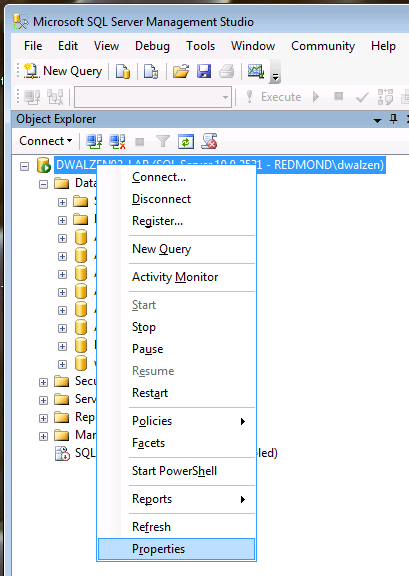
Ein Rechtsklick auf den Server und die Auswahl von Eigenschaften öffnet das Einstellungsfenster.
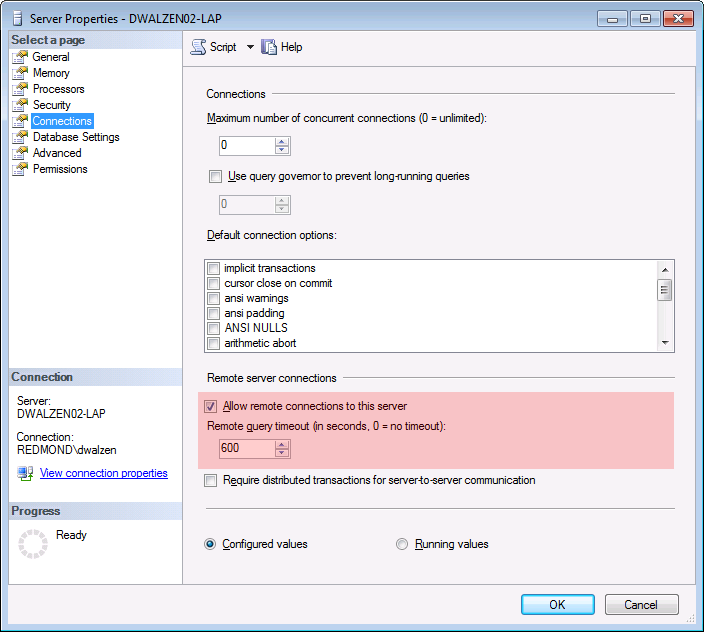
Unter Verbindungen kann die Checkbox „Remoteverbindungen zu diesem Server zulassen“ angewählt werden.
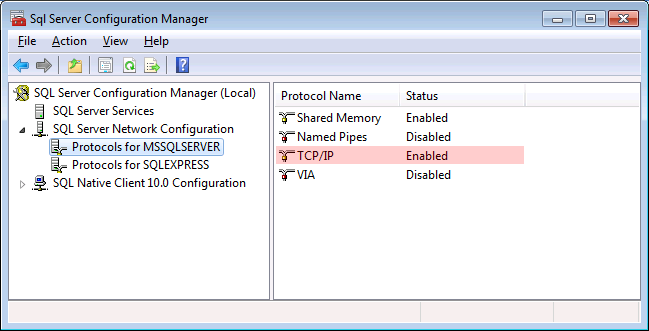
Außerdem muss unter den Einstellungen im SQL Server Configuration Manager die Option TCP/IP aktiviert sein:
Testen der Verbindung zum Port des MS SQL Servers
Vom Linux-Rechner kann man zuerst kontrollieren, ob der Port des MS SQL Servers erreichbar ist. Dies geschieht wie bei Windows mit telnet.
telnet <IP-Address> <Port number>
Example: telnet 192.168.25.1 1433
Tools installieren
Falls keine Verbindung auf diesen Port hergestellt werden kann, muss der entsprechende Port in den Einstellungen der Firewall freigegeben werden.
Die Tools FreeTDS und UnixODBC müssen installiert werden.
sudo apt-get install freetds-dev tdsodbc unixodbc unixodbc-dev
…oder führen Sie einfach das Script PluginODBC-inst im Plugins-Ordner der Datei Setup_S4A_Linux.zip aus.
Die Einstellungen der Verbindung müssen in zwei Dateien vorgenommen werden. Dies sind odbc.ini und odbcinst.ini. Diese beiden Dateien befinden sich im Falle unseres Beispiels im Pfad /etc.
Die Dateien können mit dem Texteditor pico geöffnet werden.
Beispiel: sudo pico odbc.ini
odbcinst.ini
In der odbcinst.ini wird der Pfad des ODBC-Treibers angegeben.
[<Treiberbezeichnung>]
Description = <TreiberDescription>
Driver = <Pfad des Treibers>
Beispiel:
[FreeTDS]
Description = FreeTDS
Driver = /usr/lib/i386-linux-gnu/odbc/libtdsodbc.so
odbc.ini
Die odbc.ini beschreibt die Verbindung zum MS SQL Server
[<Verbindungsbezeichnung>]
description = <VerbindungsDescription>
Driver = <Treiberbezeichnung aus odbcinst.ini>
Server = <IP-Adresse des MS SQL Servers>
Port = <Post des MS SQL Servers>
Database = <Datenbankbezeichnung>
Beispiel:
[SQL4automation]
description = "Verbindung zu MS SQL Server SQL4automation"
Driver = FreeTDS
Server = 192.168.25.1
Port = 1433
Database = SQL4A
Testen der ODBC-Verbindung
Um zu testen, ob die Tools richtig installiert und die ODBC-Verbindung richtig konfiguriert wurde, wird der Befehl isql ausgeführt.
isql -v <Verbindungsbezeichnung> <Benutzername MS SQL Server Benutzer> <Passwort MS SQL Server>
Beispiel:
isql -v SQL4automation root sql4automation
Die Verbindung sollte erfolgreich hergestellt werden können:
+---------------------------------------+
| Connected!                            |
|                                       |
| sql-statement                         |
| help [tablename]                      |
| quit                                  |
|                                       |
+---------------------------------------+
SQL>
Auswählen der ODBC-Verbindung im SQL4automation Connector
In den Linkeinstellungen des SQL4automation Connectors können die in der odbc.ini angelegten ODBC-Verbindungen ausgewählt werden. Eventuell muss die Anzeige erst durch Klicken auf den „Update“-Button neu geladen werden.
Direkte Datenbankanbindungen unter Linux
Unter Linux werden vom SQL4automation Connector direkte Datenbankanbindungen für die Datenbanken MySQL, SQLite, IBM DB2, Borland InterBase, Oracle OCI und Sybase Adaptive Server TDS zur Verfügung gestellt. Allerdings müssen die Datenbanktreiber von der Linux-Paketverwaltung erst installiert werden. Im Plugins-Ordner von Setup_S4A_Linux.zip kann einfach das jeweilige Script ausgeführt werden.
Erstellen einer neuen direkten Datenbankanbindung unter Linux
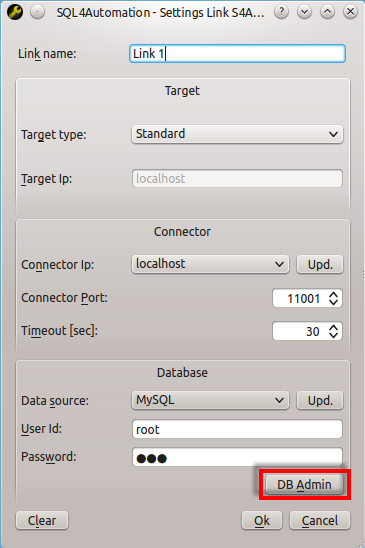
Unter Linux kann in den Linkeinstellungen der DB Admin angewählt werden.
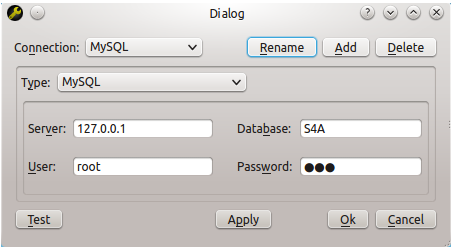
Mit „Add“ kann eine neue Datenbankanbindung hinzugefügt, mit „Rename“ deren Name verändert werden.
Folgende Eingaben sind notwendig:
Server: IP des Datenbankservers; falls sich der Server auf demselben PC wie der Connector befindet: 127.0.0.1. Für SQLite-Datenbanken wird hier der Pfad der Datenbank eingegeben.
Database: Name der Datenbank; bei SQLite-Datenbanken wird hier der Name der Datenbank eingetragen.
User: Benutzername
Password: Passwort
Auswählen der Datenbankverbindung im SQL4automation Connector
In den Linkeinstellungen des SQL4automation Connectors können die im DB Admin angelegten Datenbankverbindungen ausgewählt werden. Eventuell muss die Anzeige erst durch Klicken auf den „Update“-Button neu geladen werden.