Einrichten der Firewall
Oftmals werden die Anfragen zwischen Steuerung und Connector durch die Firewall blockiert. Hier wird gezeigt, wie eine neue Regel der Firewall hinzugefügt wird, um Verbindungen auf den Connector zuzulassen. Das Beispiel wird anhand der Windows-Firewall erklärt.
Öffnen Sie die Firewalleinstellungen auf dem PC, auf dem der SQL4automation Connector installiert ist. Unter Windows 10 befinden sich diese unter [Start - Systemsteuerung - System und Sicherheit - Windows Defender Firewall]:
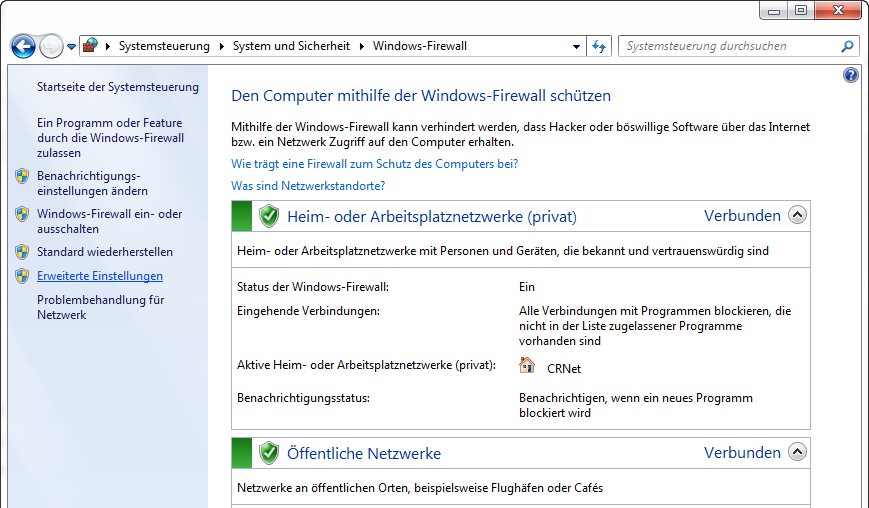
Unter den erweiterten Einstellungen können neue Regeln hinzugefügt werden.
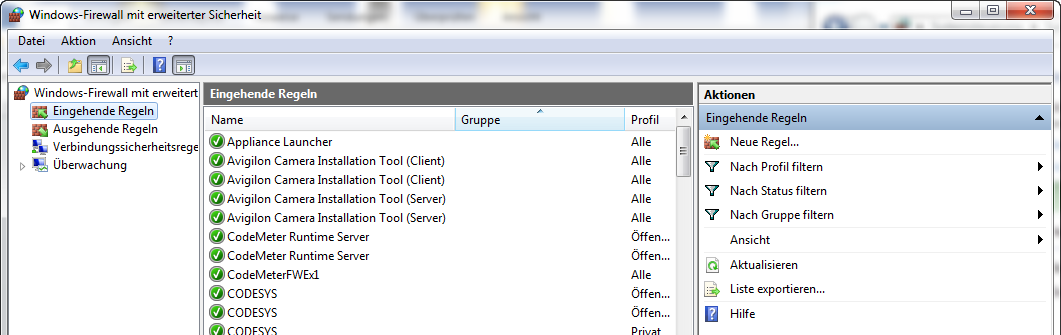
Eine neue eingehende Regel hinzufügen.
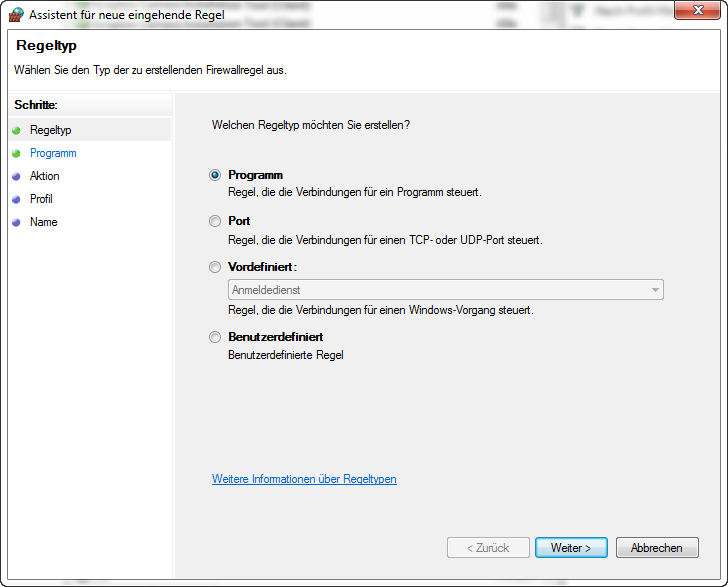
Hier können Sie entweder ein Programm hinzufügen oder einzelne Ports freigeben.
Eine neue Regel für ein Programm erstellen
Wenn eine Firewallregel für ein Programm erstellt wird, können jegliche Verbindungen zu diesem Programm freigegeben werden.
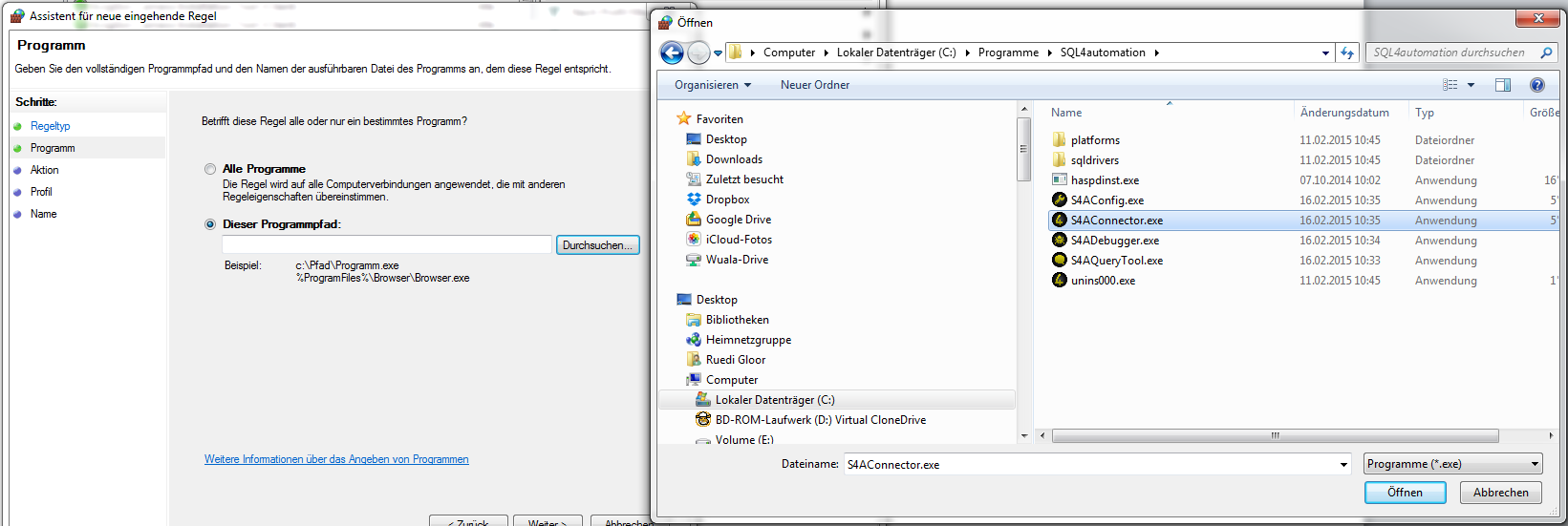
Wählen Sie die SQL4automation.exe im SQL4automation-Installationspfad aus.
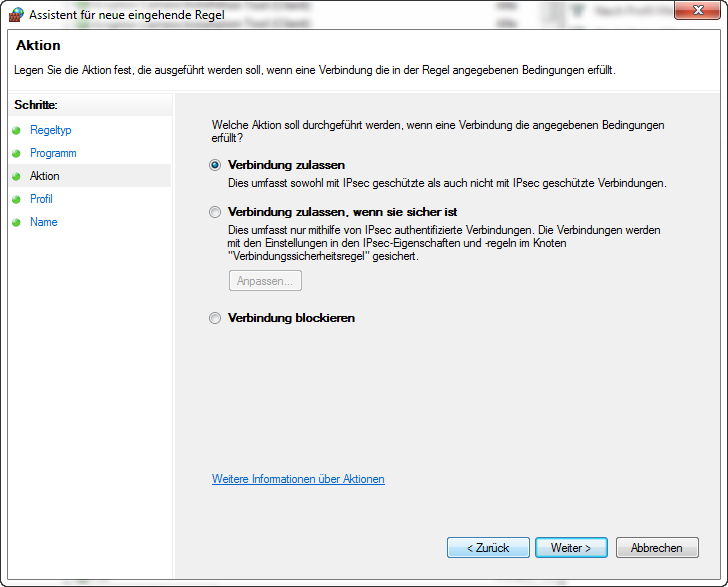
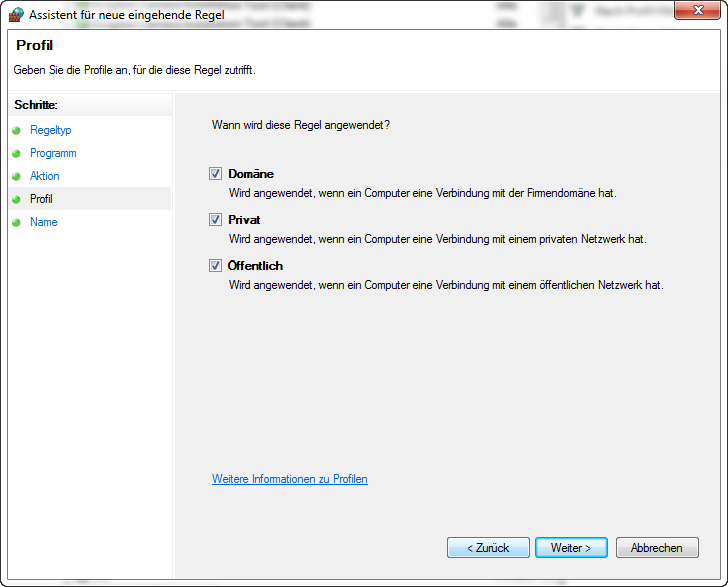
Verbindungen zulassen. In allen Netzwerken zulassen. Anschließend muss der Regel noch ein geeigneter Name vergeben und die Regel gespeichert werden.
Eine neue Regel für einen oder mehrere Ports festlegen
Es können auch Firewallregeln nur für einen oder mehrere Ports erstellt werden.
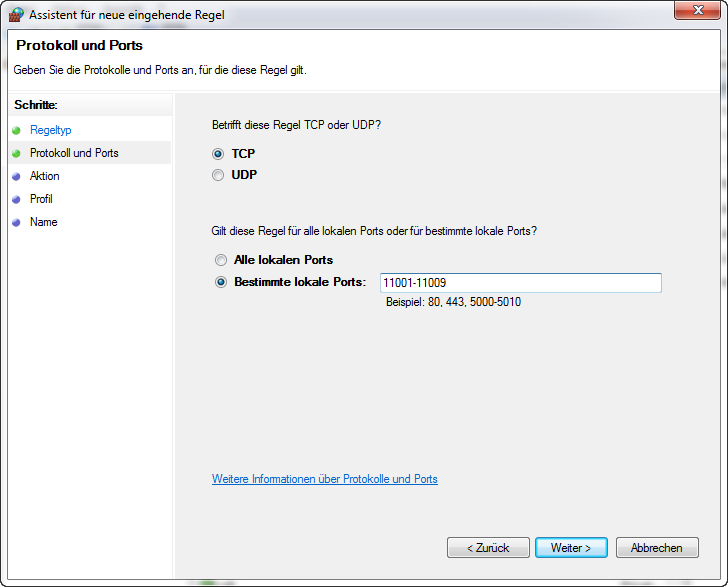
Den oder die jeweiligen Ports eintragen.
Verbindungen zulassen. In allen Netzwerken zulassen. Anschließend muss die Regel noch benannt und gespeichert werden.
Weitere Firewallregeln
Bitte beachten Sie, dass auch die Verbindung zwischen dem Connector und der Datenbank durch Firewalls geblockt werden kann, falls sich der Connector und die Datenbank nicht auf demselben Rechner befinden.
Bitte wenden Sie sich dazu an Ihren Netzwerkadministrator.